
↓ Skip to Main Content
Cyberchimps Logo

Main Navigation

  • Products
    • Responsive Theme
    • Responsive Plus Plugin
    • Responsive Addons for Elementor
    • Responsive Blocks Plugin
  • Starter Templates
    • Free Templates
    • Premium Templates
  • For Agencies
  • Pricing
  • Login
Get Started
Cyberchimps Logo

Off Canvas Menu

  • Products
    • Responsive Theme
    • Responsive Plus Plugin
    • Responsive Addons for Elementor
    • Responsive Blocks Plugin
  • Starter Templates
    • Free Templates
    • Premium Templates
  • For Agencies
  • Pricing
  • Login

Installation & Updates

1
  • How to Install & Activate the Responsive Addons for Elementor

Widgets

91
  • Animations Extension
  • RAE Duplicator
  • Product Related
  • RAE Product Data Tabs
  • Stacking Cards
  • Before After Image Slider
  • Image Gallery
  • Advanced Tabs
  • Archive Posts
  • Archive Title
  • Audio Player
  • Author Box
  • Banner
  • Breadcrumbs
  • Business Hour
  • Button
  • Contact Form 7 Styler
  • Call To Action
  • Custom Add To Cart
  • Content Switcher
  • Countdown
  • Facebook Feed
  • ย Data Table
  • Divider
  • Dual Color Header
  • FAQ
  • FlipBox
  • Featured Image
  • Feature List
  • Fancy Text
  • Icon Box
  • Gravity Forms Styler
  • Google Map
  • Image Hotspot
  • LearnDash Course List
  • Lottie
  • Logo Carousel
  • Mailchimp Styler
  • Login & Register
  • Media Carousel
  • Menu Cart
  • Modal Popup
  • MultiButton
  • Nav Menu
  • OffCanvas
  • Portfolio
  • Post Comments
  • Post Content
  • Post Excerpt
  • Post Info
  • Post Navigation
  • Post Title
  • Posts
  • Post Carousel
  • Price Box
  • Price List
  • ย Pricing Table
  • Product Carousel
  • Product Category Grid
  • Products
  • Progress Bar
  • Reviews
  • Search Form
  • Site Logo
  • Slider
  • Sticky Section
  • Sticky Video
  • Table of Contents
  • Team Member
  • Testimonial Slider
  • Theme Builder
  • Timeline
  • Twitter Feed
  • Video
  • WooCommerce Breadcrumbs
  • WP Forms Styler
  • One Page Navigation
  • Content Ticker
  • Woo Checkout
  • Back to Top
  • Particle Backgrounds for Elementor
  • Product Price
  • Product Image
  • Product Stock
  • Product Upsells
  • Product Meta
  • Product Title
  • Product Rating
  • Product Content
  • Product Short Description
  • Product Additional Information
View Categories
  • Home
  • Docs
  • Responsive Addons For Elementor
  • Widgets
  • OffCanvas

OffCanvas

Display stunning sidebar menu using Responsive Addons for Elementor (RAE) OffCanvas widget. Customize the direction, button style and content to be added to the sidebar.

Content

OffCanvas content

Offcanvas content
  1. 1.Open OffCanvas By Default – This setting is useful when you are styling the sidebar section so that you can see the changes dynamically.
  2. 2.Title – You can set the Title of the Sidebar.
  3. 3.Content Type – You can choose the content type for sidebar menu from the following options:
    1. 1.Sidebar – It allows you to choose the default WordPress sidebar to show in the sidebar.
    2. 2.Custom Content – You can set custom content to the sidebar by adding media, shortcode or changing the title or text content. (Selecting this option, displays a repeater for the sidebar)
    3. 3.Saved Section – You can choose from the saved section templates.
    4. 4.Saved Widget – You can choose from the saved widget templates. (Elementor Pro required)
    5. 5.Saved Page Template – You can choose from the saved page templates.

Toggle Button
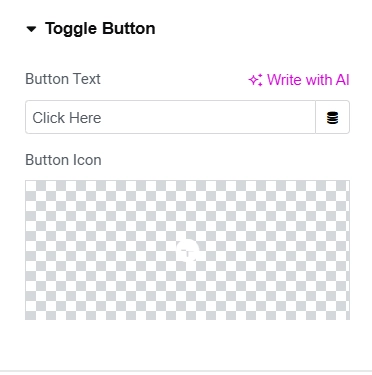
Toggle button
  1. 1.Button Text – You can add the button text for the toggle button.
  2. 2.Button Icon – You can insert an icon with the toggle button.

Settings

Offcanvas settings
  1. 1.Direction – You can set the direction of the sidebar menu to show either on the left or the right.
  2. 2.Content Transition – You can set the transition for the sidebar menu to show. (Slide, Reveal, Push, Slide Along)
  3. 3.Show Close Button – You can choose to show the close button on the sidebar.
  4. 4.Esc to Close – You can choose this Option to close the sidebar by pressing the ESC keyboard button.
  5. 5.Click Anywhere to Close – You can choose this Option to close the sidebar by clicking anywhere.

Style

OffCanvas Bar

Offcanvas bar
  1. 1.Width – You can adjust the width of the sidebar menu.
  2. 2.Background Color – You can adjust the background color of the sidebar menu.
  3. 3.Image – You can choose the background image for the sidebar menu.
  4. 4.Border Type – You can select the border type, border width, border color for the sidebar.
  5. 5.Border Radius – You can select the border radius for the sidebar border.
  6. 6.Padding – You can adjust the padding for the sidebar menu.
  7. 7.Box Shadow – You can set the box shadow for the sidebar menu.

Offcanvas Title

Offcanvas title
  1. 1.Color – You can set the color for the OffCanvas title.
  2. 2.Typography – You can set the typography such as font size, font family, etc. for the OffCanvas title.

Toggle Button

Toggle button style
  1. 1.Alignment – You can choose the alignment for the toggle button.
  2. 2.Size – You can set the size of the toggle button.
  3. 3.Icon Size – You can set the size of the icon of the toggle button.
  4. 4.Icon Space – You can adjust the spacing between the icon and text of the toggle button.
  5. 5.Background Color – You can set the background color of the toggle button.
  6. 6.Text Color – You can set the color of toggle button text.
  7. 7.Border Type – You can select the border type, border width, border color for the toggle button.
  8. 8.Border Radius – You can select the border radius for the toggle button border.
  9. 9.Padding – You can adjust the padding for the toggle button.
  10. 10.Box Shadow – You can set the box shadow for the toggle button.
  11. 11.Typography – You can set the typography such as font size, font family, etc. for the toggle button text.

Close Button
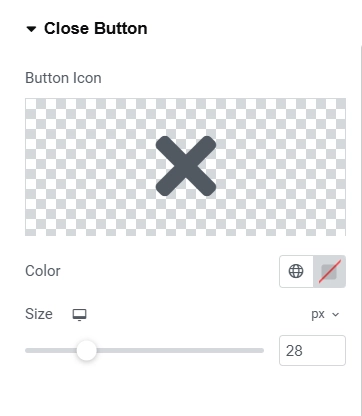
Close button style
  1. 1.Button Icon – You can select the close button icon from the icons library.
  2. 2.Color – You can choose the color for the close button.
  3. 3.Size – You can set the size of the close button.

Overlay
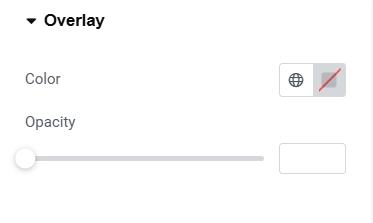
overlay style
  1. 1.Color – You can set the color of the overlay background.
  2. 2.Opacity – You can set the opacity of the overlay background.
Updated on April 14, 2025

What are your Feelings

  • Happy
  • Normal
  • Sad

Share This Article :

  • Facebook
  • X
  • LinkedIn
  • Pinterest
Nav MenuPortfolio

Our Products

Responsive Paid Plan

Responsive Plus

Responsive Addons for Elementor

Starter Templates

Responsive Blocks

WP Legal Pages

GDPR Cookie Consent

Powered by Responsive WordPress theme

Our Products

Responsive Paid Plan

Responsive Plus

Responsive Addons for Elementor

Starter Templates

Responsive Blocks

WP Legal Pages

GDPR Cookie Consent

Powered by Responsive WordPress theme

Resources

Starter Templates

Responsive Platform

Learn Elementor

Testimonials

Compare Astra/Kadence

TrustPilot

CCPA

Video Tutorials

Resources

Starter Templates

Responsive Platform

Learn Elementor

Testimonials

Compare Astra/Kadence

TrustPilot

CCPA

Video Tutorials

Theme Features

Responsive Features

WooCommerce

Header Footer Builder

Site Builder

Child Theme Generator

Download Free Theme

DFY Website Setup

Theme Features

Responsive Features

WooCommerce

Header Footer Builder

Site Builder

Child Theme Generator

Download Free Theme

DFY Website Setup

Company

About

Pricing

Blog

Brand Assets

Affiliate Program

Contact Us

Terms of Service

GDPR Privacy Policy

GDPR Cookie Policy

Website Design Service

Company

About

Pricing

Blog

Brand Assets

Affiliate Program

Contact Us

Terms of Service

GDPR Privacy Policy

GDPR Cookie Policy

Website Design Service

Support

Login

Whatโ€™s New

Documentation

Request Support

Video Tutorials

Refund Policy

Service

Discount Coupon

Bug Bounty Program

Support

Login

Whatโ€™s New

Documentation

Request Support

Video Tutorials

Refund Policy

Service

Discount Coupon

Bug Bounty Program

Copyright © 2010-2026 CyberChimpsย ย 

Copyright © 2010-2026 CyberChimpsย ย 

Top
Top