
If you are looking for a way to display ‘breaking news’, ‘Special Offers’ or anything newsworthy, you should definitely implement a Content Ticker on your website.
Responsive Addons for Elementor (RAE) Content Ticker helps you to design a beautiful ticker and gives you the freedom to display ‘Dynamic’ or ‘Custom’ contents as your headlines.
Besides, Responsive Addons for Elementor (RAE) Content Ticker also gives you the flexibility to add nice transition effects & add personalized styling to all the features. Thanks to this Responsive Addons for Elementor (RAE) element, you can now put the focus on the ‘Headline’ of your contents & make it totally eye-catching to your site visitors.
How to Activate Content Ticker
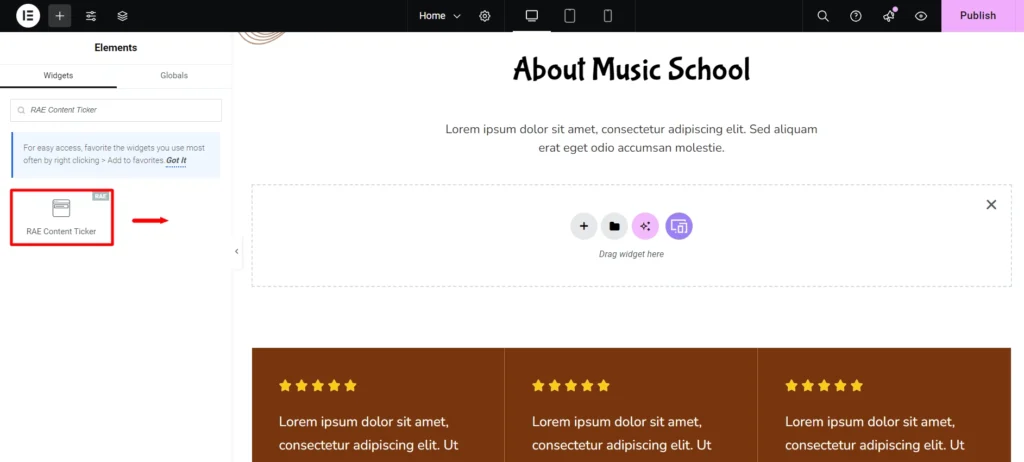
Find the ‘Responsive Addons for Elementor (RAE) Content Ticker‘ element from the Search option under the ‘ELEMENTS‘ tab. Simply just Drag & Drop the ‘Responsive Addons for Elementor (RAE) Content Ticker’ into the ‘Drag widget here‘ or the ‘+’ section.
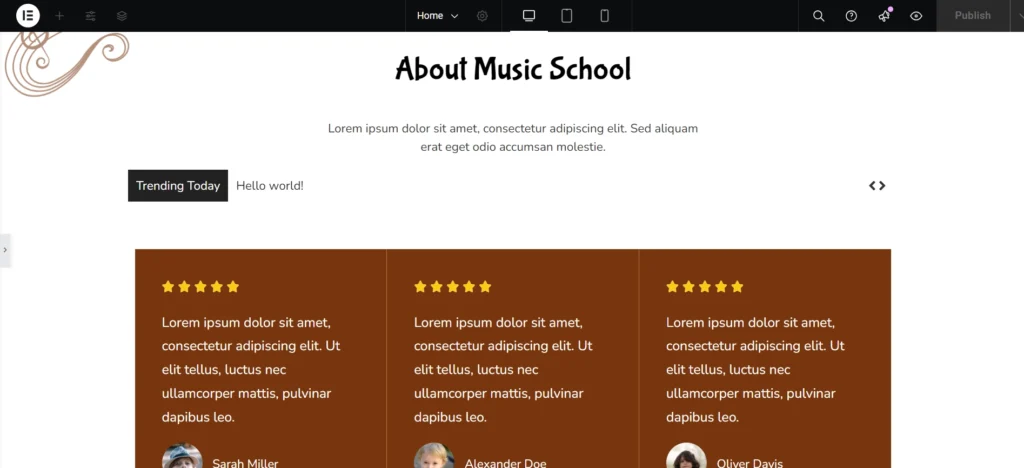
After you are successfully done with this step, this is how the element is going to look like.
Content
Ticker Settings
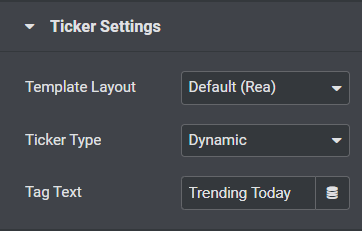
- Template Layout- The Default layout is selected.
- Ticker Type- You can use the dropdown menu to choose a ‘Ticker Type’. You can either select ‘Dynamic’ or ‘Custom’ Ticker type. You will be able to configure the ‘Ticker’ based on your chosen type.
- Tag Text- You can also change the headline of your Content Ticker by modifying the ‘Tag Text’ field.
Dynamic Content Settings
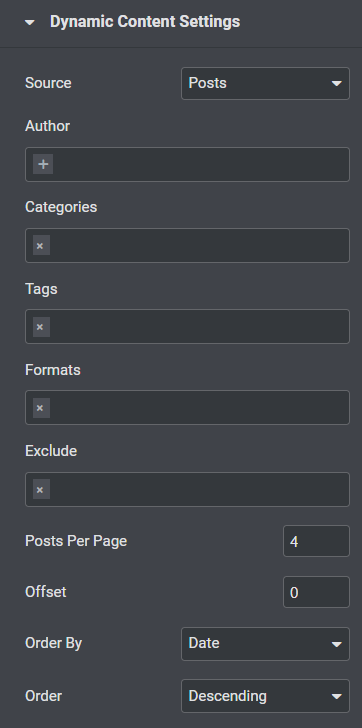
- Source- You can choose a source from which your content will be generated. You can select any of these 3 as your source: Posts, Pages or Manual Selection.
- Author, Categories, Tags, Formats- You have the flexibility to show only certain posts based on the tags, authors, categories & format.
- Exclude- You can even exclude certain posts or pages.
- Posts Per Page- You can set the number of contents which you want to display on your Content Ticker.
- Offset- You can select the offset by entering the value.
- Order By & Order- You can sort out the content by modifying ‘Order’ & ‘Order By’ options.
Custom Content Settings
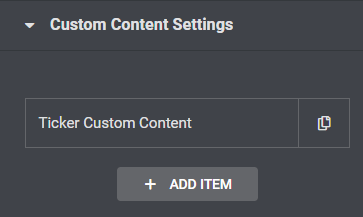
With Custom Content, you can easily insert your own content and insert a link to them if you wish to. When you move the mouse over the content, you will be able to view the link. Simply click on ‘+ Add Item’ button to insert more custom content.
Animation Settings
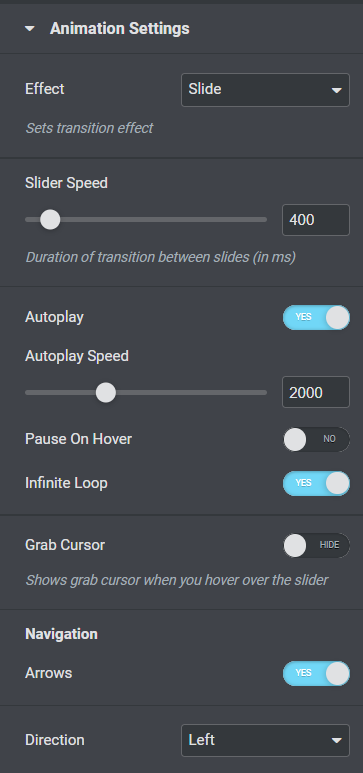
- Effect- You can the transition effect on how the contents will be displayed on your site. By default, it is set to the ‘Slide’ effect.
- Slider Speed- Adjust the duration of transition between slides
- Autoplay- You can use the toggle to enable or disable ‘Autoplay’
- Autoplay Speed- Adjust the speed of autoplay by using the slider in ms
- Pause on hover- You can use the toggle to enable or disable ‘Pause on Hover’
- Infinite Loop- You can use the toggle to enable or disable ‘Infinite Loop’
- Grab Cursor- You can use the toggle to enable or disable ‘Grab Cursor’
- Navigation Arrows- You can use the toggle to enable or disable ‘Arrows’
- Direction- Use the dropdown menu right at the bottom to change the direction of your effect.
Style
Ticker Content
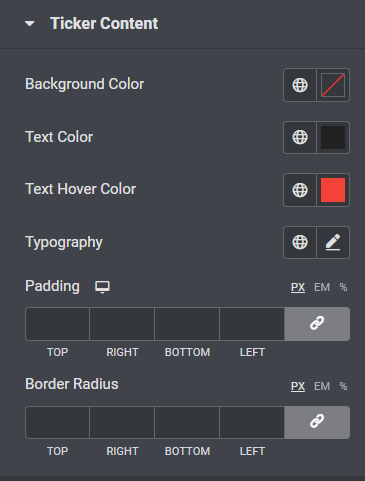
- Background Color- From the color picker, choose the background color for your ticker
- Text Color- From the color picker, choose the color of text for your ticker content
- Text Hover Color- From the color picker, choose the color of text for your ticker content when you hover.
- Typography- From the pencil icon, click to open the font option panel to choose the family, weight, transform, style, decoration, line height, and letter spacing options
- Padding- Enter a chosen value in the fields based on px, em, or %
- Border Radius- Enter a chosen value in the fields based on px, em, or %
Tag Style
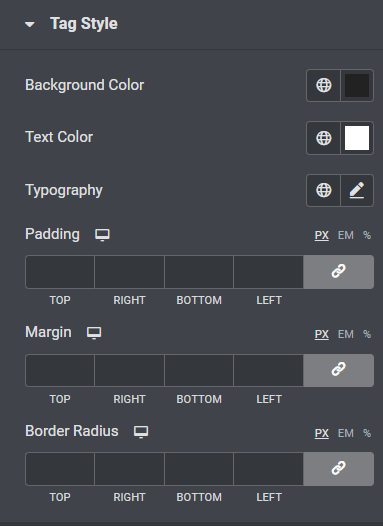
- Background Color- From the color picker, choose the background color
- Text Color- From the color picker, choose the color of text
- Typography- From the pencil icon, click to open the font option panel to choose the family, weight, transform, style, decoration, line height, and letter spacing options
- Padding- Enter a chosen value in the fields based on px, em, or %
- Margin– Enter a chosen value in the fields based on px, em, or %
- Border Radius- Enter a chosen value in the fields based on px, em, or %
Arrows
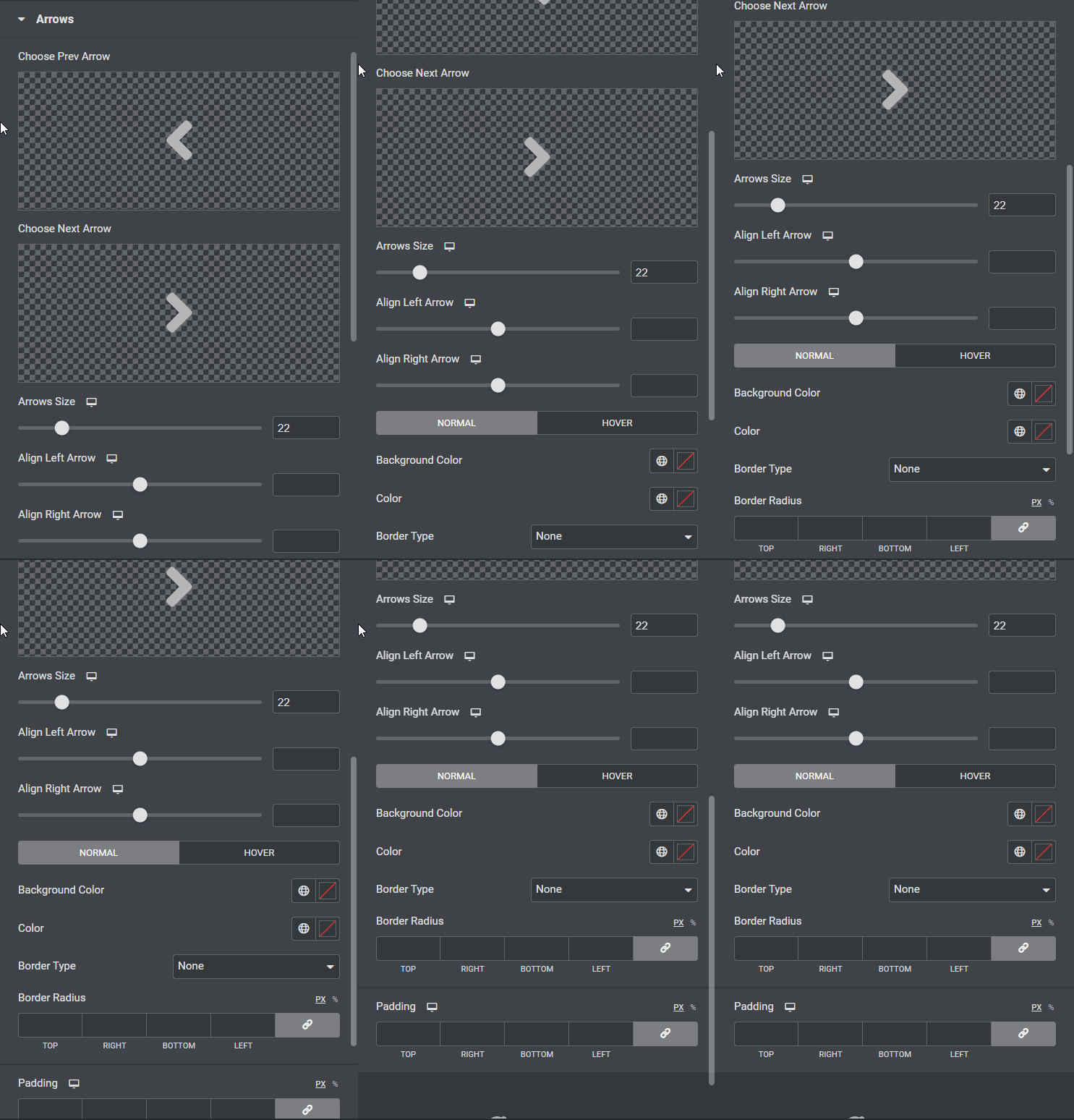
- Choose Prev/Next Arrow- Upload your icons or choose icons from the library for prev and next arrow
- Arrows Size- Use the slider to adjust the size of the arrows
- Normal/Hover- Choose the appearance of the arrows on normal and hover states
- Background Color- From the color picker, choose the background color
- Color- From the color picker, choose the color of the arrows
- Border Type- From the dropdown menu select between solid, double, dotted, dashed, or grooved
- Border Radius- Enter a chosen value in the fields based on px, em, or %
- Padding- Enter a chosen value in the fields based on px, em, or %


