
Instructions:
- This process requires a plain WordPress website without any posts and pages. Make sure you’re following the steps below on a new website.
- Please ensure your server is optimized for WordPress. You may compare the values listed under Elementor > System Info with the following to determine where changes are needed.
- PHP Version: PHP Version should be 8.1 as of WordPress version 6.2
- PHP Memory Limit: 256MB minimum
- PHP Max Input Vars: 1000 minimum – 3000 for WooCommerce
- PHP Max Post Size: 128MB minimum
- Max Upload Size: 64MB – values below 10 typically result in invalid file or image transfer errors, values below 50 will disallow most website image loads or any WordPress Theme upload
- ‘open_basedir’ should be disabled
- set ‘allow_url_fopen’ to ‘ON.’
- Your host should be equipped to troubleshoot and fix the issue by checking your server error logs.
Step 1 – Import the Downloaded Single Site Zip
Install and Activate Free Elementor Plugin
Make sure you have installed and activated the free Elementor plugin.
Next, go to WP Admin and navigate to Elementor > Editor > click Tools.

Click the Website Templates tab.
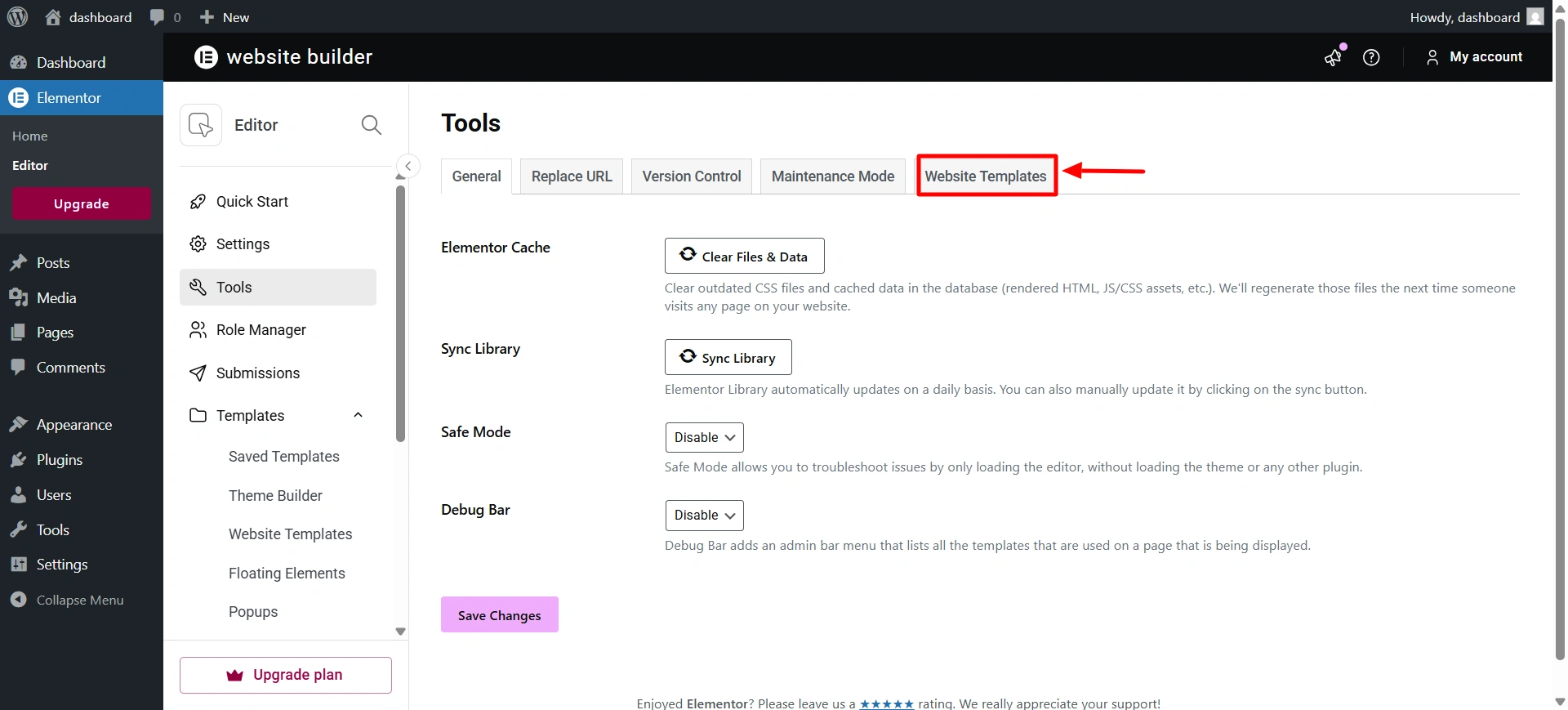
Click Import.

Scroll down to the Apply a website template section, and click:
Import a zip file: Upload a zip file of a website template.
Upload the Template zip file and click on the button “Import and Apply”.

Click Next, and continue in the import process.

Click Close to end the import process.
Step 2 – Upload the .dat File in the theme Customizer
From the admin dashboard > click on “Visit Site”.
On the website, from the top bar, click on the Customize button. This will open the Responsive theme customizer.
Scroll to the bottom in the customizer and click on “Export/Import”. From import, click on the Choose File button and upload the .dat file, then click on the Import button

Step 3 – Troubleshooting Common Import Problems
This guide covers issues you may face after importing the template.
Before you begin, make sure you have the latest version of the Elementor plugin activated.
1. Layout loads OK, but styles are missing or using default fonts and colors
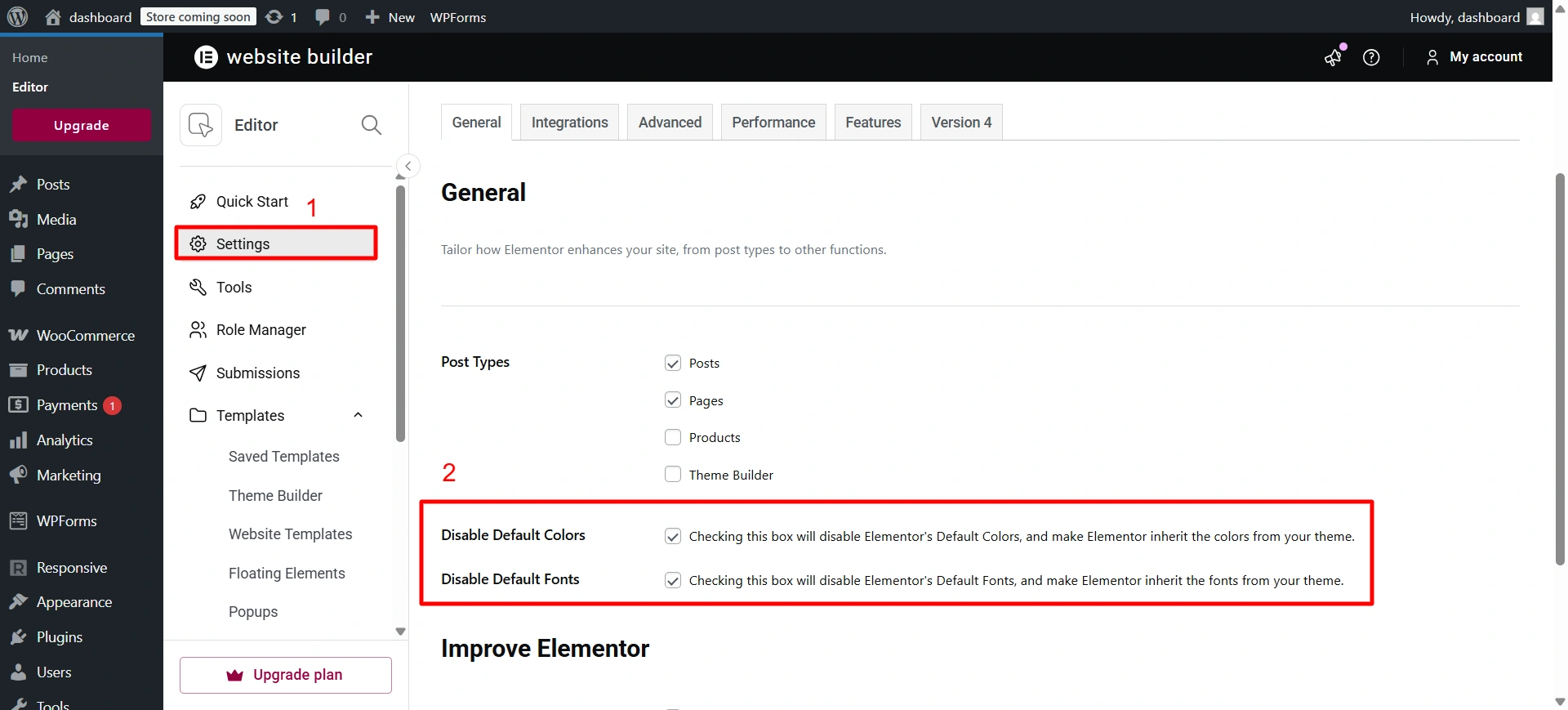
If colors and fonts don’t look right, the Global Kit Styles are not loaded, or Elementor defaults are enabled.
Go to Elementor > Settings and ensure “Disable default fonts…” and “Disable default colors…” options are checked, and click on Save Changes.
2. Woocommerce pages like Shop Page/Account Page/Cart Page are incorrect
From your WordPress admin dashboard, go to Pages > check if there are duplicate unassigned WooCommerce Pages like shop page, checkout page, cart page, and my account page. Delete the duplicate pages.
Go to the website and check if the URL on the shop page is correct. (does not contain ‘-2’)
This should solve the problem.
3. Elementor page layout is squished but otherwise OK
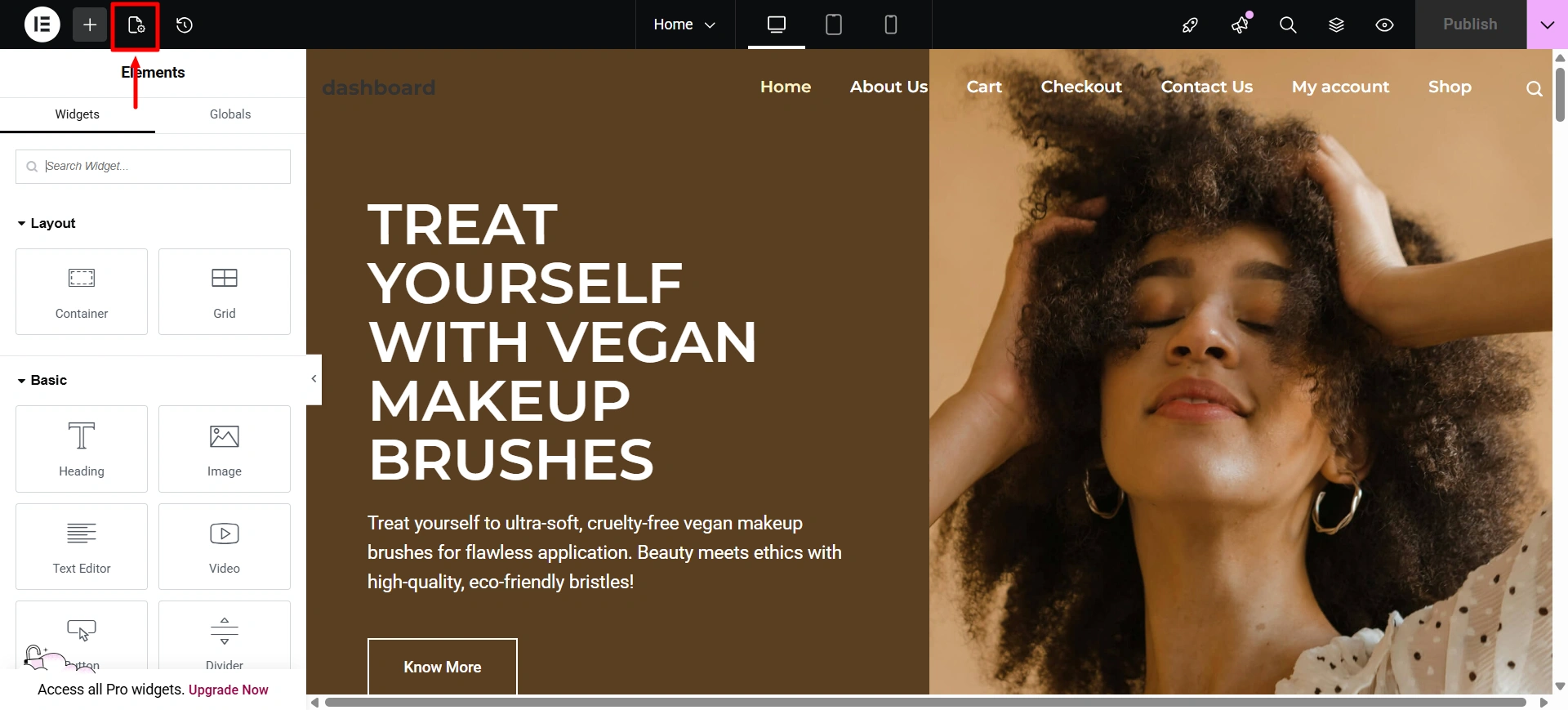
If your layout is boxed/squished or appears to be loading inside of another template layout, your theme does not have full width content, the page is not set to the right layout setting, or an Elementor Pro global template has the wrong conditions.
- Click the gear icon in the Elementor toolbar to access Page Settings
- Ensure Elementor Full Width is selected in the Page Layout drop-down
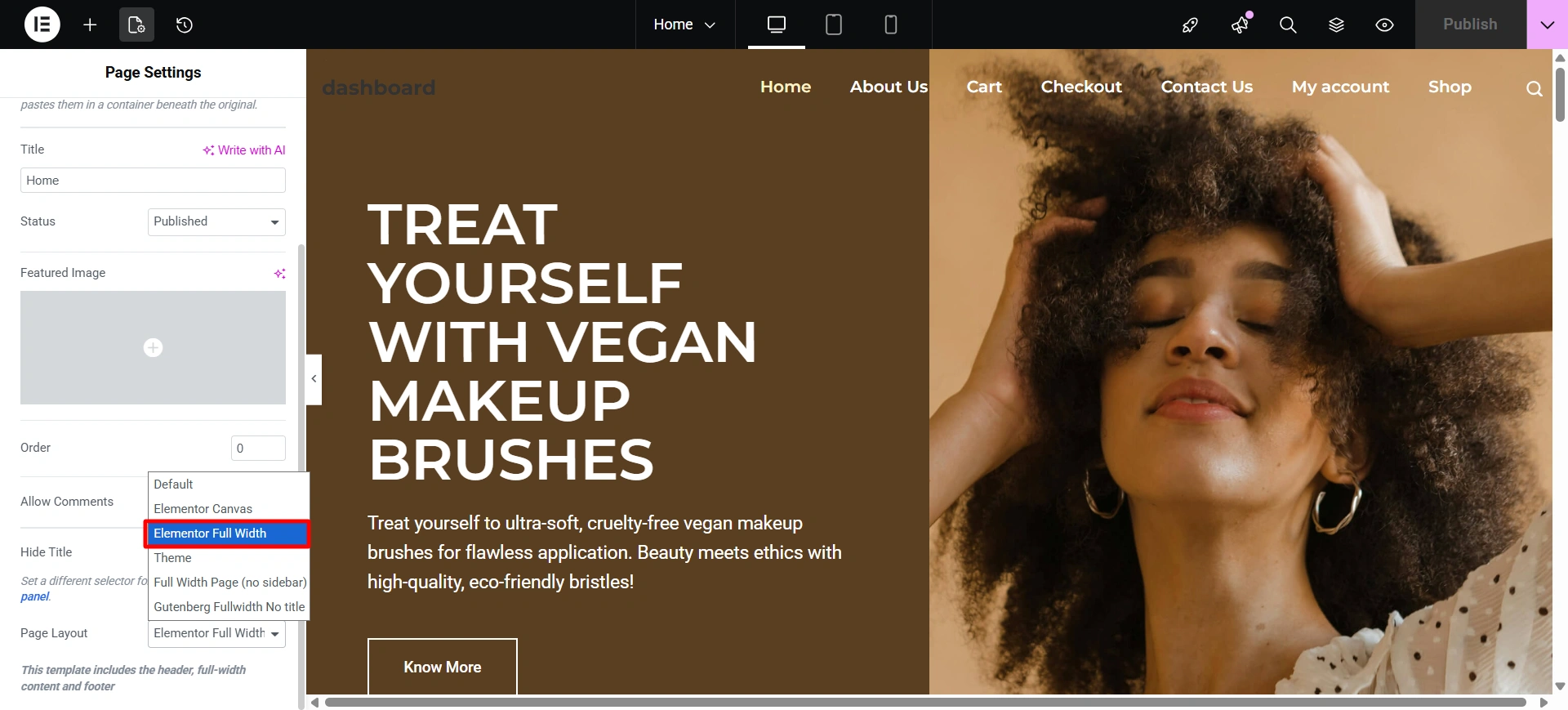
In most cases, using Elementor Full Width or Canvas page layouts will allow elementor layouts to work with any theme that supports Elementor. However, some themes don’t play nice or force their own page formatting.


