↓ Skip to Main Content
Cyberchimps Logo

Main Navigation

  • Pro
  • Starter Templates
    • Free Templates
    • Premium Templates
  • Pricing
  • Login
Get Started
Cyberchimps Logo

Off Canvas Menu

  • Pro
  • Starter Templates
    • Free Templates
    • Premium Templates
  • Pricing
  • Login

Modules & Settings

9
  • AI Suite in Responsive Pro
  • How to White Label Responsive Theme
  • Usage Tracking Policy
  • Create a Mega Menu with the Responsive Pro
  • Custom Fonts
  • WooCommerce Module
  • Site Builder
  • How to Connect to New License If I Am An Old Responsive Pro User
  • Your Site Doesn’t Have A Default Kit

WooCommerce

5
  • Product Catalog
  • WooCommerce Product Catalog Options
  • WooCommerce Cart Options
  • WooCommerce Single Product
  • WooCommerce Module Overview
View Categories
  • Home
  • Docs
  • Responsive Plus - Starter Template
  • Modules & Settings
  • How to White Label Responsive Theme

How to White Label Responsive Theme

The white label feature helps you to completely customize the Responsive Theme with your brand logo, colors, and other elements to create a consistent brand experience for customers.

Using this feature, you can present any product as if it were developed by you, promoting a sense of ownership and control.

White Labelling the Cyberchimps Responsive Theme

The white labeling feature is an exclusive feature available in the Responsive Pro plugin. Make sure you have the plugin activated before performing the following steps.

Responsive themes

By default, Cyberchimps Responsive Theme has its own branding, with the theme name, author, description, and other information. We will white-label this theme to our preferences. 

Using the white labeling feature, you can replace all traces of the original branding with your own following the mentioned steps:

Step 1: To access the white-label settings for the Responsive theme, first go to the WordPress admin dashboard, head over to the media menu, and click the Add New Media File button.

Upload the screenshot and icon you want to use for your white-labeled theme in the Media Library.
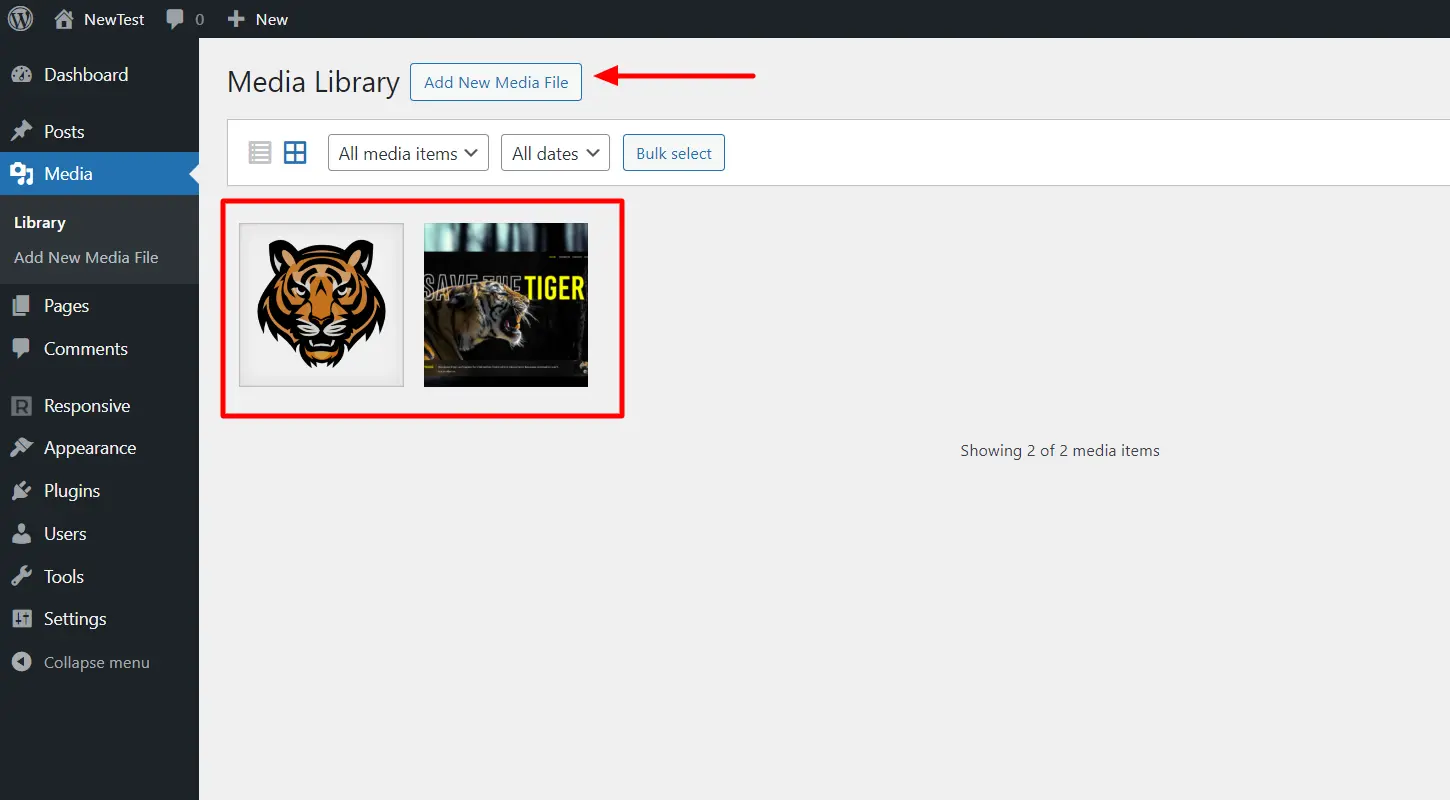
Upload the Screenshot and icon in the Media Library.

Step 2: Click on the uploaded image and copy the File URL to paste in further process.
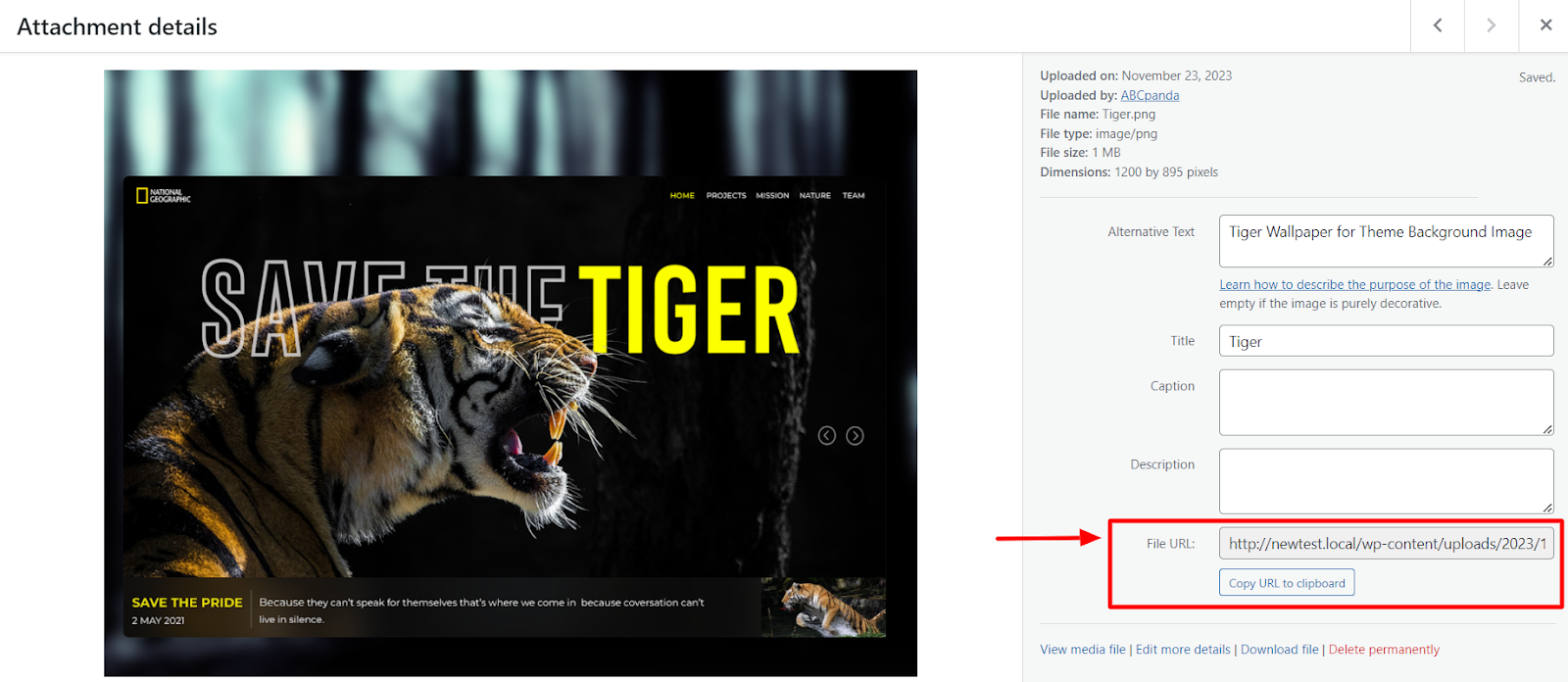
 copy the File URL of uploaded images

Step 3: Next go back to the WordPress Admin dashboard navigate and to Appearance > Responsive Options.

Responsive Dashboard

Step 4: Scroll down on the Responsive Pro Features page and click on Settings under the White Label feature.
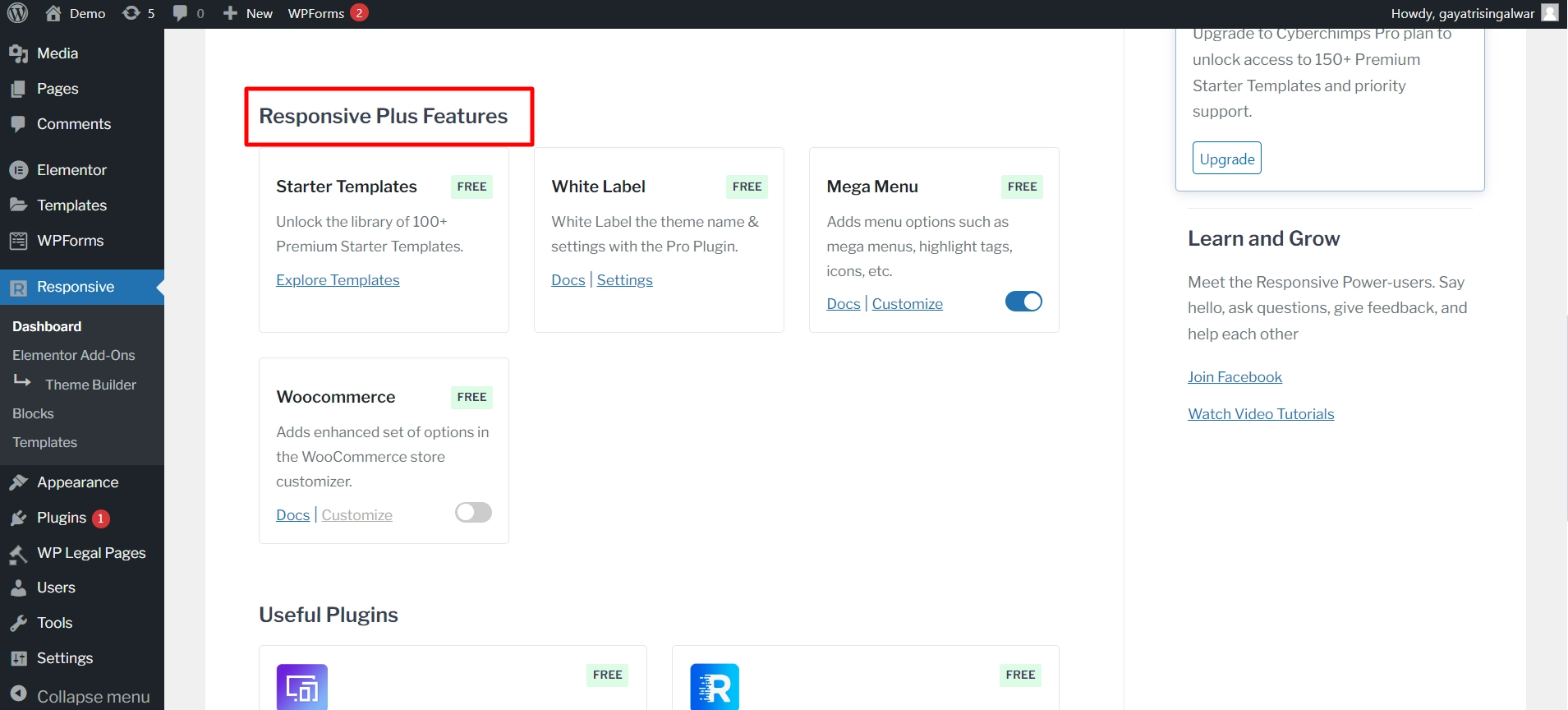
White Label

Step 5: Select the White Label Settings tab and begin customizing the theme details.

Enter the Author Name and the Website URL that you want to display.

Fill in the of the Theme Name, Theme Description.

Paste the Theme Screenshot URL and Theme Icon URL you copied in step 1.

Check on the Hide White Label Settings box to hide backend configurations from clients or backend users.

Click on the Save Changes button to finish. 
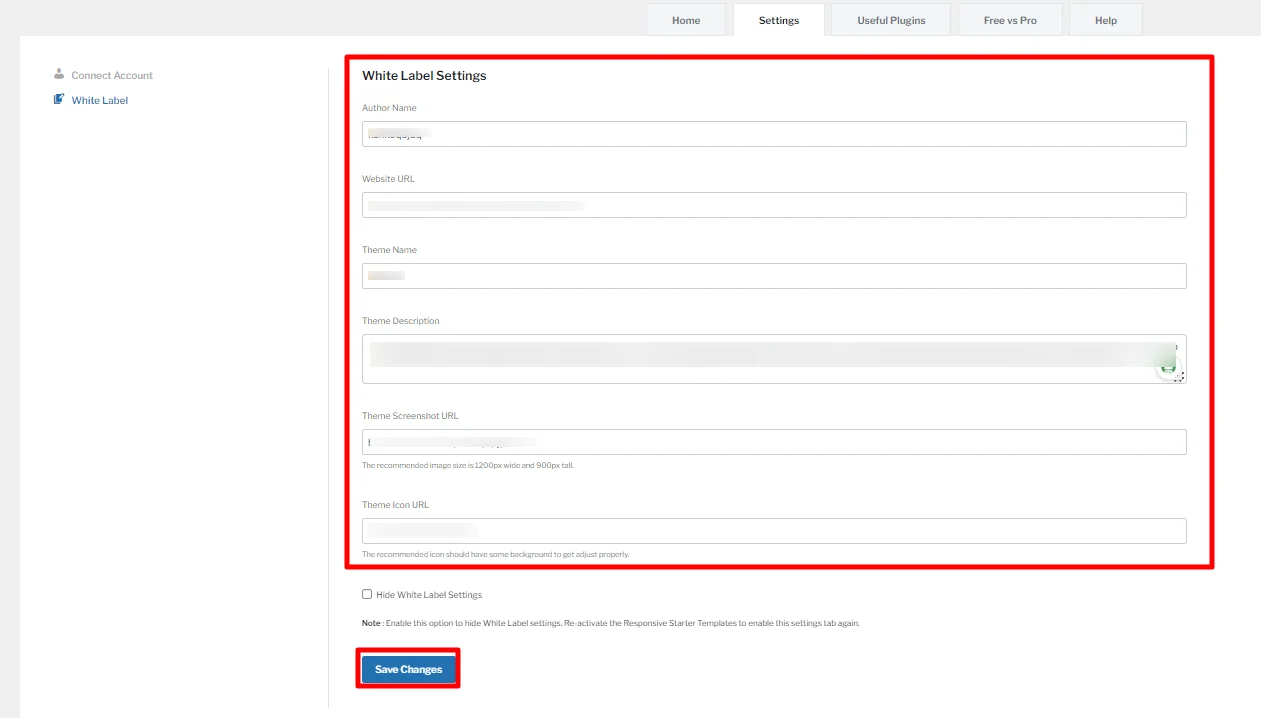
Editing White label settings

As you can see in the image below, the white-labeled theme has a complete different look and feel, and you now brand it. 
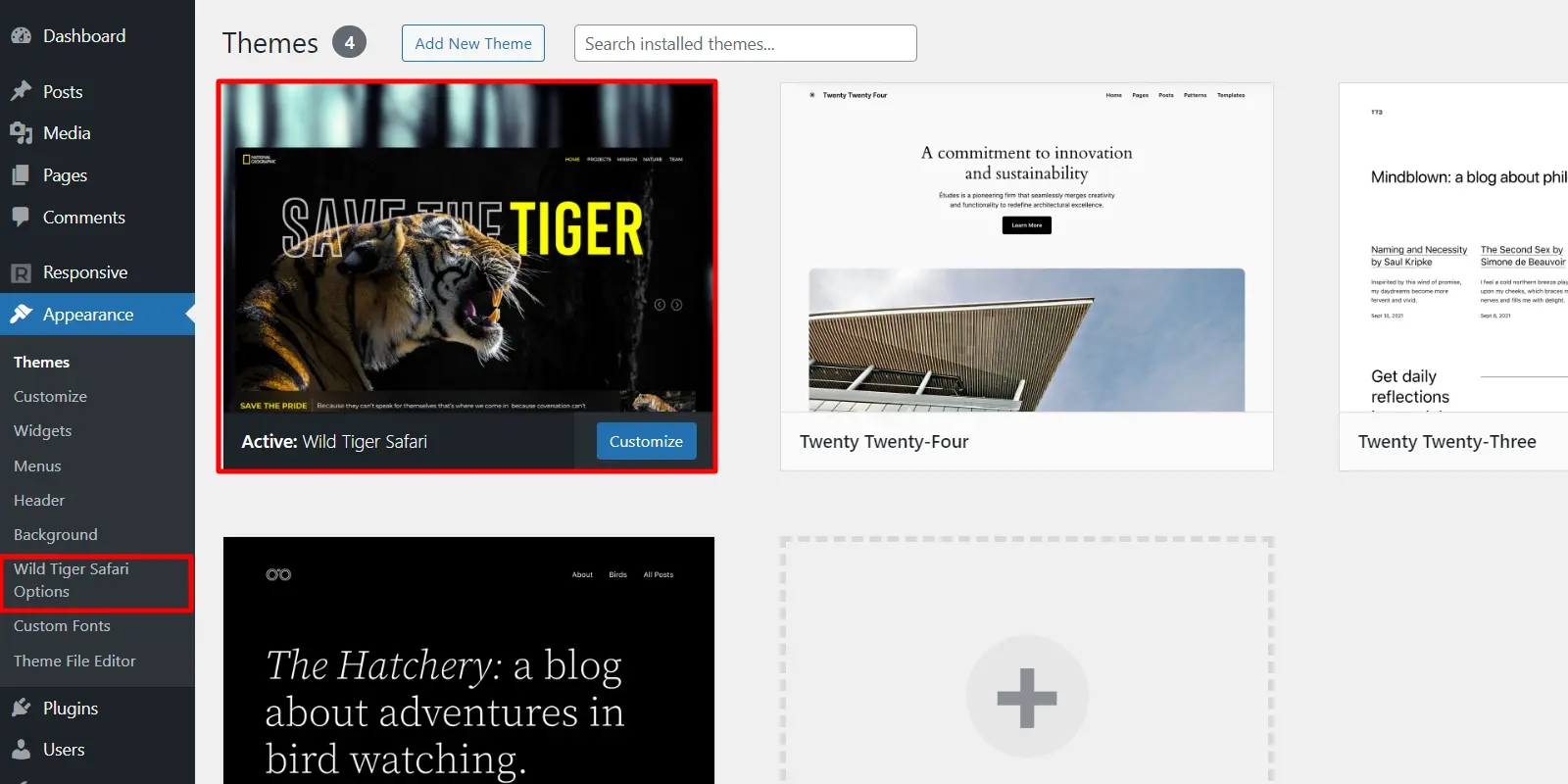
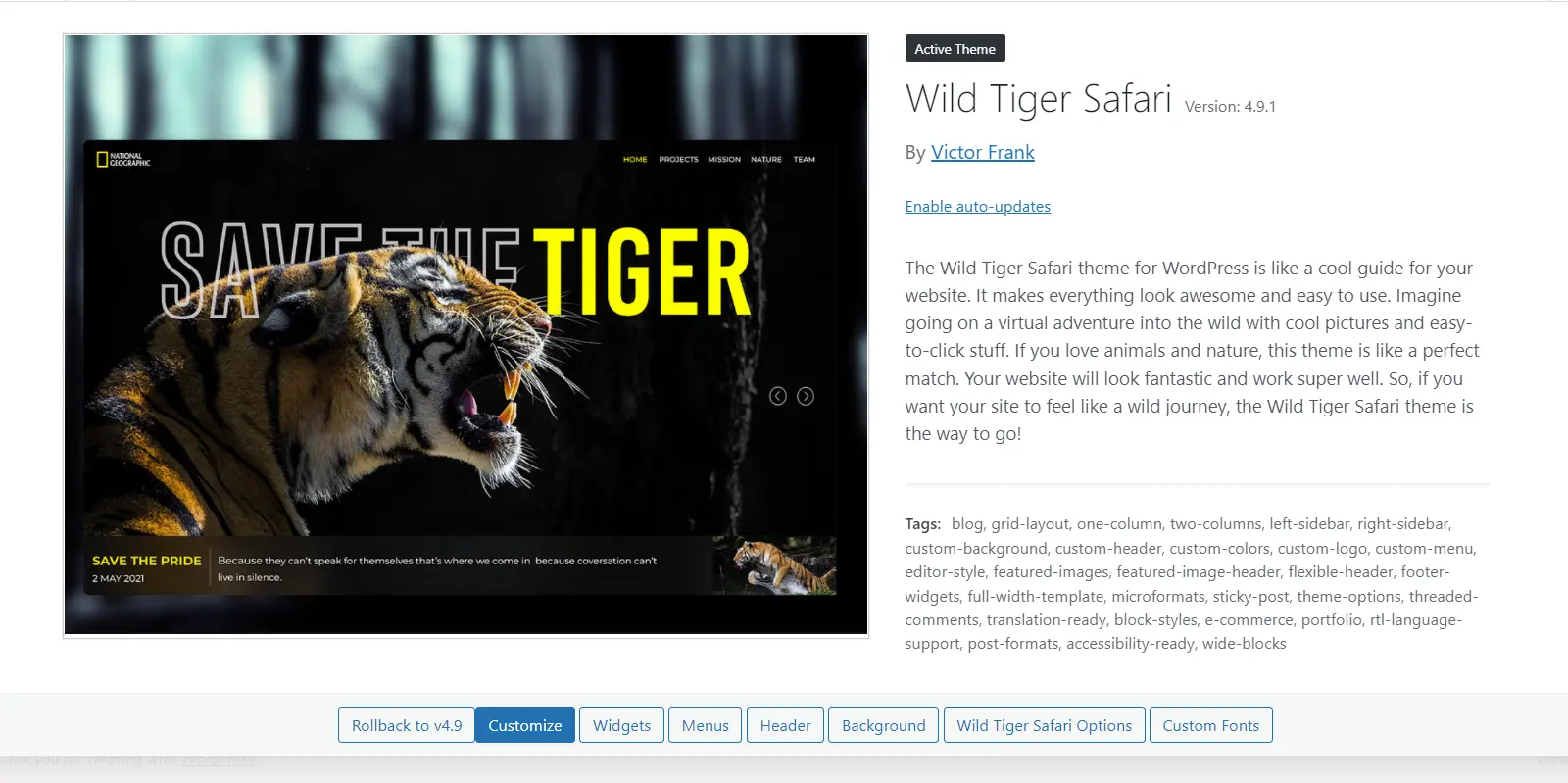
Now the active theme is Wild Tiger Safari

The active theme name has changed from โ€œResponsiveโ€ to โ€œWild Tiger Safari.โ€ 

Active Theme Description bar

Similarly, with the white label feature, we have changed the author name, theme description, theme URL, theme icon.

Responsive Theme is successfully white-labeled with your preferences. Watch this video to better understand how to White Label Responsive Theme as your own:

Updated on July 13, 2026

What are your Feelings

  • Happy
  • Normal
  • Sad

Share This Article :

  • Facebook
  • X
  • LinkedIn
  • Pinterest
AI Suite in Responsive ProUsage Tracking Policy

Our Products

Responsive Pro

Responsive Addons for Elementor

Starter Templates

Responsive Blocks

WP Legal Pages

GDPR Cookie Consent

Powered by Responsive WordPress theme

Our Products

Responsive Pro

Responsive Addons for Elementor

Starter Templates

Responsive Blocks

WP Legal Pages

GDPR Cookie Consent

Powered by Responsive WordPress theme

Resources

Starter Templates

Responsive Platform

Learn Elementor

Testimonials

Compare Astra/Kadence

TrustPilot

CCPA

Video Tutorials

Resources

Starter Templates

Responsive Platform

Learn Elementor

Testimonials

Compare Astra/Kadence

TrustPilot

CCPA

Video Tutorials

Theme Features

Responsive Features

WooCommerce

Header Footer Builder

Site Builder

Child Theme Generator

Download Free Theme

DFY Website Setup

Theme Features

Responsive Features

WooCommerce

Header Footer Builder

Site Builder

Child Theme Generator

Download Free Theme

DFY Website Setup

Company

About

Pricing

Blog

Brand Assets

Affiliate Program

Contact Us

Terms of Service

GDPR Privacy Policy

GDPR Cookie Policy

Website Design Service

Company

About

Pricing

Blog

Brand Assets

Affiliate Program

Contact Us

Terms of Service

GDPR Privacy Policy

GDPR Cookie Policy

Website Design Service

Support

Login

Whatโ€™s New

Documentation

Request Support

Video Tutorials

Refund Policy

Service

Discount Coupon

Bug Bounty Program

Support

Login

Whatโ€™s New

Documentation

Request Support

Video Tutorials

Refund Policy

Service

Discount Coupon

Bug Bounty Program

Copyright © 2010-2026 CyberChimpsย ย 

Copyright © 2010-2026 CyberChimpsย ย 

Top
Top