
↓ Skip to Main Content
Cyberchimps Logo

Main Navigation

  • Products
    • Responsive Theme
    • Responsive Plus Plugin
    • Responsive Addons for Elementor
    • Responsive Blocks Plugin
  • Starter Templates
    • Free Templates
    • Premium Templates
  • For Agencies
  • Pricing
  • Login
Get Started
Cyberchimps Logo

Off Canvas Menu

  • Products
    • Responsive Theme
    • Responsive Plus Plugin
    • Responsive Addons for Elementor
    • Responsive Blocks Plugin
  • Starter Templates
    • Free Templates
    • Premium Templates
  • For Agencies
  • Pricing
  • Login

Theme Installation & Updates

7
  • How to Delete a WordPress Theme
  • Precautions to take while working with a child theme
  • How to Create Your Account on Cyberchimps Responsive
  • FIX: Uploaded-file-exceeds-the-upload_max_filesize
  • Getting Error โ€“ The theme is missing the style.css stylesheet?
  • How to Install Responsive Theme
  • How to Download & Install Responsive Starter Template Plugin?

Responsive Theme Walkthrough

23
  • Blog/Archive Settings
  • Single Post Settings
  • Page Settings
  • Global Settings – Colors and Backgrounds
  • Global Settings – Form Fields
  • Global Settings – Button
  • How to Load Google Fonts Locally
  • How to Add Sidebar in Responsive Theme
  • Header and Footer Scripts in theme customizer
  • Global Typography Settings in Responsive Theme
  • Show Last Updated or Published Dates on Your Blog Posts
  • Create a Header Using Responsive Theme’s Header Builder
  • Create a Footer Using Responsive Themeโ€™s Footer Builder
  • Responsive Theme Typography Presets
  • How To Create A Sticky Header Using Cyberchimps Responsive Theme
  • How To Change The Copyright Footer Text In WordPress
  • How To Change Breadcrumbs Icon in Responsive Theme
  • How to adjust the width of sidebars from the customizer
  • Resize Logo From Theme Customizer
  • How to Add Breadcrumbs Using Responsive Theme?
  • Responsive Theme Settings
  • How to Add Related Posts Using Responsive Theme
  • Responsive Theme Widgets

FAQ

8
  • How To Enable Debug Log In WordPress
  • Download A .zip File Without Unzipping In Safari
  • How To Create An Admin User For Support In WordPress
  • Upgrading to 4.0.0 +
  • Upgrading to 4.1
  • Facing issues in importing Yoga Instructor Pro?
  • Yoast Seo Breadcrumb support in the theme
  • Updating to 4.2.0 results in the blank front end

Pre Sales / Billing FAQ

2
  • Billing FAQ
  • Pre Sales FAQ

Header Builder

12
  • How To Create Mobile Header With Responsive Theme’s Header Builder
  • How to Activate Live Search
  • Secondary Menu
  • HTML
  • Contact Info
  • Header Widgets
  • Header Social
  • Cart
  • Header Button
  • Search
  • Site Title and Logo
  • Primary Menu

Footer Builder

5
  • Footer Widgetsย 
  • Social
  • Scroll To Top
  • Copyright
  • Footer Menu
View Categories
  • Home
  • Docs
  • Responsive Theme
  • Responsive Theme Walkthrough
  • Global Typography Settings in Responsive Theme

Global Typography Settings in Responsive Theme

Typography plays a vital role in the look and feel of a website. That’s why the Responsive theme by Cyberchimps offers you a variety of typography settings, including fonts and styles, to create stunning websites.

The Responsive Theme allows you to customise the typography of your site from a single location with just a click.

To access the Global Typography settings, navigate to your WordPress dashboard and install the Responsive theme. Next, navigate to the Global Settings in the Customiser and click on Typography.

What are Presets?
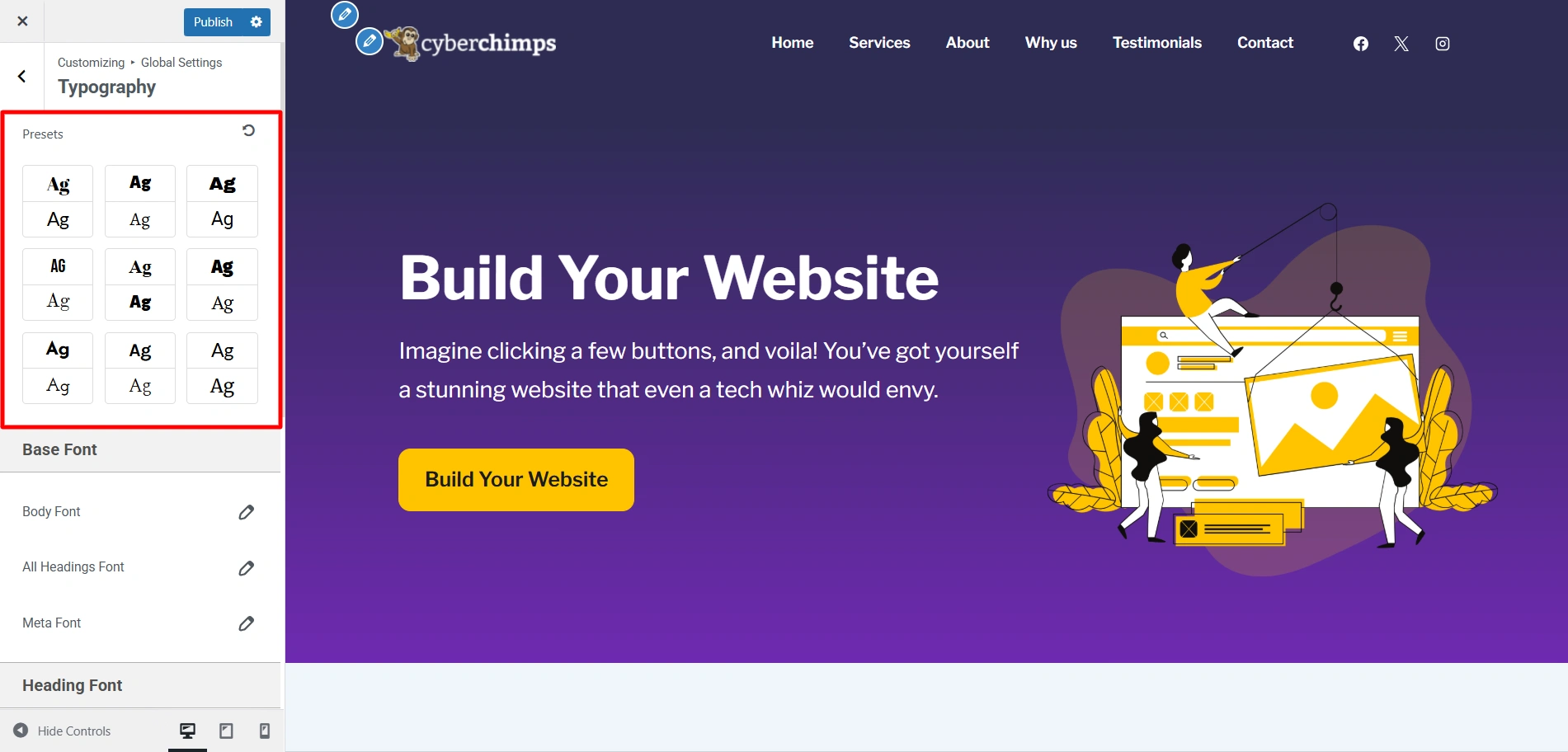
Presets

Presets are ready-made font combinations that you can apply to your entire site easily. Essentially, every preset includes a specific font for both your headings and your body text. This, in turn, helps give your website a homogenous and professional look.

The Responsive Theme has nine font presets, using which you can add a fresh look to your website using these typography settings in theme websites with just a click.

What are Base Fonts?
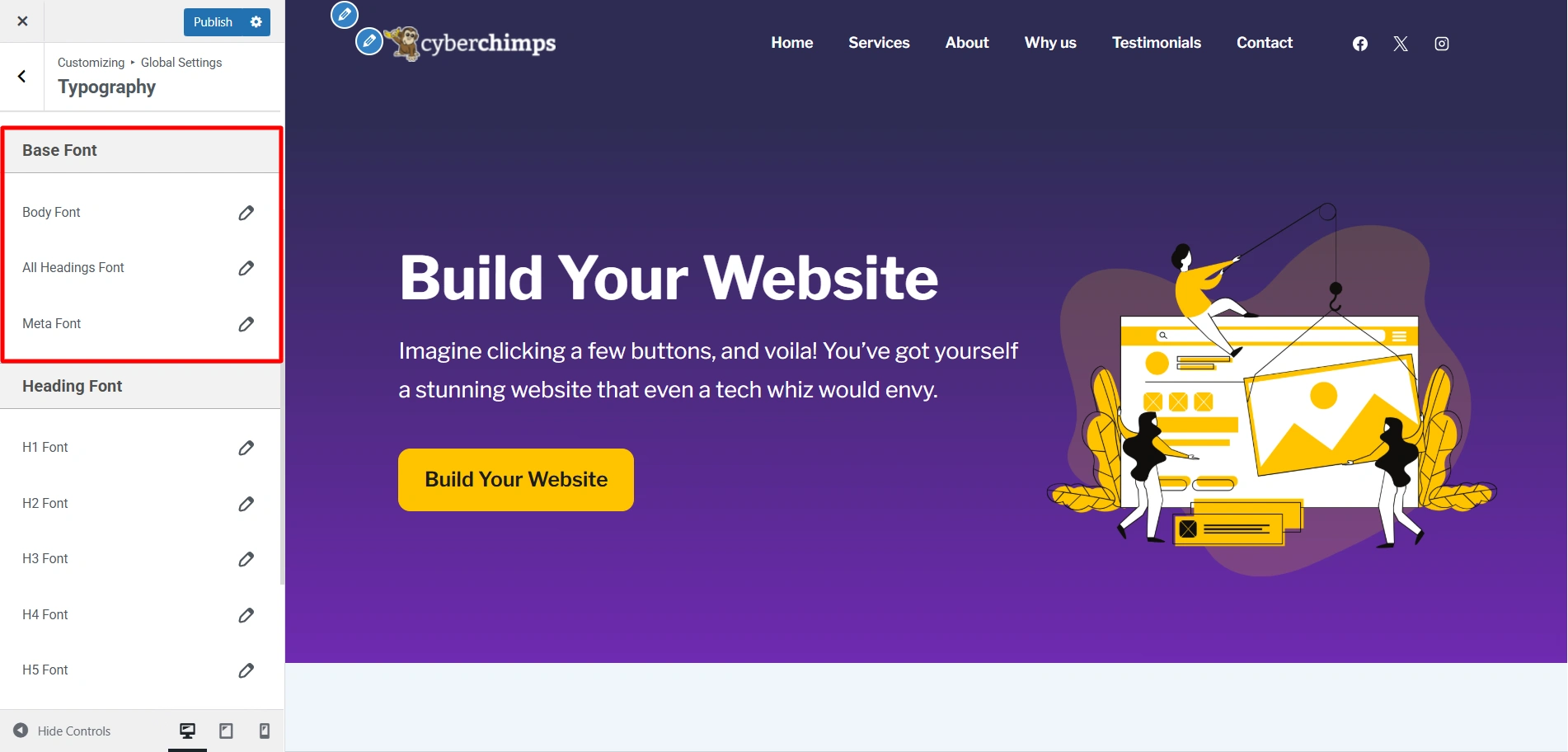
Base Fonts

Base fonts are where you select individual fonts you want to add to your website. Here you can select the fonts youโ€™d like to add to your heading or the body of your website. 

You can easily change the font style of your website by understanding the options under Base Font. 

Here you can customise the fonts of your Body Text, Headings, and Meta. The settings offered are
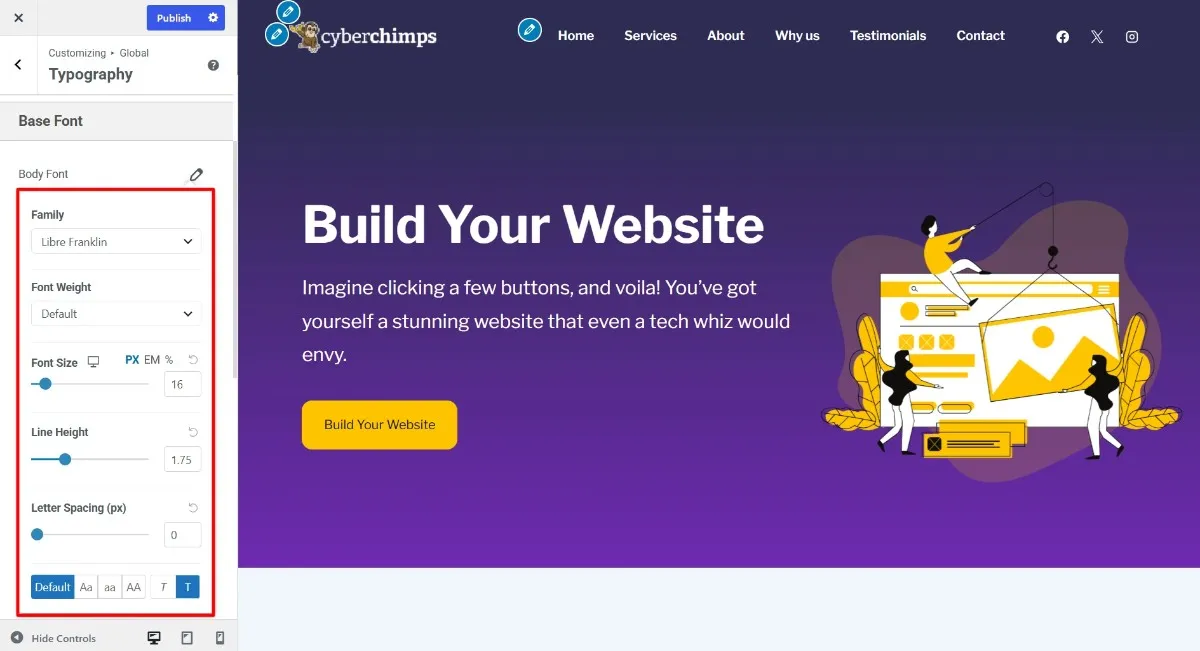
Customize Body text in Responsive Theme
  • Family- You can choose fonts like Sans Serif, Times New Roman, Georgia, and so on, for the content of your website.
  • Font Weight- Choose the thickness of your font using the options given in the Font Weight dropdown box. It offers a default setting along with Light, Normal, and Bold.
  • Size- You can change the font size using the slider, or you can manually enter your desired font size and adjust using the arrows.
  • Line Height- Adjust the line height using the given slider ot increase or decrease the space between lines.
  • Letter Spacing- Adjust the space between letters in your content using the given slider in the Letter Spacing setting.
  • Text Transform- You can control the capitalisation of the text on your website by using the options in the text transform setting. Along with the default option, it offers an uppercase, lowercase, and a capitalise option.
  • Font Style- you can italicise your text in the font style setting.

Using these typography settings, you can control and customize the way in which your content is presented easily and fast.

Heading Font

Heading Font

Similarly, if you want to change the font styles for specific headings, you can use similar settings mentioned above, provided for each heading. 

You can set the typography for individual Headings tags from H1 to H6.

Paragraph Margin Bottom
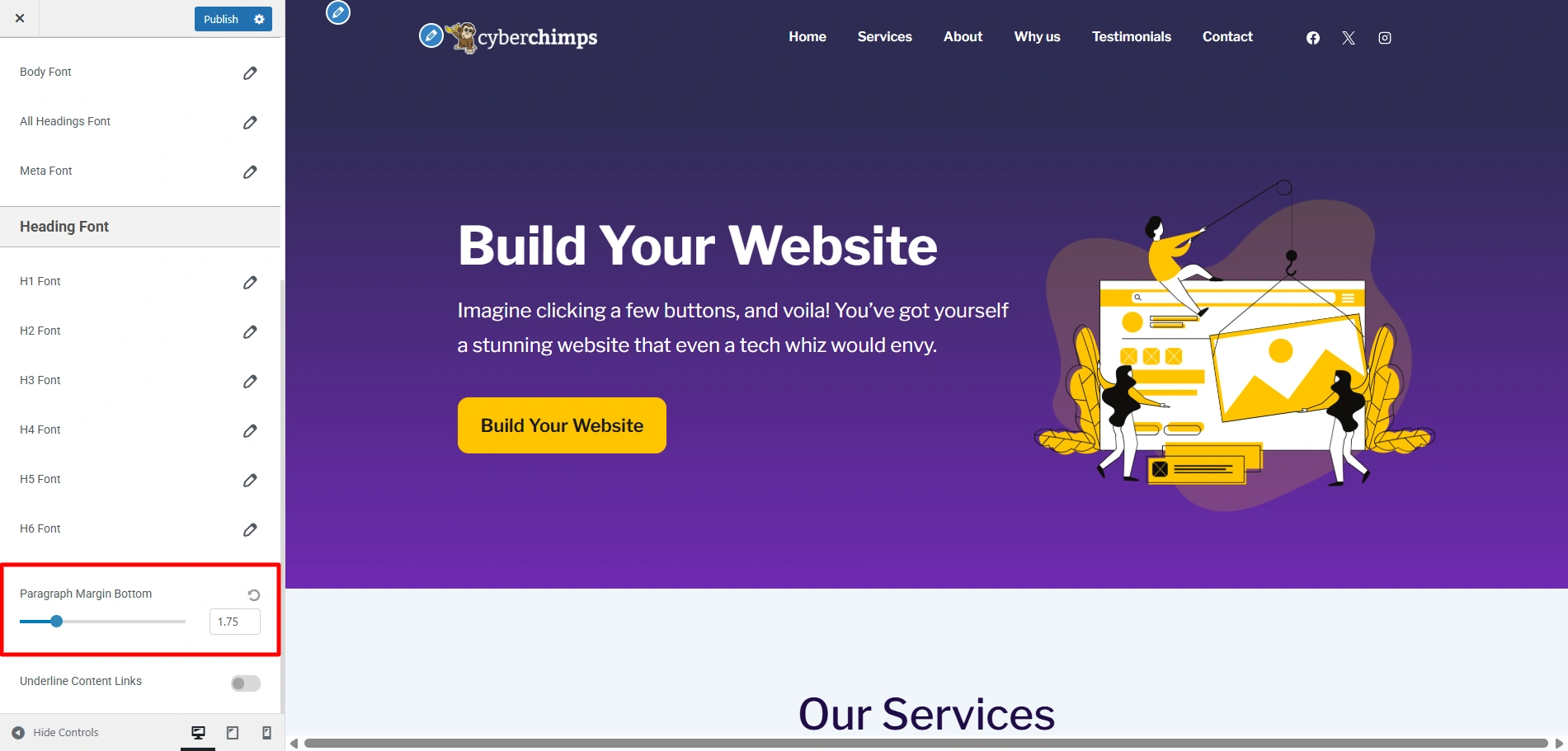
Paragraph Margin Bottom

To control the space below each paragraph, you can use the slider provided to increase or decrease it according to your needs.

Underline Content Links
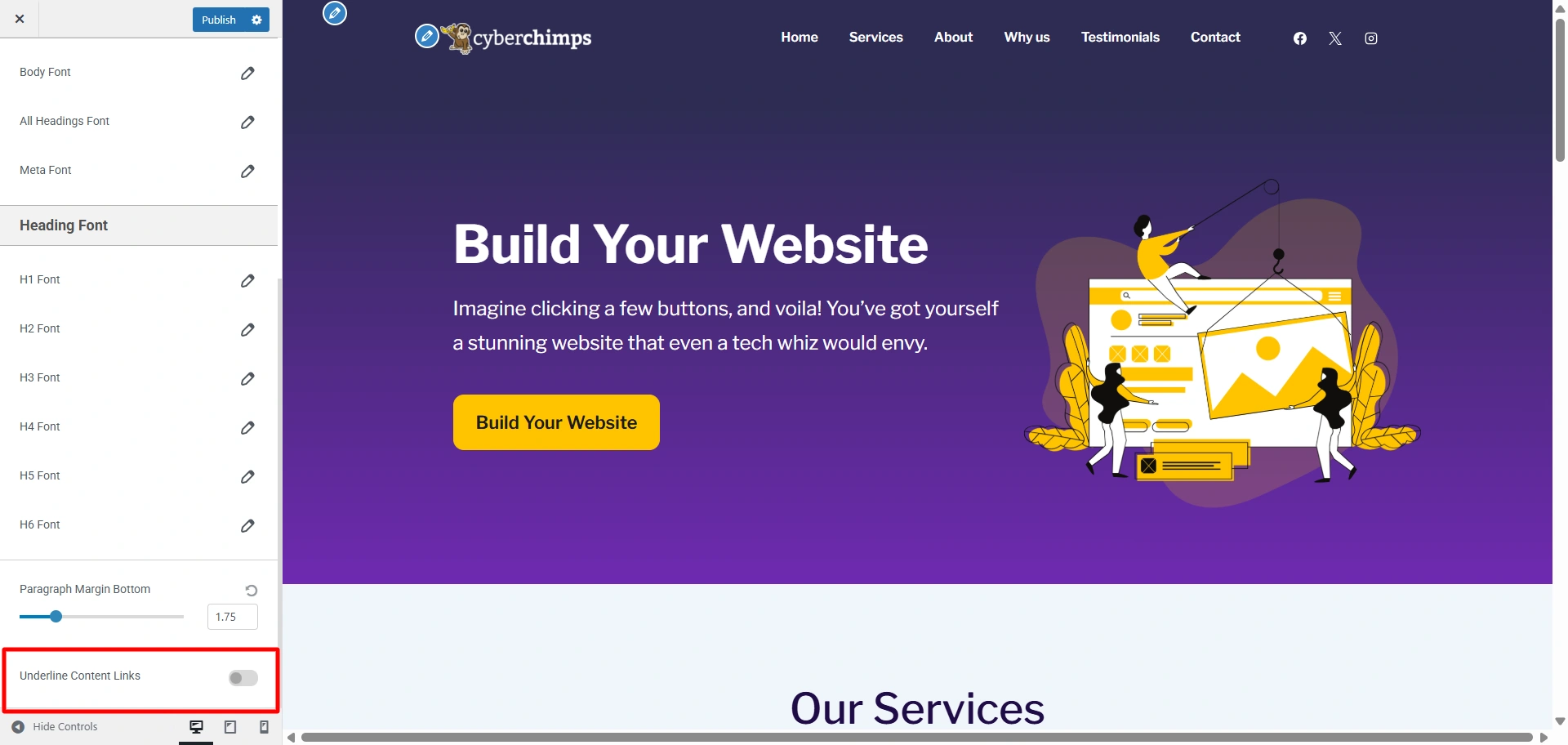
Underline Content Links

Finally, if you want to underline all the links in the text of your website, you can use the toggle provided to do so.

Updated on June 26, 2026

What are your Feelings

  • Happy
  • Normal
  • Sad

Share This Article :

  • Facebook
  • X
  • LinkedIn
  • Pinterest
Header and Footer Scripts in theme customizerShow Last Updated or Published Dates on Your Blog Posts

Our Products

Responsive Paid Plan

Responsive Plus

Responsive Addons for Elementor

Starter Templates

Responsive Blocks

WP Legal Pages

GDPR Cookie Consent

Powered by Responsive WordPress theme

Our Products

Responsive Paid Plan

Responsive Plus

Responsive Addons for Elementor

Starter Templates

Responsive Blocks

WP Legal Pages

GDPR Cookie Consent

Powered by Responsive WordPress theme

Resources

Starter Templates

Responsive Platform

Learn Elementor

Testimonials

Compare Astra/Kadence

TrustPilot

CCPA

Video Tutorials

Resources

Starter Templates

Responsive Platform

Learn Elementor

Testimonials

Compare Astra/Kadence

TrustPilot

CCPA

Video Tutorials

Theme Features

Responsive Features

WooCommerce

Header Footer Builder

Site Builder

Child Theme Generator

Download Free Theme

DFY Website Setup

Theme Features

Responsive Features

WooCommerce

Header Footer Builder

Site Builder

Child Theme Generator

Download Free Theme

DFY Website Setup

Company

About

Pricing

Blog

Brand Assets

Affiliate Program

Contact Us

Terms of Service

GDPR Privacy Policy

GDPR Cookie Policy

Website Design Service

Company

About

Pricing

Blog

Brand Assets

Affiliate Program

Contact Us

Terms of Service

GDPR Privacy Policy

GDPR Cookie Policy

Website Design Service

Support

Login

Whatโ€™s New

Documentation

Request Support

Video Tutorials

Refund Policy

Service

Discount Coupon

Bug Bounty Program

Support

Login

Whatโ€™s New

Documentation

Request Support

Video Tutorials

Refund Policy

Service

Discount Coupon

Bug Bounty Program

Copyright © 2010-2026 CyberChimpsย ย 

Copyright © 2010-2026 CyberChimpsย ย 

Top
Top