↓ Skip to Main Content
Cyberchimps Logo

Main Navigation

  • Pro
  • Starter Templates
    • Free Templates
    • Premium Templates
  • Pricing
  • Login
Get Started
Cyberchimps Logo

Off Canvas Menu

  • Pro
  • Starter Templates
    • Free Templates
    • Premium Templates
  • Pricing
  • Login

Theme Installation & Updates

7
  • How to Delete a WordPress Theme
  • Precautions to take while working with a child theme
  • How to Create Your Account on Cyberchimps Responsive
  • FIX: Uploaded-file-exceeds-the-upload_max_filesize
  • Getting Error โ€“ The theme is missing the style.css stylesheet?
  • How to Install Responsive Theme
  • How to Download & Install Responsive Starter Template Plugin?

Responsive Theme Walkthrough

23
  • Blog/Archive Settings
  • Single Post Settings
  • Page Settings
  • Global Settings – Colors and Backgrounds
  • Global Settings – Form Fields
  • Global Settings – Button
  • How to Load Google Fonts Locally
  • How to Add Sidebar in Responsive Theme
  • Header and Footer Scripts in theme customizer
  • Global Typography Settings in Responsive Theme
  • Show Last Updated or Published Dates on Your Blog Posts
  • Create a Header Using Responsive Theme’s Header Builder
  • Create a Footer Using Responsive Themeโ€™s Footer Builder
  • Responsive Theme Typography Presets
  • How To Create A Sticky Header Using Cyberchimps Responsive Theme
  • How To Change The Copyright Footer Text In WordPress
  • How To Change Breadcrumbs Icon in Responsive Theme
  • How to adjust the width of sidebars from the customizer
  • Resize Logo From Theme Customizer
  • How to Add Breadcrumbs Using Responsive Theme?
  • Responsive Theme Settings
  • How to Add Related Posts Using Responsive Theme
  • Responsive Theme Widgets

FAQ

8
  • How To Enable Debug Log In WordPress
  • Download A .zip File Without Unzipping In Safari
  • How To Create An Admin User For Support In WordPress
  • Upgrading to 4.0.0 +
  • Upgrading to 4.1
  • Facing issues in importing Yoga Instructor Pro?
  • Yoast Seo Breadcrumb support in the theme
  • Updating to 4.2.0 results in the blank front end

Pre Sales / Billing FAQ

2
  • Billing FAQ
  • Pre Sales FAQ

Header Builder

12
  • How To Create Mobile Header With Responsive Theme’s Header Builder
  • How to Activate Live Search
  • Secondary Menu
  • HTML
  • Contact Info
  • Header Widgets
  • Header Social
  • Cart
  • Header Button
  • Search
  • Site Title and Logo
  • Primary Menu

Footer Builder

5
  • Footer Widgetsย 
  • Social
  • Scroll To Top
  • Copyright
  • Footer Menu
View Categories
  • Home
  • Docs
  • Responsive Theme
  • Header Builder
  • Search

Search

Search

Search Element in the header builder helps you add a search bar functionality in the Responsive themeโ€™s header.

Go to Customize > Header > Search.

The search settings provide a search feature in your site header, allowing visitors to quickly and easily find content.

While it is beneficial to have a search feature available for your site visitors, in the WordPress Customizer, you can simply add or remove this feature, knowing it will not interfere with your site’s structure and design.

Here are some setting options that you get with it.
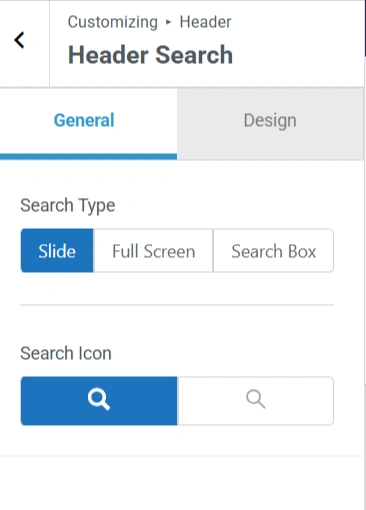
Header section

General Settings

  • Search Type: A set of three buttons (slider, full screen, and search box) to choose how the search bar is displayed when activated.
  • Search Icon: Set the icon for your search box.
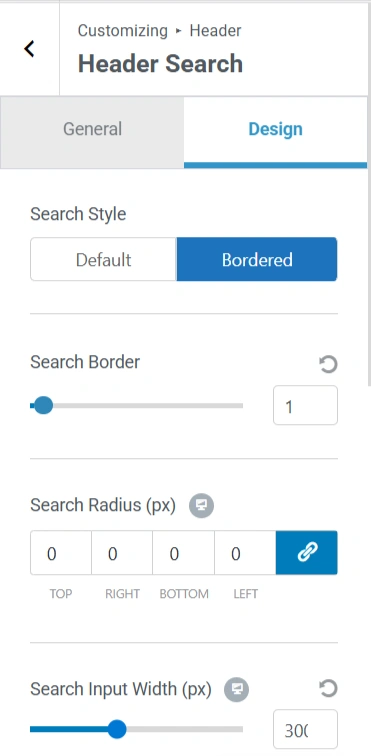
header design section

Design Setting

  • Search Style: Select the visual style for your
  • Search Border: Define the border for your box  in pixels.
  • Search Radius (px): Set the top, right, bottom, and left border radius of the search box.
  • Search Input Width (px): Control the width of the search input field in pixels.
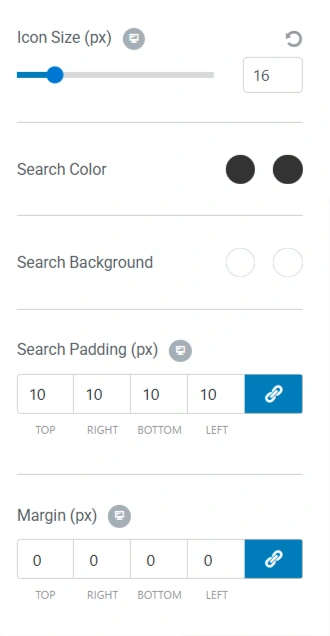
header design section continue
  • Icon Size (px): Adjust the size of the search icon in pixels.
  • Search Color: Two color pickers for different search-related elements. The first one is for the border color of your search box, and the other one is for the hover effect.
  • Search Background: Two color pickers for different search-related background elements. One is for the search box background, and the other is for the hover effect.
  • Search Padding (px): Set the padding around the box.
  • Margin (px): Set the margin around the search box.
Updated on August 18, 2025

What are your Feelings

  • Happy
  • Normal
  • Sad

Share This Article :

  • Facebook
  • X
  • LinkedIn
  • Pinterest
Header ButtonSite Title and Logo

Our Products

Responsive Pro

Responsive Addons for Elementor

Starter Templates

Responsive Blocks

WP Legal Pages

GDPR Cookie Consent

Powered by Responsive WordPress theme

Our Products

Responsive Pro

Responsive Addons for Elementor

Starter Templates

Responsive Blocks

WP Legal Pages

GDPR Cookie Consent

Powered by Responsive WordPress theme

Resources

Starter Templates

Responsive Platform

Learn Elementor

Testimonials

Compare Astra/Kadence

TrustPilot

CCPA

Video Tutorials

Resources

Starter Templates

Responsive Platform

Learn Elementor

Testimonials

Compare Astra/Kadence

TrustPilot

CCPA

Video Tutorials

Theme Features

Responsive Features

WooCommerce

Header Footer Builder

Site Builder

Child Theme Generator

Download Free Theme

DFY Website Setup

Theme Features

Responsive Features

WooCommerce

Header Footer Builder

Site Builder

Child Theme Generator

Download Free Theme

DFY Website Setup

Company

About

Pricing

Blog

Brand Assets

Affiliate Program

Contact Us

Terms of Service

GDPR Privacy Policy

GDPR Cookie Policy

Website Design Service

Company

About

Pricing

Blog

Brand Assets

Affiliate Program

Contact Us

Terms of Service

GDPR Privacy Policy

GDPR Cookie Policy

Website Design Service

Support

Login

Whatโ€™s New

Documentation

Request Support

Video Tutorials

Refund Policy

Service

Discount Coupon

Bug Bounty Program

Support

Login

Whatโ€™s New

Documentation

Request Support

Video Tutorials

Refund Policy

Service

Discount Coupon

Bug Bounty Program

Copyright © 2010-2026 CyberChimpsย ย 

Copyright © 2010-2026 CyberChimpsย ย 

Top
Top