↓ Skip to Main Content
Cyberchimps Logo

Main Navigation

  • Pro
  • Starter Templates
    • Free Templates
    • Premium Templates
  • Pricing
  • Login
Get Started
Cyberchimps Logo

Off Canvas Menu

  • Pro
  • Starter Templates
    • Free Templates
    • Premium Templates
  • Pricing
  • Login

Theme Installation & Updates

7
  • How to Delete a WordPress Theme
  • Precautions to take while working with a child theme
  • How to Create Your Account on Cyberchimps Responsive
  • FIX: Uploaded-file-exceeds-the-upload_max_filesize
  • Getting Error โ€“ The theme is missing the style.css stylesheet?
  • How to Install Responsive Theme
  • How to Download & Install Responsive Starter Template Plugin?

Responsive Theme Walkthrough

23
  • Blog/Archive Settings
  • Single Post Settings
  • Page Settings
  • Global Settings – Colors and Backgrounds
  • Global Settings – Form Fields
  • Global Settings – Button
  • How to Load Google Fonts Locally
  • How to Add Sidebar in Responsive Theme
  • Header and Footer Scripts in theme customizer
  • Global Typography Settings in Responsive Theme
  • Show Last Updated or Published Dates on Your Blog Posts
  • Create a Header Using Responsive Theme’s Header Builder
  • Create a Footer Using Responsive Themeโ€™s Footer Builder
  • Responsive Theme Typography Presets
  • How To Create A Sticky Header Using Cyberchimps Responsive Theme
  • How To Change The Copyright Footer Text In WordPress
  • How To Change Breadcrumbs Icon in Responsive Theme
  • How to adjust the width of sidebars from the customizer
  • Resize Logo From Theme Customizer
  • How to Add Breadcrumbs Using Responsive Theme?
  • Responsive Theme Settings
  • How to Add Related Posts Using Responsive Theme
  • Responsive Theme Widgets

FAQ

8
  • How To Enable Debug Log In WordPress
  • Download A .zip File Without Unzipping In Safari
  • How To Create An Admin User For Support In WordPress
  • Upgrading to 4.0.0 +
  • Upgrading to 4.1
  • Facing issues in importing Yoga Instructor Pro?
  • Yoast Seo Breadcrumb support in the theme
  • Updating to 4.2.0 results in the blank front end

Pre Sales / Billing FAQ

2
  • Billing FAQ
  • Pre Sales FAQ

Header Builder

12
  • How To Create Mobile Header With Responsive Theme’s Header Builder
  • How to Activate Live Search
  • Secondary Menu
  • HTML
  • Contact Info
  • Header Widgets
  • Header Social
  • Cart
  • Header Button
  • Search
  • Site Title and Logo
  • Primary Menu

Footer Builder

5
  • Footer Widgetsย 
  • Social
  • Scroll To Top
  • Copyright
  • Footer Menu
View Categories
  • Home
  • Docs
  • Responsive Theme
  • Theme Installation & Updates
  • How to Delete a WordPress Theme

How to Delete a WordPress Theme

While searching for the right design, itโ€™s common to install multiple WordPress themes.

Although inactive themes may seem harmless, they can negatively impact your website. Unused themes consume server storage and may pose security risks if they are not regularly updated. Deleting unnecessary themes helps keep your site clean, secure, and efficient.

Why Delete Your WordPress Theme?

You should never delete the active theme, as it will break your website. A WordPress site can only have one active theme, but it may contain multiple inactive themes.

1. Security Vulnerabilities

Themes are a common source of security issues. Hackers can exploit outdated or faulty theme code to inject malware or backdoors. Even inactive themes can be targeted if they are not updated.

Instead of maintaining unused themes, deleting them reduces security risks and limits entry points for attackers.

2. Storage Issues

Themes consist of multiple files that consume server space. Keeping unused themes increases storage usage and can affect performance, backups, site migrations, and security scans.

Removing unnecessary themes helps keep your dashboard organized and your server clean.

Uninstalling vs Deleting a WordPress Theme

WordPress allows multiple installed themes, but only one can be active. Installed but inactive themes remain on the server and continue receiving updates.

Deleting a theme permanently removes all its files from the site.

How to Delete a WordPress Theme

Before deleting any theme, it is recommended to take a backup of your site. This allows you to restore your site if anything goes wrong.

There are two ways to delete a WordPress theme:

  • Via the Admin Dashboard
  • Via FTP

Deleting a WordPress Theme via Admin Dashboard

With unrestricted access to the administrator dashboard, you can effortlessly delete any of the WordPress themes in your site. To do so, follow these steps:

  • Log into your WordPress dashboard
  • On the left side panel, hover your cursor on โ€˜Appearanceโ€™ and choose โ€˜Themesโ€™ from the list
Appearance  Themes
  • On the next screen, you will see all the themes installed on the site
  • Hover the cursor on a theme that you wish to delete and click ‘Theme Details’
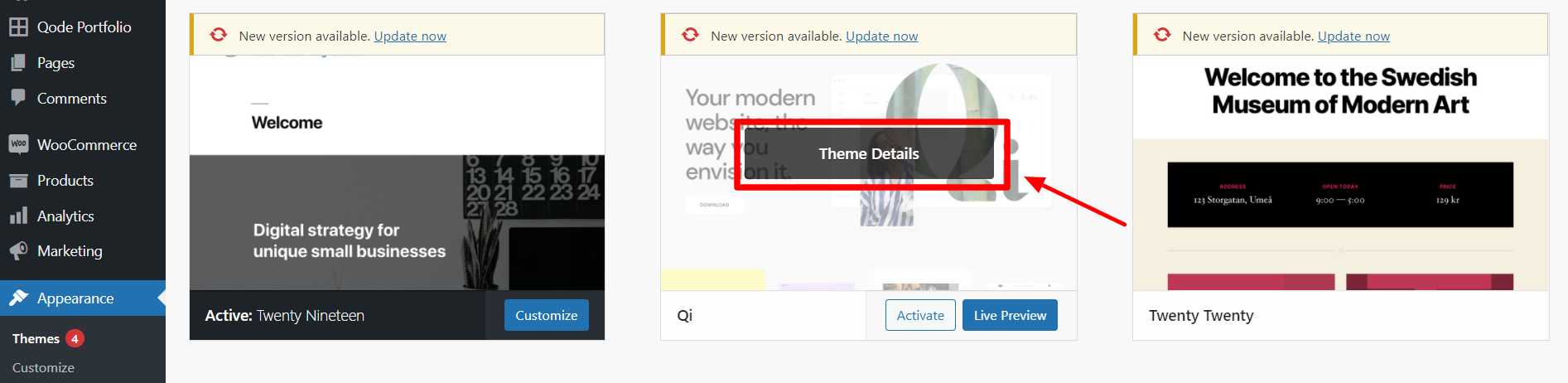
Theme details
  • In the next window, click the Delete option in the bottom right corner
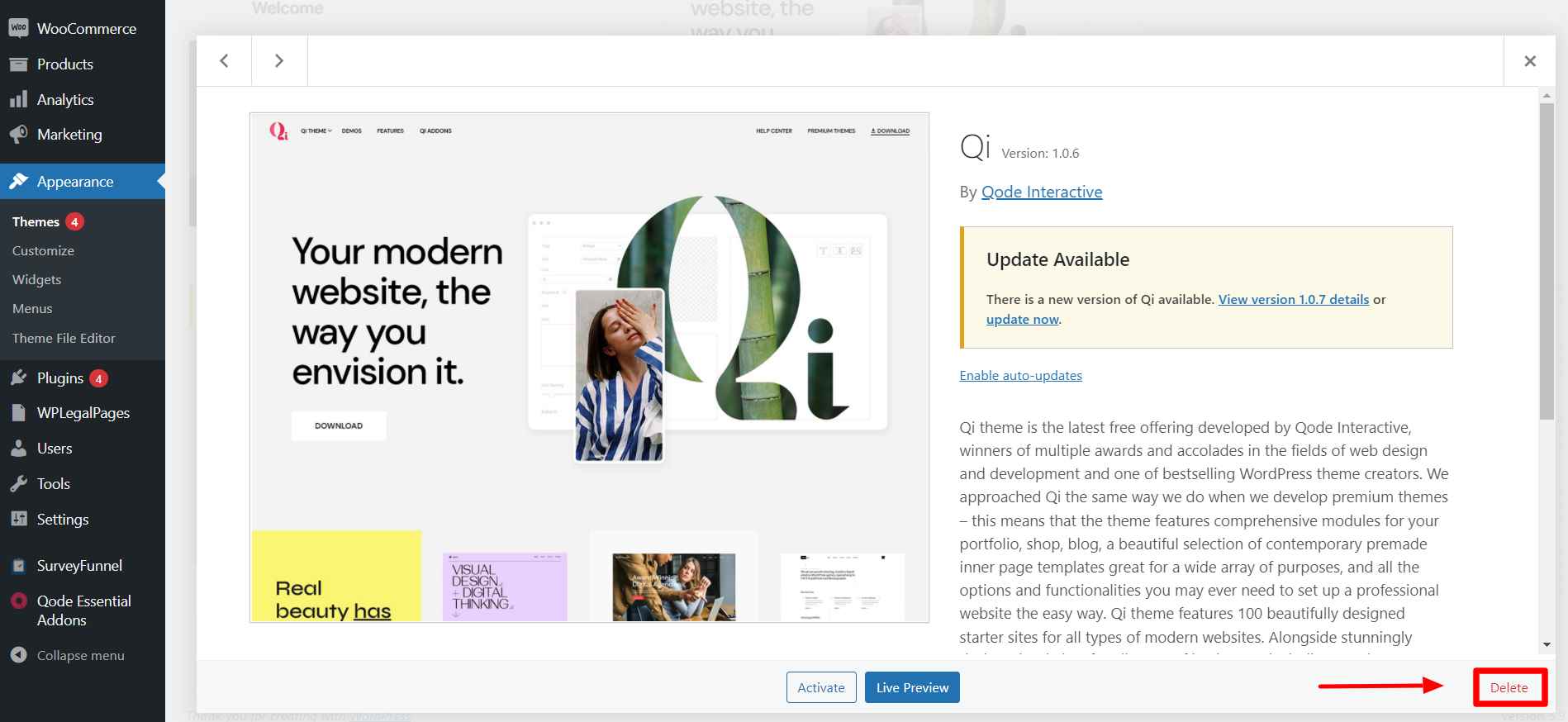
Delete theme
  • A warning message will pop up asking you whether you really wish to delete the theme; click OK

This will now delete the theme from your site and the server. 

If you see an error such as โ€œDeletion failed, the theme requested does not existโ€, WordPress may not have removed all files. In that case, use the FTP method.

Deleting a WordPress Theme via FTP

If you do not have admin access, you can delete a theme using FTP.

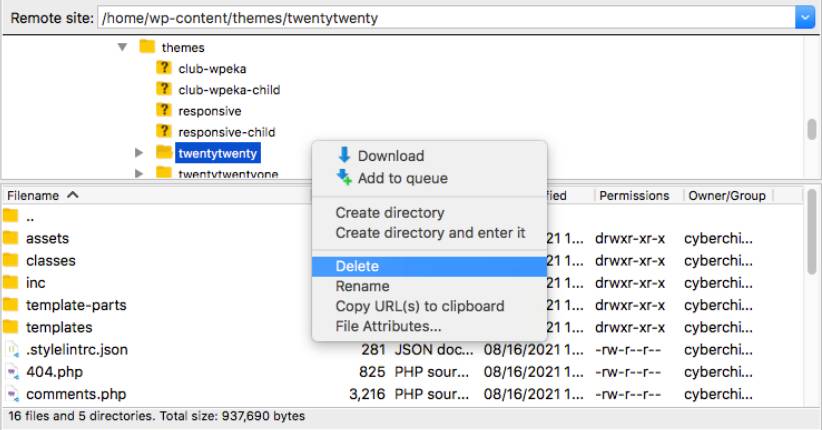
  • With the FTP client, as per your preference, connect to the web hosting server
  • Discover and open the wp-content folder
  • Then, open the folder of Themes
  • Inside this folder, look for a folder of the theme that you wish to delete; keep in mind it is not the active theme on the site
  • Now, right-click on the themeโ€™s folder and click Delete
Delete theme - FTP
  • The FTP client may show you a warning regarding this deletion
  • Click Confirm

The selected theme is deleted from your WordPress site.


Updated on January 20, 2026

What are your Feelings

  • Happy
  • Normal
  • Sad

Share This Article :

  • Facebook
  • X
  • LinkedIn
  • Pinterest
How to Download & Install Responsive Starter Template Plugin?Precautions to take while working with a child theme

Our Products

Responsive Pro

Responsive Addons for Elementor

Starter Templates

Responsive Blocks

WP Legal Pages

GDPR Cookie Consent

Powered by Responsive WordPress theme

Our Products

Responsive Pro

Responsive Addons for Elementor

Starter Templates

Responsive Blocks

WP Legal Pages

GDPR Cookie Consent

Powered by Responsive WordPress theme

Resources

Starter Templates

Responsive Platform

Learn Elementor

Testimonials

Compare Astra/Kadence

TrustPilot

CCPA

Video Tutorials

Resources

Starter Templates

Responsive Platform

Learn Elementor

Testimonials

Compare Astra/Kadence

TrustPilot

CCPA

Video Tutorials

Theme Features

Responsive Features

WooCommerce

Header Footer Builder

Site Builder

Child Theme Generator

Download Free Theme

DFY Website Setup

Theme Features

Responsive Features

WooCommerce

Header Footer Builder

Site Builder

Child Theme Generator

Download Free Theme

DFY Website Setup

Company

About

Pricing

Blog

Brand Assets

Affiliate Program

Contact Us

Terms of Service

GDPR Privacy Policy

GDPR Cookie Policy

Website Design Service

Company

About

Pricing

Blog

Brand Assets

Affiliate Program

Contact Us

Terms of Service

GDPR Privacy Policy

GDPR Cookie Policy

Website Design Service

Support

Login

Whatโ€™s New

Documentation

Request Support

Video Tutorials

Refund Policy

Service

Discount Coupon

Bug Bounty Program

Support

Login

Whatโ€™s New

Documentation

Request Support

Video Tutorials

Refund Policy

Service

Discount Coupon

Bug Bounty Program

Copyright © 2010-2026 CyberChimpsย ย 

Copyright © 2010-2026 CyberChimpsย ย 

Top
Top