
What is a WordPress Child Theme?
A WordPress Child Theme is a theme that inherits the functionality of another theme, called the parent theme. It is simply a copy of the parent theme with a few minor modifications.
It is an easy way to preserve the changes you make to your WordPress theme without them being overwritten by updates. In essence, a WordPress Child Theme allows you to modify or add to the functionality of your parent theme.
A Parent Theme is your main theme. For instance, Responsive Theme.
A Child Theme is a copy you use to keep all the modifications you make separately.
Why use a WordPress Child Theme?

The benefit of a child theme is simple. It enables you to customize your website safely and efficiently without losing your work.
- It protects your parent theme- If you made any changes to your website and break your site, you can simply delete that file and add a new one.
- Safe Updates- Usually, when you update your theme, all of the pre-existing files get replaced by new ones. Child themes give you a safe space to store all your modifications.
- Separate your customisations- A child theme provides a dedicated space for all of your new code, CSS, and new functions. It neatly organises all of your changes in its folder. It makes it much more structured and easier to troubleshoot problems, debug codes, and transfer your customisation.
- Speed Up Development- A child theme enables you to begin with a strong, pre-built foundation, which helps save time for developers. You don’t have to write entire themes from scratch, but instead use the parent themes functionality and only add new features.
How to create a WordPress Child Theme?
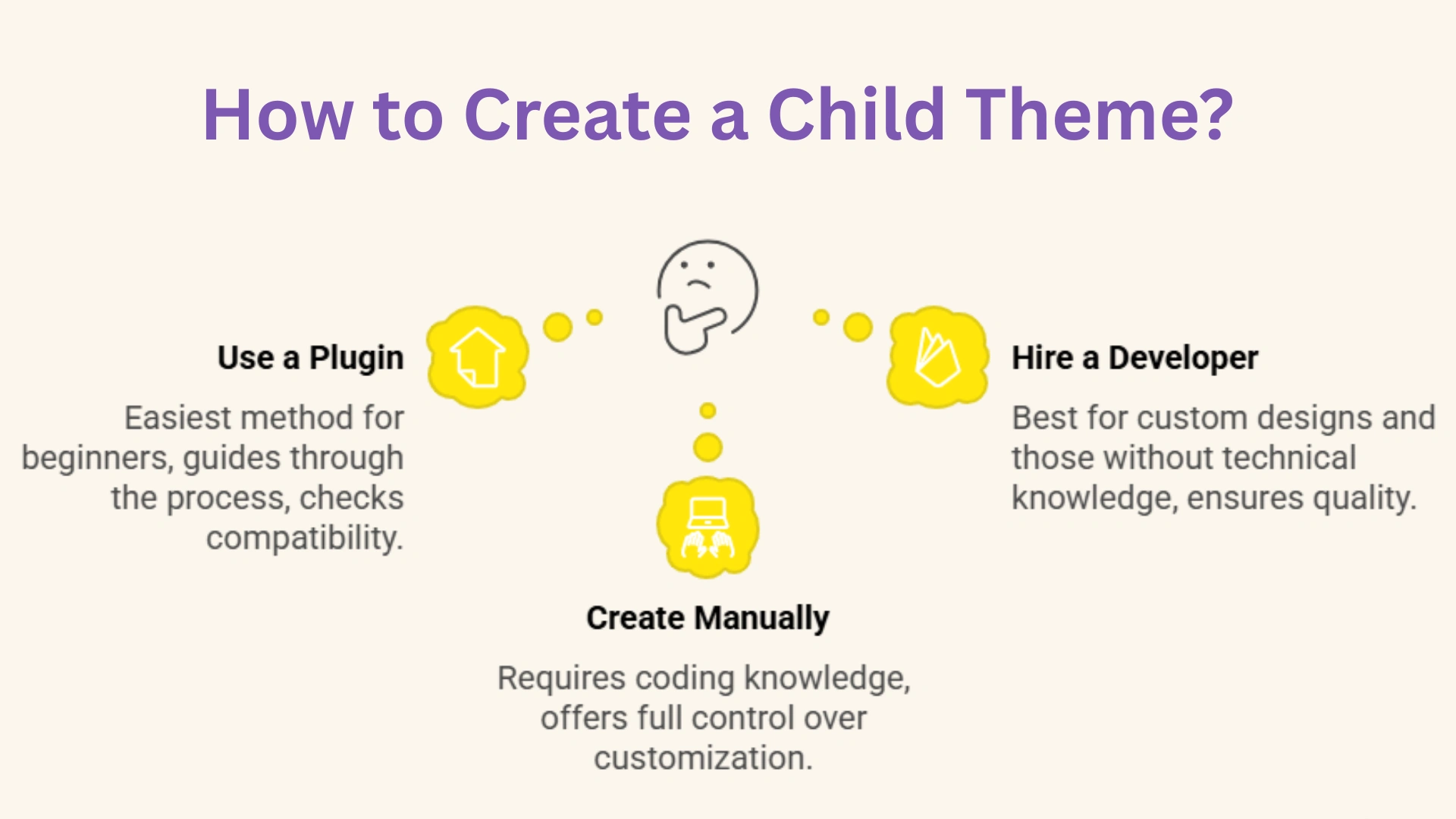
There are various ways to create child themes depending on how comfortable you are with coding. One of the most common methods is:
1. Using a plugin
Using a plugin to create a child theme is by far the easiest way. It is ideal for beginners who are not very comfortable with coding.
To create a child theme, you must install a plugin like Child Theme Configurator and activate it. The plugin will then guide you through the entire process and check your theme’s compatibility.
Finally, you can create your new child theme and start adding your customisations.
2. Hire a Theme developer
Nobody can make a child theme as beautifully as a developer. Hiring a developer is a smart and efficient choice. They can build you a custom WordPress site or modify an existing one to suit your needs perfectly.
For those who want special design requirements or for those who have no technical knowledge, a developer is suitable.
This method is most preferred as creating a child theme can sometimes be tricky due to the chances of layout breaks and site crashes.
3. Create it manually in WordPress
Creating a WordPress child theme from scratch can be especially difficult, as it requires basic knowledge of coding. It is for those who know how to code and need a hands-on approach for full control over customisation.
You must ensure that you back up your WordPress website before beginning to make any changes. Establish a staging area to safely test your child theme without hampering your live website.
Precautions to take while working with a child theme
1. Know your parent theme
Before you start working with a child theme, it is important to understand the functionalities of your parent theme. Whether it uses special “hooks” or “filters”.
You need to know every setting and customisation options before thinking about creating a child theme. Your theme might have certain functionalities and you might not even need to create a child theme.
2. Never directly modify the parent theme
One of the most important things to take note of is not to modify your prent theme directly. It might cause your live site to break, and in turn, would be an additional burden.
Moreover, whenever an update for a theme is released, the pre-existing files are updated with new files, and all of your hard work vanishes into thin air.
Instead, make all of your modifications to the child theme and keep it safe and secure.
3. Handle functions and templates with care
While working with a child theme, it is important to handle your functions and templates with utmost care.
You should never copy the functions file from your parent theme and paste it into the child theme. The functions file in the child theme is for adding new code only, so when your site loads, your new code is added to the main parent code.
When you want to change the layout of your website, you can simply copy the layout file from your parent theme and make changes to it in the child theme. When WordPress goes to show the changes, it will identify the file in the child theme and ignore the one in the parent theme.
4. Backup before updates
Even with a child theme, your site is exposed to the risk of breakage or crashes when major changes are made.
It is recommended to keep a backup before making any kind of changes to your site. So, in case a site breaks, and you have to rectify the issues, you can simply delete the modified file and revert to the version that worked perfectly.
You can use a VCS such as Git to keep track of all the versions of your site in an organised and structured way.
5. Clean your child theme code
It is best to frequently perform code hygiene checks in order to keep your child theme as light and clean as possible.
The child theme should only include the files and code you actually require to function. This keeps things organised and uncluttered.
6. Document changes
It is important to document or clearly note the changes you make to your site for anyone who might work on your site later can understand them.
This makes it easy to find things and understand what they are when you want to work on them again, or it becomes a time-consuming task.


