Summary
Beginners often need a simple explanation before building a site.
This overview breaks down what WordPress is, how it works, and why its themes, plugins, and flexibility make it one of the most popular website-building platforms.
Are you wondering what WordPress is and why it is important?
WordPress is the world’s most popular website development platform that you can use to create and manage any website easily.
If you’re someone looking for a detailed view of WordPress, how to use it, and its important features, you’ve come to the right place.
Here in this article, we’ll answer the question of what WordPress is and will take you through the various aspects, and help you understand it better.
Without further ado, let’s jump into the content.
- What is WordPress?
- History of WordPress
- What’s The Difference Between WordPress.org and WordPress.com?
- Who is WordPress Right for?
- What Kind of Websites Can We Build Using WordPress?
- Why You Should Use WordPress?
- What Resources Do You Need to Build Your WordPress Website?
- How to Update WordPress Without Loss of Data?
- What is a WordPress Theme?
- Key Features of a WordPress Theme
- What is a WordPress Plugin?
- Key Features of WordPress Plugins
- How To Update WordPress Theme & Plugins?
- How to Create a WordPress Website?
- WordPress Pros and Cons
- Future of WordPress
- WordPress Alternatives
- FAQ
- Conclusion
Cyberchimps Responsive is the Best WordPress Theme – Get it for free!
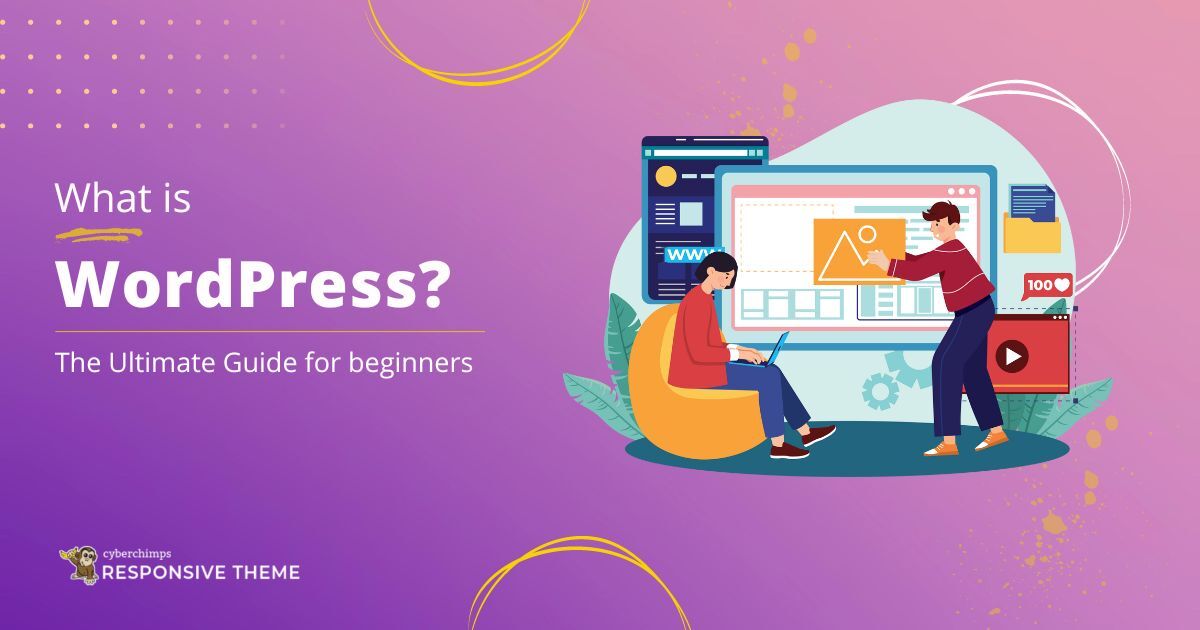
What is WordPress?

So what is WordPress exactly?
WordPress is an open-source content management system licensed under the General Public License Version 2.0 (GPL v2).
Initially, it was created as a blogging platform, but it has now evolved into a full-fledged website builder.
Its user-friendly interface makes it easy for people with no technical skills to build and manage their websites.
WordPress offers plenty of features that you can use to build your website uniquely.
The best part of WordPress is it’s FREE!
It has everything to build blogs, websites, and even online stores to sell your products.
History of WordPress
WordPress was founded in the year 2003 by Matt Mullenweg and Mike Little. It was first developed as a blogging platform for creating blogs. In a short span of time, it quickly grew in popularity due to its interface and flexibility.
The first version included a new template system, support for plugins, and a new administration interface.
In the next version, WordPress 1.0, many new features were included, such as securing the posts with a password, SEO-friendly URLs, and options for multiple category posts.
The release also saw the introduction of plugins and theme directories, making it easy to install new plugins and themes.
Over the next few years, it has continued to grow and evolve. In 2007, with the release of version 2.0, it included a new WYSIWYG editor.
The open-source software has continued to evolve since then, with new features and improvements added with each new release.
Today, WordPress powers 40% of websites on the internet and has become the platform of choice for bloggers, businesses, and developers.
What’s The Difference Between WordPress.org and WordPress.com?
Have you noticed that WordPress.com and WordPress.org are not the same but two different website-building platforms?
Yes, you heard it right. Both have different features and benefits, making each one a unique platform.
Many people are often confused and tend to choose the wrong platform for their needs. This results in a total mess while creating a website.
So here, we‘ll discuss the major differences between the two and conclude which platform is better.
WordPress.com
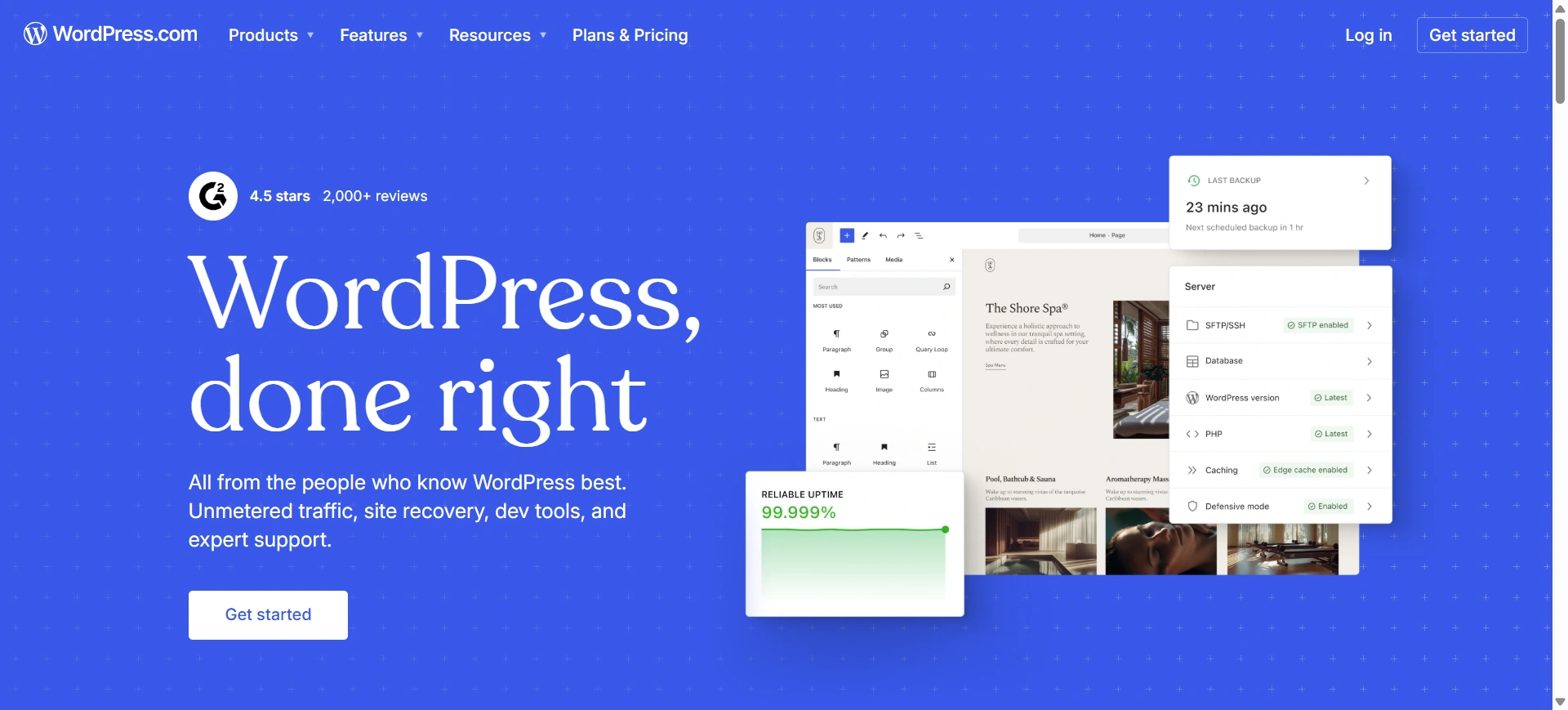
WordPress.com is a paid software that’s easy and simple to set up a website. You need not worry about hosting, security, or maintaining your website.
It offers users a straightforward installation and setup process. In this process, they can sign up, choose a blog name and theme, and start designing their website without complications or difficulties.
However, this service is not free and comes with six different pricing plans.
The major disadvantage of this builder is you lose the flexibility of choosing your domain, hosting, plugins, and themes.
WordPress.org
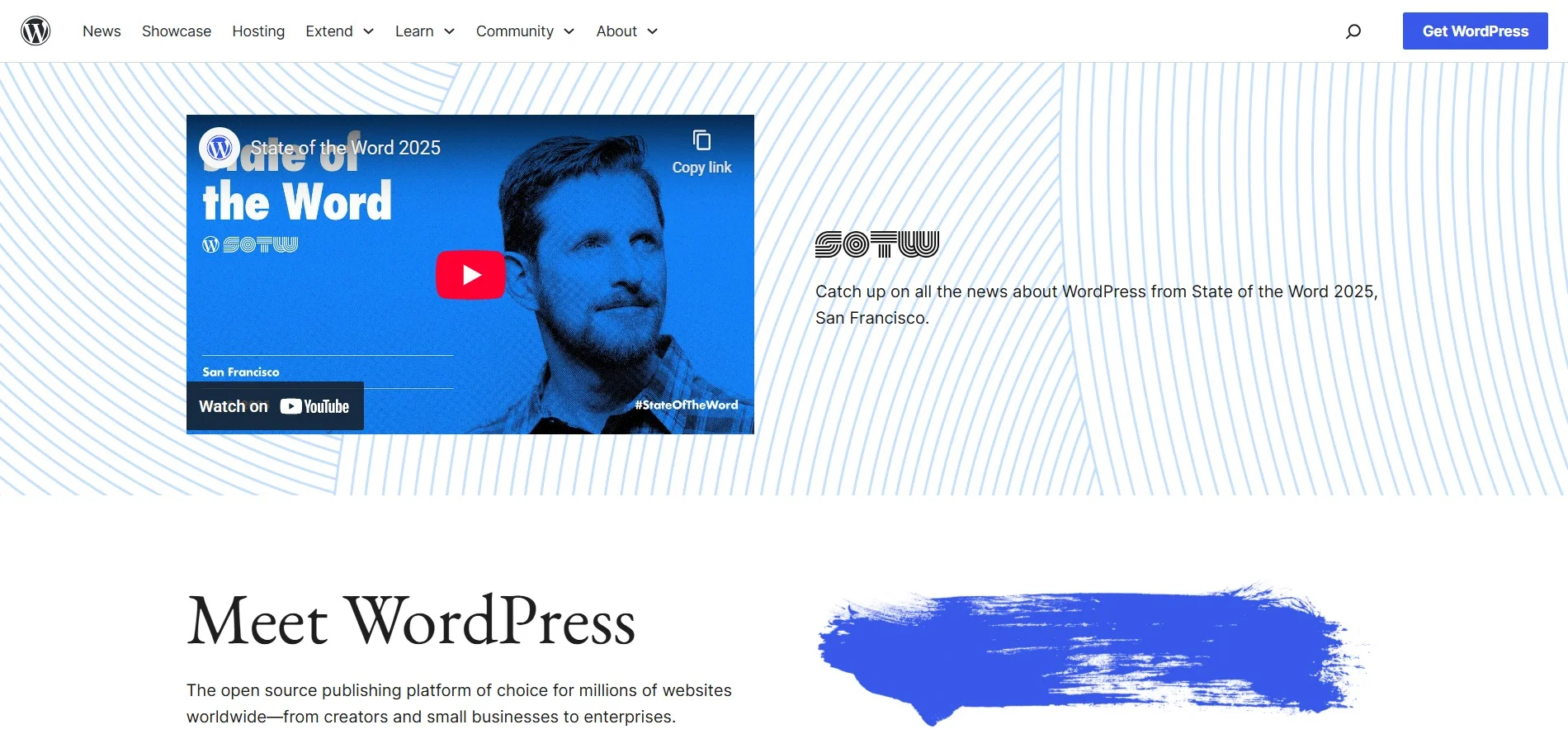
WordPress.org is a popular platform that’s free for anyone to use. It’s often termed self-hosted WordPress because you must purchase your domain and hosting.
It’s an open-source software that gives you full control over your website.
When you hear people talk about “WordPress,” they often refer to the self-hosted WordPress.org.
Many users prefer this platform, which provides endless customization possibilities to create a unique website.
Comparison Between WordPress.org vs WordPress.com
Here’s a tabular comparison:
| Features | WordPress.com | WordPress.org |
|---|---|---|
| Hosting | WordPress.com provides a domain name and hosts your website. | You need to purchase a domain name and hosting provider. |
| Custom Domain Name | Available only with a paid subscription. | You can choose any custom name for your domain. |
| Themes | Limited options for choosing the theme for your website. | You need to purchase a domain name and a hosting provider. |
| Plugins | Plugin options are limited, making it less flexible to build a website. | With thousands of plugins available, you can easily import any plugin. |
| eCommerce Store | It’s hard to build an online store with WordPress.com | With popular plugins like WooCommerce, you can easily create an online store. |
| Google Analytics | Cannot access Google Analytics with the free version. | You can track any data and metrics in WordPress.org using Google Analytics. |
| SEO | Free and paid plans are available. | There is a wide range of SEO plugins that you can use to make your website SEO-friendly. |
| Maintenance | WordPress.com maintains the website for you. | You are responsible for maintaining the whole website. |
| Price | Pricing mainly includes hosting and domain costs. Themes and plugin costs, if applicable. | Pricing mainly includes hosting and domain costs. Themes and plugins costs, if applicable. |
On observing the comparison between the two, WordPress.org is more reliable and cost-effective for building a website. It enables you to explore different areas and gives you the flexibility to construct a solid website.
Who is WordPress Right for?
In the world of virtual business and situations like COVID, one needs to have an online presence to expand their business.
The website is most likely your sole source of brand representation and Customer growth.
But the question arises is which platform do you choose to build a website? If you are looking for a Strong foundation, then the answer is WordPress.
WordPress is a no-brainer. That is web development with WordPress is simple. That is web development with WordPress is simple.
Most of the web developers believe that WordPress is a better choice as it stores content and enables a user to create and publish web pages, requiring nothing beyond a domain and hosting service, without needing to know anything about programming.
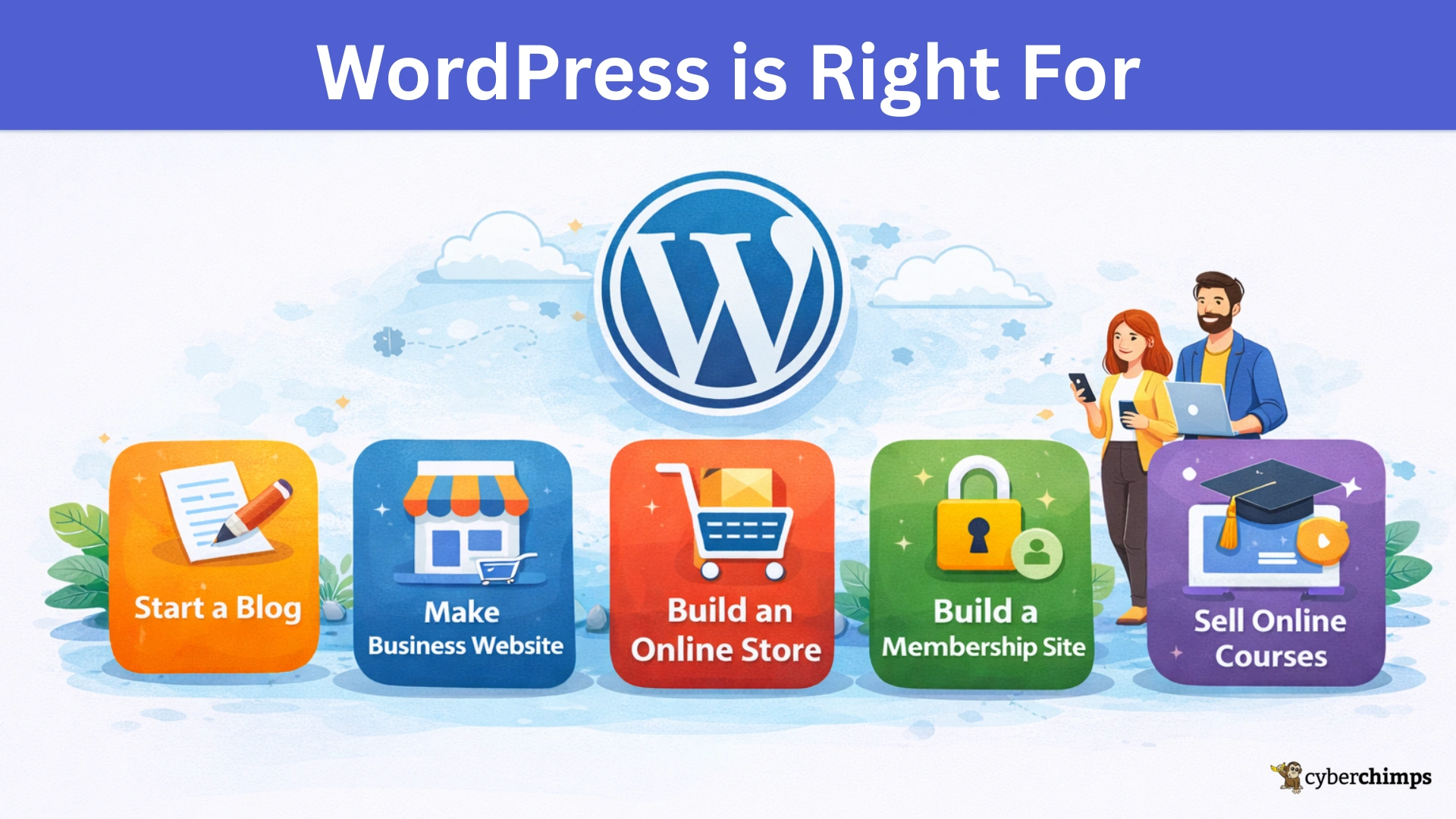
WordPress is a great choice for anyone who wants to-
- Start a blog
- Make a business website
- Build an online store
- Build a membership website
- Sell online courses
Moreover, WordPress is not just for bloggers; it is for everyone. It is a thriving and inclusive community with a wide range of technical people.
The members of the WordPress community provide full technical support without any charges. WordCamp is a vital component of the WordPress community.
WordCamp is all about WordPress. It is a community-organized conference centered on the WordPress publishing platform.
These events are scheduled, paid for, and attended by the local WordPress community.
It is attended by people ranging from blogging newbies to professional WordPress developers.
WordCamps are the perfect way to learn more about the platform, make connections, and find new opportunities.
What Kind of Websites Can We Build Using WordPress?
To get the best results for your website, combine the Responsive Theme and Responsive Starter Templates plugin and build a unique, responsive website.
The responsive Starter Templates plugin offers 100+ starter templates that you can use to build multiple websites of your choice.
Some of the popular websites you can build:
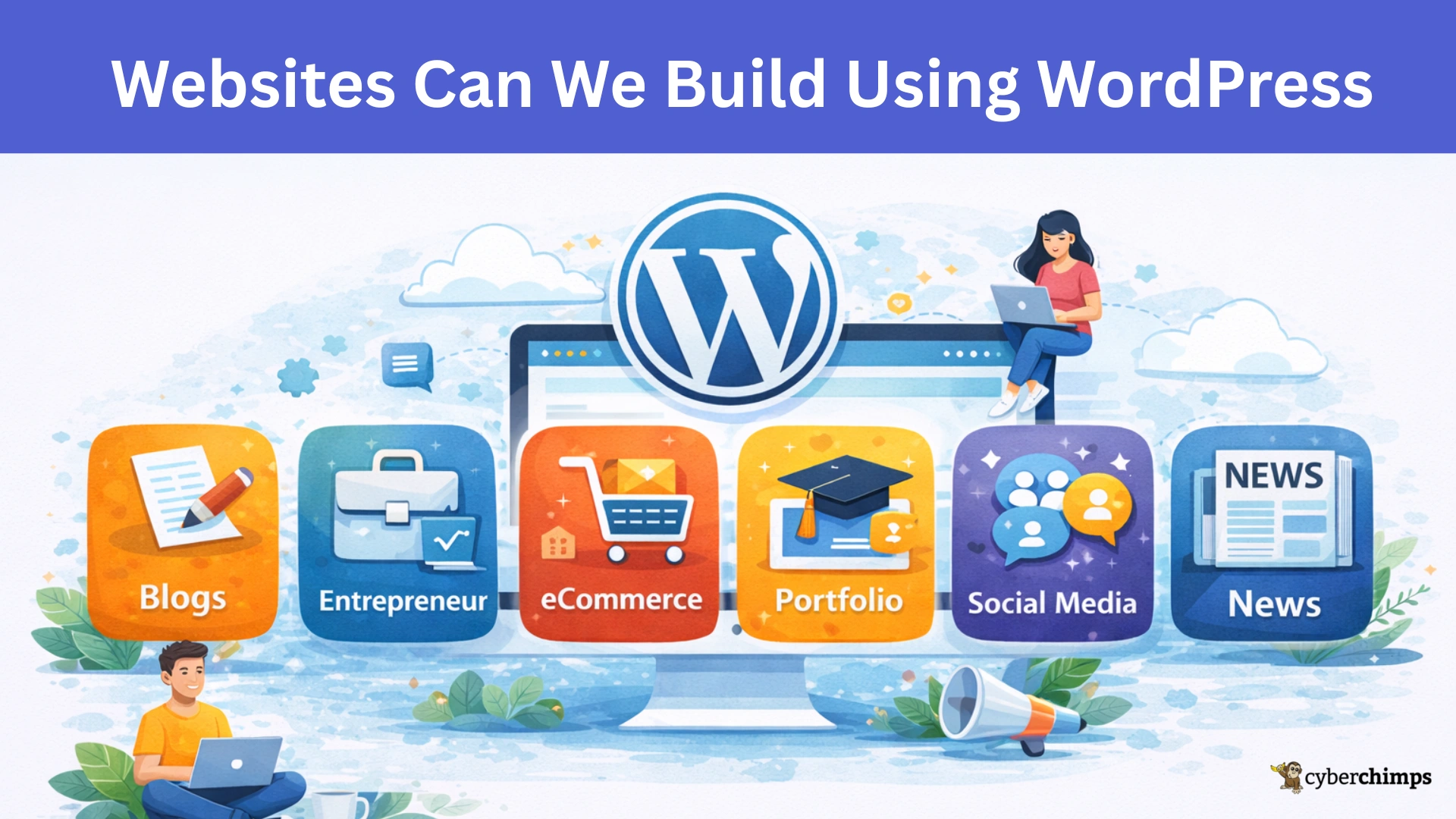
- Blogs: WordPress started as a blogging platform and is one of the best blog creation tools. Use the blog templates and customize them the way you want.
- Entrepreneur Websites: Whether running a small business or a large corporation, building an entrepreneur website is considered the best option to increase your customer base.
- eCommerce Websites: With plugins like WooCommerce that are integrated with WordPress, it becomes easy to set up an online store. WooCommerce helps you manage your products, sales, revenue, and payment gateways, all in a seamless manner. You can choose from the multiple eCommerce templates that the Responsive Starter Templates offer to create an online store.
- Portfolio Websites: If you’re looking to showcase your creative side, a portfolio website built with this platform can be a great way to display your work.
- Educational Websites: A website is vital to running an educational organization. Often, students visit the university website to see how good it is.
- News Websites: You can easily create a news website that displays various articles, provides different categories, manages comments, and much more. Now that you know the various types of websites you can create, let’s move on to the next section.
Why You Should Use WordPress?
From the earlier sections, we’ve seen that WordPress is a fantastic platform to build a website.
Here are the 9 major reasons that make it a popular choice:

- Customizability: WordPress’s community of developers and designers has developed a wide range of themes and plugins that allow websites to be customized and extended with additional functionality.
- SEO friendly: It’s optimized for search engines and has several plugins to help improve a website’s visibility in search results.
- Responsiveness: Many themes are designed to be responsive, which means they can adapt to different screen sizes and provide an optimal viewing experience on any device.
- Cost-effective: Being an open-source platform, you can use it for free. There may be some costs associated with purchasing themes and plugins, but overall, it’s an economical solution for building a website.
- Secure: Thinking about web security? WordPress is a secure platform and is constantly updated to fix security issues. Some plugins also help to make your website more secure.
- User-friendly: It’s a user-friendly software that makes it easy for beginners to use without coding experience. It provides an engaging interface that lets you easily add content, images, and videos to your website.
- Integration with popular themes and plugins: WordPress works seamlessly with many popular themes like Responsive, 2023, etc. It is also integrated with important plugins like Elementor, WooCommerce, Responsive Elementor Addons, and more.
- Multilingual support: Looking to create a website in your native language? WordPress lets you easily create a website in any language that you want. Themes like Responsive support multiple languages, helping you to build a beautiful multilingual website.
- Multiple genres of themes: You can install a new theme from a variety of theme categories and change the look of your WordPress website within a few minutes.
These benefits are crucial when building a website.
What Resources Do You Need to Build Your WordPress Website?
WordPress is the best platform for building your website, allowing you to integrate with third-party software easily. Considering this, we’ve listed the important prerequisites required before building a website.
The most important resources to build a website are:
- Domain Name and Hosting
- Theme
- Plugins
These resources help in building a solid and SEO-friendly website.
How to Update WordPress Without Loss of Data?
Are you looking for ways to update WordPress without losing the data?
Updating WordPress provides additional features, a better interface, and, most importantly, makes your website more secure.
Here are four ways to update WordPress without losing the data:
- Via the WordPress Admin Dashboard
- Manually with the Help of FTP
- Using SSH & WP-CLI
- Automatically via cPanel, wp-config.php & functions.php
Let’s check each one of them in detail.
Method 1: From the WordPress Admin Dashboard
You can update your WordPress from the dashboard.
It’s one of the easiest and simplest methods for updating. If there is an update to WordPress core, a popup will appear in the WordPress Admin Dashboard.

Now, click on the Please update now link, and it will redirect you to a new window.
Here, the WordPress ecosystem will tell you to create a backup of your database and files. While the update is taking place, your site will be in maintenance mode.

Once you take the backup, click on the Update Now button, which will start the update.

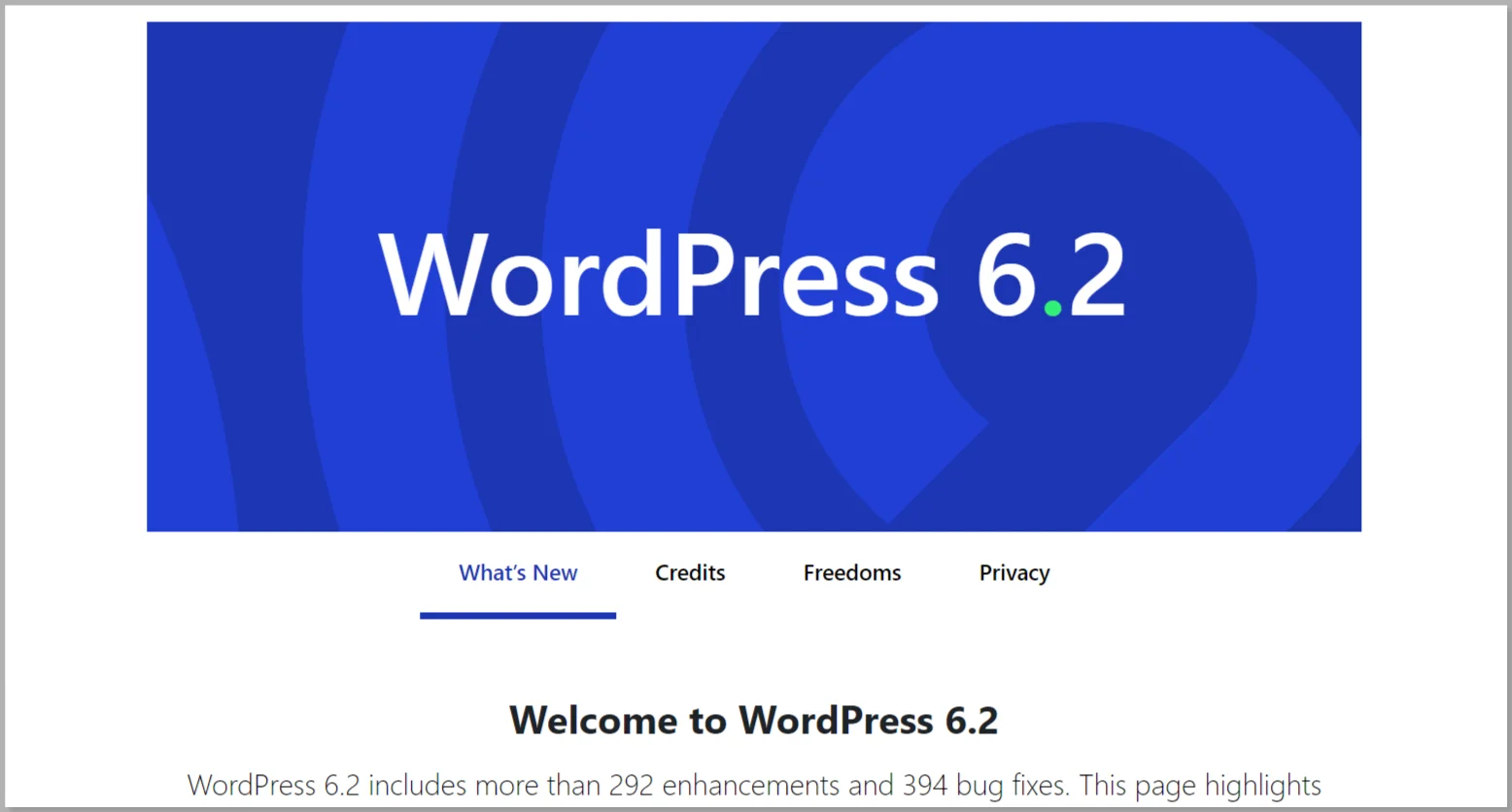
After completing the update, you will be redirected to a whole new screen as shown in the screenshot below. Here, you can also see the list of all the bug fixes and security updates.
Method 2: Manually Update WordPress With the Help of FTP
You can also update the WordPress core manually with the help of FTP. For this purpose, you need to make use of FileZilla.
For using an FTP program, you need to have the following details: username, password, hostname & port. Once you have these details, you can proceed further.
For this method, you also need to fulfill the prerequisites stated above. After that, you can go ahead and start the update.
Step 1: Download The Latest Version Of WordPress
First of all, navigate to the official WordPress website and download the latest version of WordPress.

After the completion of the download process, extract the WordPress archive on your PC using WinRAR or WinZip.
Inside the WordPress folder, you will see plenty of subfolders such as wp-admin, wp-includes, and wp-content as well as files like index.php, wp-login.php, wp-config-sample.php, etc.
Step 2: Access The WordPress Root Directory
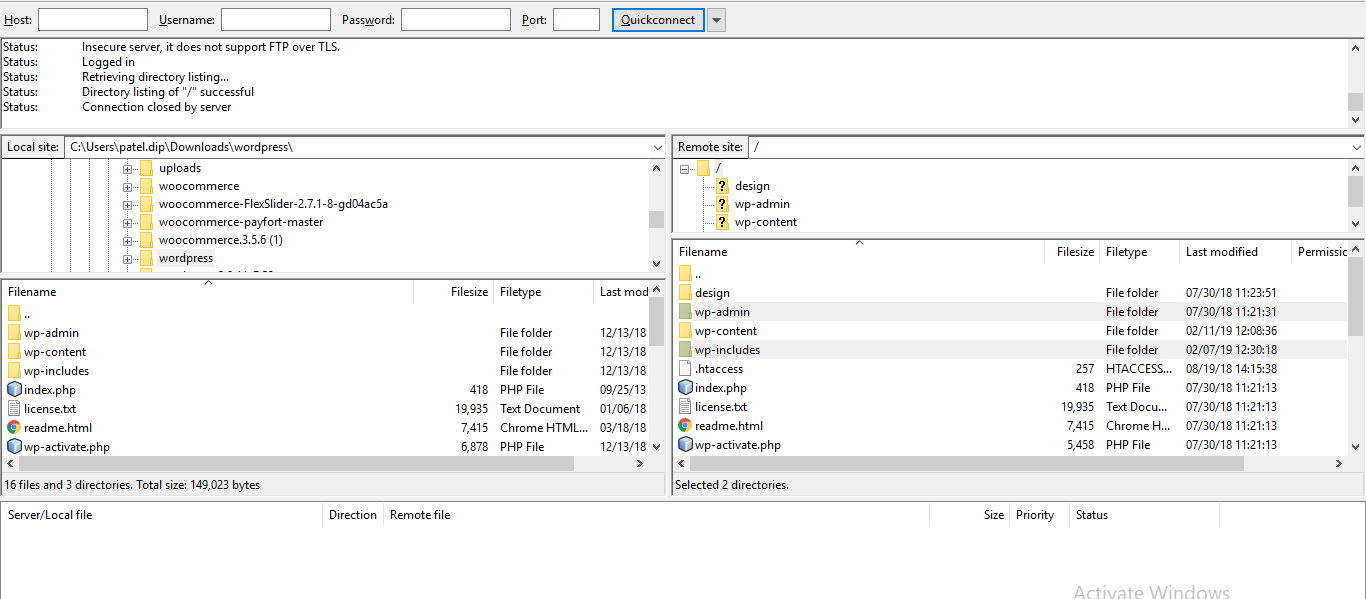
Using FTP details, try to access the WordPress root directory as shown in the screenshot below.
Once you get access to the root directory, try to move the files of the latest WordPress version to the root directory. You need to replace the existing files & folders for that purpose.
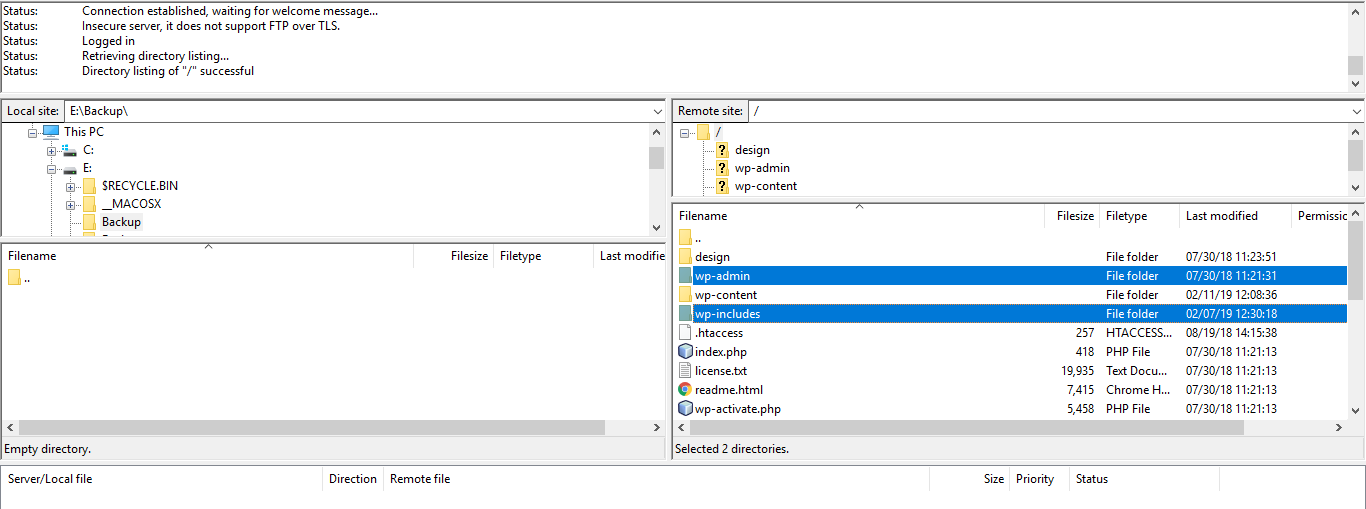
First of all, delete the current wp-admin and wp-includes folders from the host. If you’re utilizing FileZilla, then you need to select those folders and click on the delete option.
Make sure you don’t make any changes to the wp-content folder. The reason behind that is that your plugins, themes & all the media files are residing inside that folder.
Step 3: Upload The Latest Versions Of All Folders & Files
After deleting the old existing wp-admin and wp-includes folders, it’s time to upload the new ones.
For that purpose, move to the WordPress folder inside your PC as shown in the screenshot below.
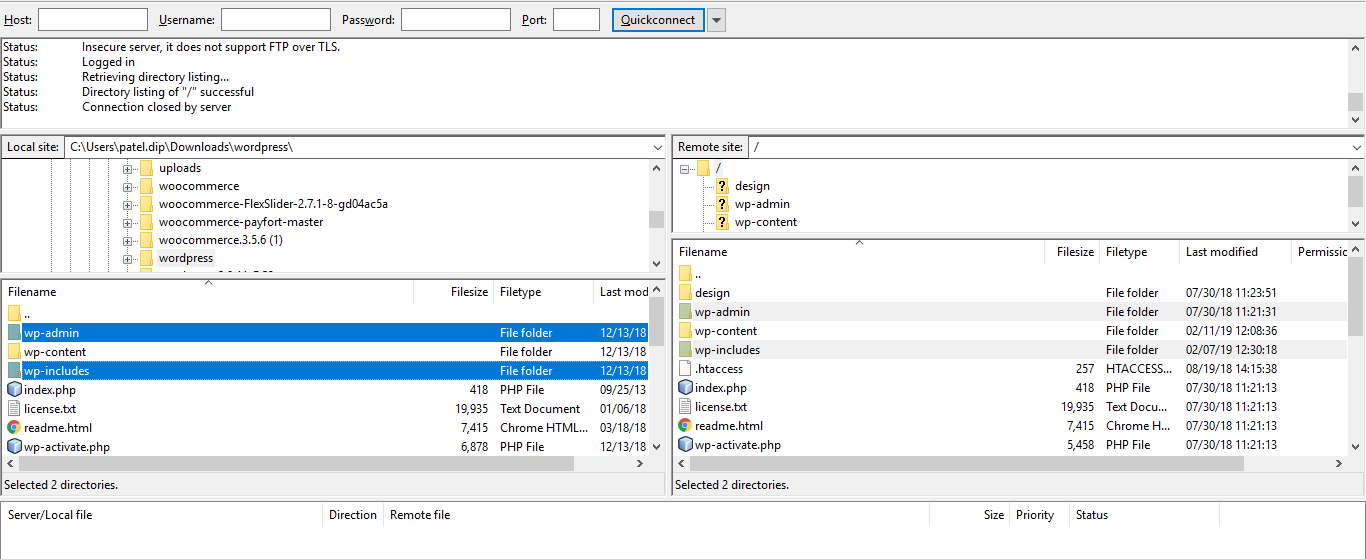
Now, select the wp-includes and wp-admin folders, right-click, and choose Upload. After you have got the latest version of all the folders, it’s time to upload the new files. In this case, you don’t need to delete anything. You just need to overwrite all the files.
For that purpose, select all the files from the left panel as shown in the screenshot below, right-click, and then pick the upload option.
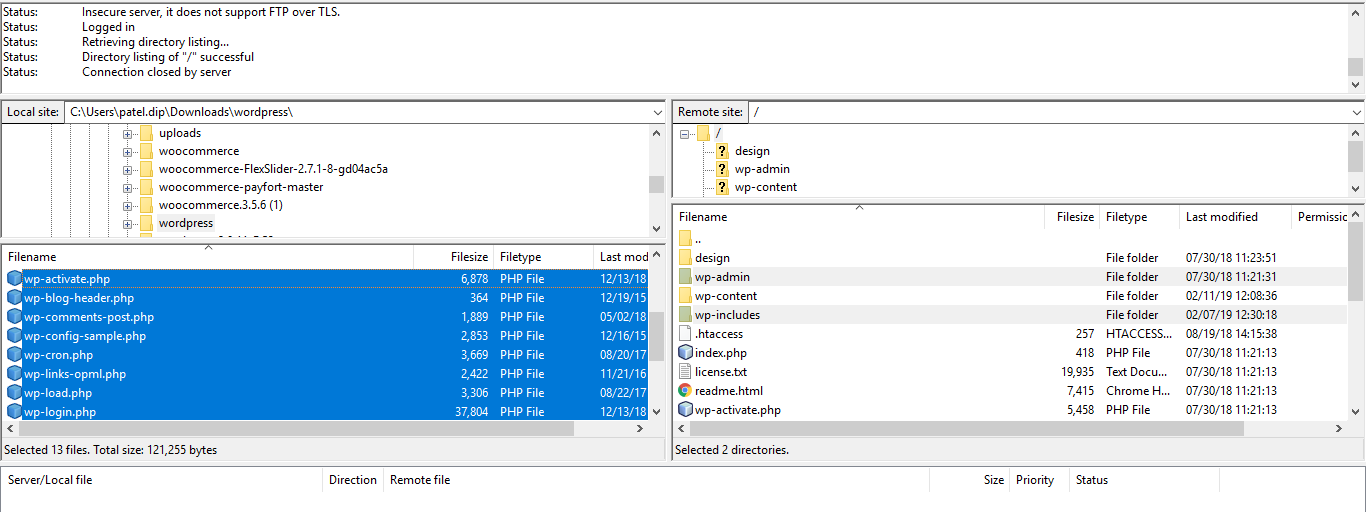
After the upload process is over, you will get a confirmation dialog box. In that box, select the overwrite option, then click OK.
Once you’ve all the updated files, move to the wp-config-sample.php file and check if there are any coding lines missing in the wp-config.php file.
If that’s the case, then copy those lines and paste them into the existing wp-config.php file on the web server. The last step is to check whether your website is working as required or not.
For that purpose, move to your admin area, i.e., yoursite.com/wp-admin/upgrade.php/. If everything is working well, then upgrade your database.
Method 3: WordPress Update Using SSH & WP-CLI
For this method, you need to have SSH access to your WordPress root directory, i.e., public_html. Updating the WordPress ecosystem via WP-CLI is a time-consuming process. The reason behind that is you need to update both the files and the database.
Now, if you’ve installed WordPress in a specific folder, public_html/your site, then the WordPress root directory is your site.
First of all, make use of the cd command for moving to the root directory:
cd public_html
After that, check the version of WordPress:
wp core check-update
The output will be as shown below:
version | update_type | package_url |
+---------+-------------+---------------------------------------------------------------+
| #.#.# | minor | https://downloads.wordpress.org/release/wordpress-#.#.#.zip |
| #.#.# | major | https://downloads.wordpress.org/release/wordpress-#.#.#.zip
If there is no update available for your WordPress website, then there will be a message such as “Success: WordPress is at the latest version.”
For updating the WordPress, run the following command:
wp core update
The output will be as shown below:
Updating to version #.#.# (en_US)...
Downloading update from https://downloads.wordpress.org/release/wordpress-#.#.#-no-content.zip...
Unpacking the update...
Cleaning up files...
No files found that need cleaned up.
Success: WordPress updated successfully.
To update the WordPress core vis WP-CLI, utilize the following commands:
- Database updates :
wp core update-db - Theme updates :
wp theme update --all - Plugin updates :
wp plugin update --all
Method 4: Automatically via cPanel, wp-config.php & functions.php
To enable automatic updates for your WordPress, add the following line of code to your wp-config.php file.
define('WP_AUTO_UPDATE_CORE', true);
What is a WordPress Theme?

A WordPress theme is a collection of files that define the design, layout, and style of a WordPress website. It controls the visual aspects—like colors, fonts, and page structure—without altering the website’s core content.
WordPress themes often come with customization options, allowing users to change elements like colors and fonts. Many are responsive, adapting the design for different screen sizes, and include template files (e.g., header.php files, footer.php files, function.php, and so on) for specific layouts.
Some themes also have built-in features like custom widgets and integrations with plugins, making them versatile for different types of websites.
WordPress Themes are available for free or as premium themes and can be found in the WordPress theme directory or theme marketplaces.
Key Features of a WordPress Theme
Here are the key features and functions of a WordPress theme.
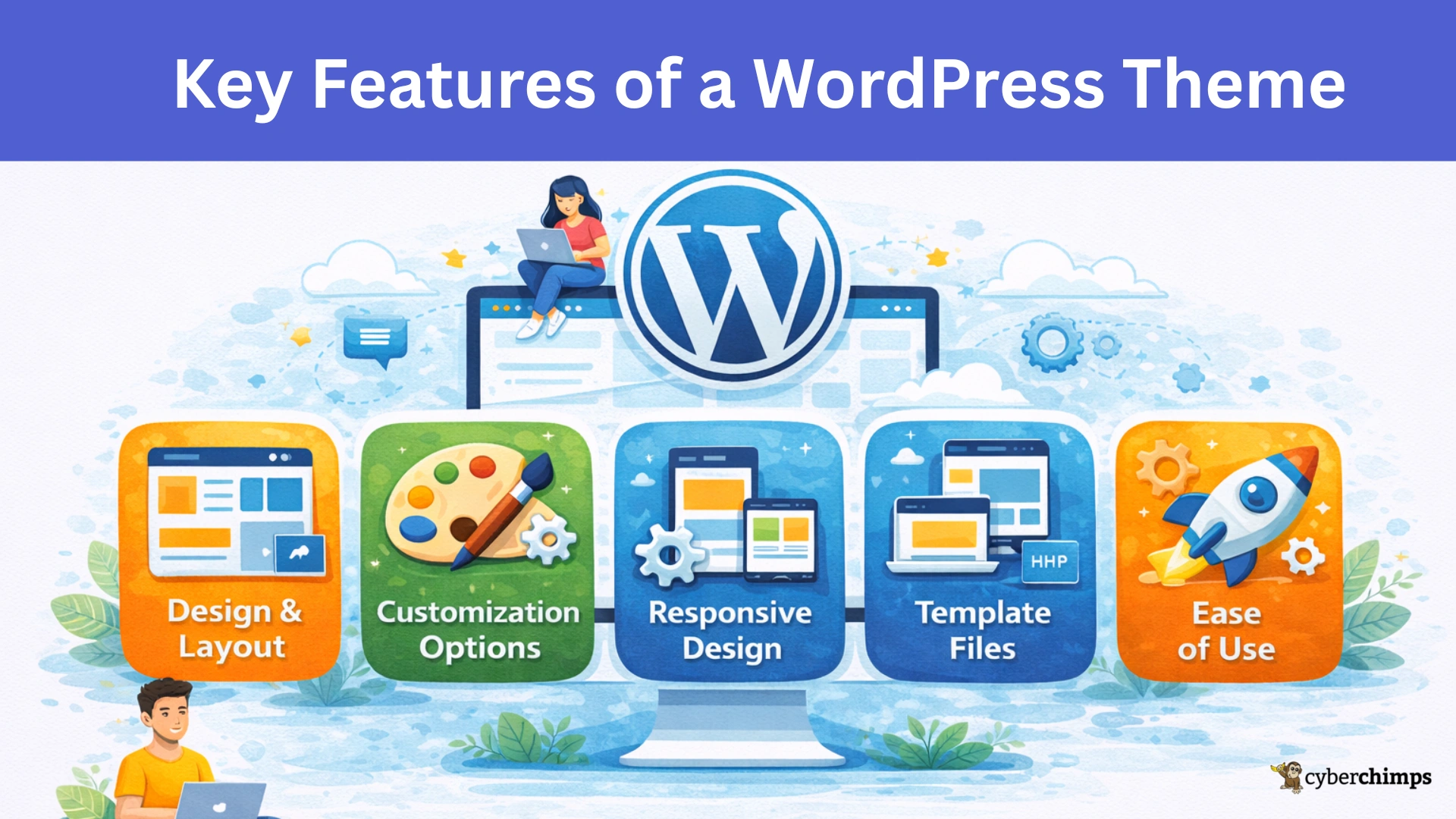
- Design and Layout: A WordPress Theme provides predefined layouts for different types of content, including blog posts, pages, headers, footers, sidebars, and more.
- Customization Options: Most themes offer customization options, allowing users to modify elements like colors, fonts, and layout settings. Premium WordPress themes often allow for more extensive changes in their paid plugins.
- Responsive Design: Many themes are designed to be responsive, meaning they adjust automatically to different screen sizes, ensuring the website looks good on desktop and mobile devices. We have our own Cyberchimps Responsive theme, one of the first themes to introduce the concept of responsive design in WordPress.
- Template Files: WordPress themes include various template files (like header.php, footer.php, single.php, etc.) that control the layout of different parts of the site. For example, the single post template controls how individual blog posts are displayed.
- Style and Visuals: CSS files control a theme’s styles, which dictate the site’s color schemes, typography, spacing, and other visual elements.
- Built-in Functionality: Some themes come with specific built-in functionality, such as custom widgets, custom post types, and integrations with plugins. This can make it easier for users to create specific kinds of websites, like e-commerce stores or portfolios.
- Ease of Use: Many themes offer easy setup processes, demo content, and user-friendly settings, especially for beginners. They can also be compatible with page builders like Elementor or WPBakery, further enhancing customization.
What is a WordPress Plugin?
A WordPress plugin is a tool that adds new features or functions to a WordPress site.
Plugins let users customize their site and add extra features without changing the main WordPress setup. They can be used for contact forms, SEO tools, online stores, social media links, and much more.
Key Features of WordPress Plugins
Here are the key features and functions of a WordPress plugin.

- Extend Functionality: Plugins enable additional features, like galleries, analytics, or security enhancements, transforming a basic WordPress site into a customized platform.
- Easy to Install and Manage: Plugins can be easily installed, activated, and managed directly from the WordPress admin dashboard.
- Wide Range of Options: The WordPress plugin directory offers thousands of free plugins, and many premium options are available on marketplaces like CodeCanyon.
- Compatibility and Flexibility: Plugins are generally built to be compatible with different themes and other plugins, allowing for great flexibility in site customization.
Popular plugins like Responsive Starter Templates, WooCommerce, and Responsive Addons for Elementor are widely used to enhance WordPress sites, making plugins an essential part of WordPress adaptability and power.
How To Update WordPress Theme & Plugins?
So far, we have analyzed the various methods to update the WordPress core. In this section, we will examine the way to update the plugins & themes.
For that purpose, hover over the WordPress Admin Dashboard >Updates
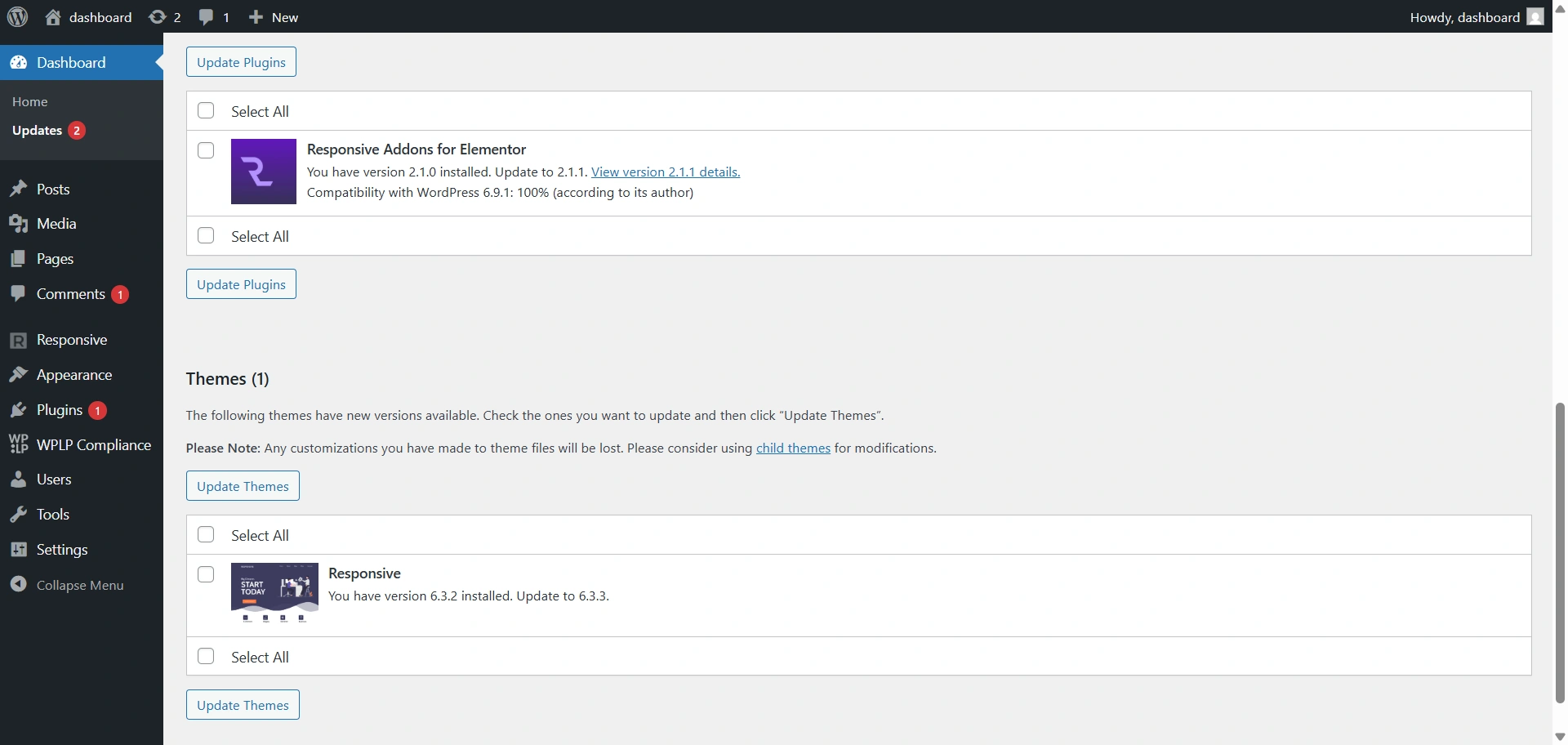
Here, you can view the option for Update Themes & Update Plugins. With the help of this option, you can update all the plugins and themes at one go.
However, if you want to update a particular plugin, you can also do that.
For that purpose, you need to head over to your WordPress Admin Dashboard
Hover over Plugins and click on the Installed Plugins button.
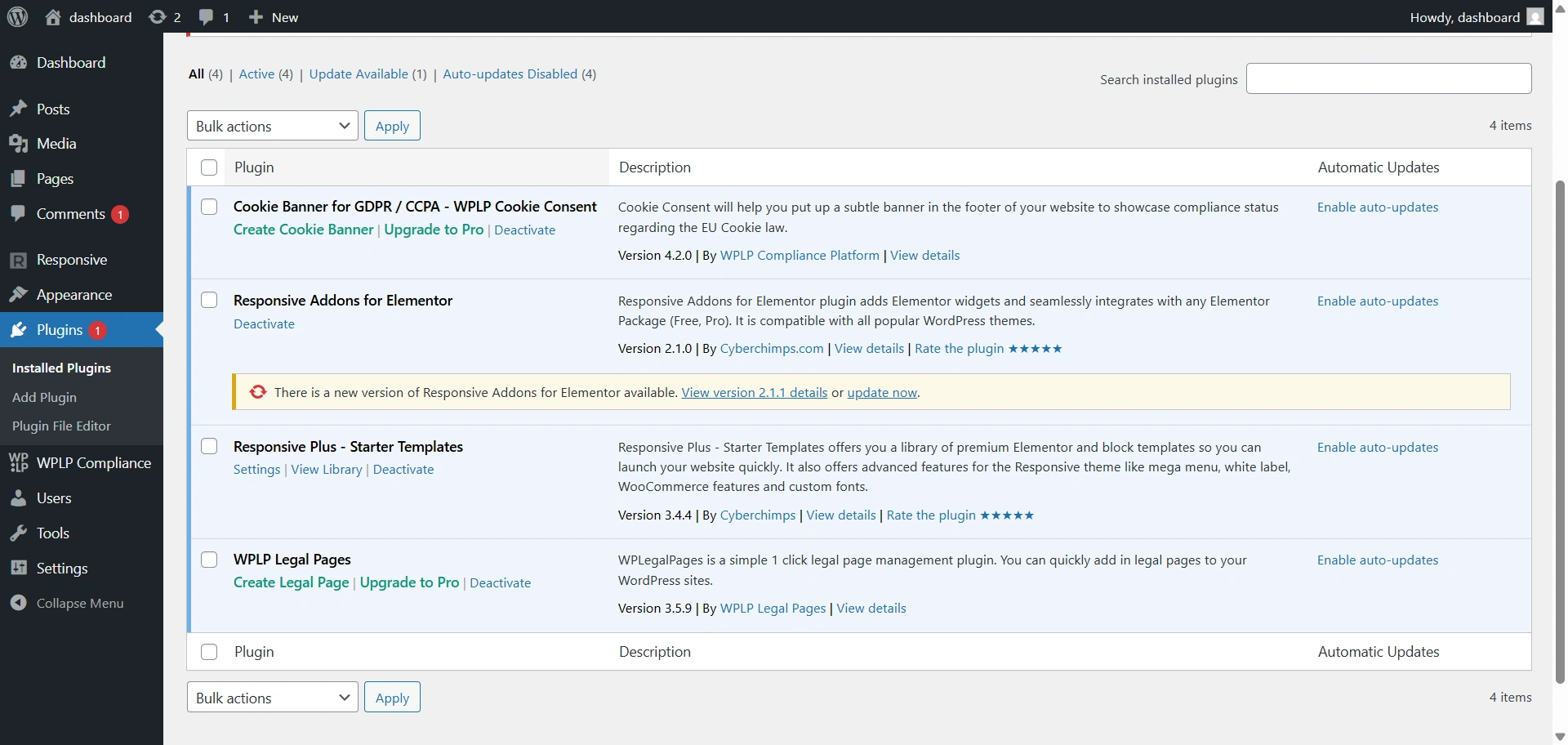
For updating an individual theme, you can move to the WordPress Admin Dashboard.
Hover over Appearance and click on the Themes button.
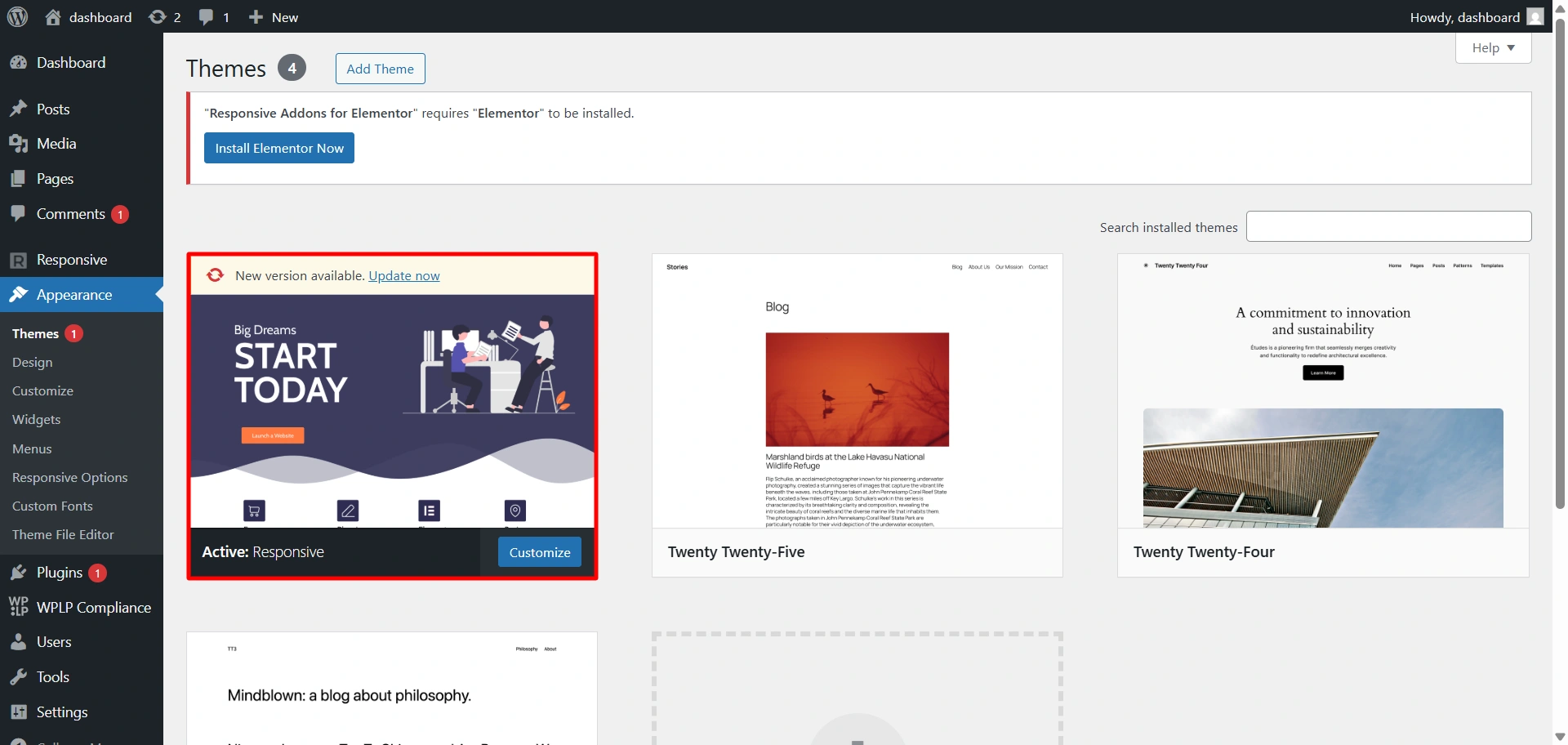
Just remember one thing: when you update any theme, you will lose all the customization options. So, always be aware of that prospect.
How to Create a WordPress Website?
Building a website is an easy and hassle-free process. You only need to follow these simple steps to create any website of your choice.
Follow the steps below to build a WordPress website.
Step 1: Get Domain Name and Hosting
The first step in creating your website is to choose a domain name and web hosting service. Your domain name should reflect your brand and be easy to remember.
You can register a domain name with a domain registrar such as Namecheap or GoDaddy. For web hosting, we recommend using a reliable hosting provider such as Kinsta.
Kinsta offers different features and services that are relevant to your business:
- High-performance infrastructure using Google Cloud Platform
- Developer-friendly features like SSH access, WP-CLI support, Git integration, and more
- Automatic scaling based on traffic spikes or lulls
- 24/7 support from a team of experts
After choosing a domain name that is easy to recall and a good hosting platform, now it is time to start building your website.
Step 2: Install WordPress
Once your domain name and web hosting are ready, you can install WordPress from your hosting account. Most web hosting providers offer a one-click installation process that makes it easy to start.
Step 3: Install Responsive Theme

Next step is to select a theme for your website. Your chosen theme should be visually appealing, easy to customize, and mobile-friendly.
One excellent option is the Responsive theme, a popular and versatile theme perfect for creating any kind of website.
You can easily install the Responsive theme by heading over to your dashboard and navigating to the Appearance menu > Themes.

Click on the Add New button.

Search for Responsive in the search bar option.

Click on the Install button to install the Responsive theme.

Lastly, click on the Activate button.

Step 4: Install the Responsive Starter Templates Plugin
From your dashboard, navigate to the Plugins menu, and click on the Add New button.

Search for Responsive Starter Templates in the search bar option provided.
Click on Install Now.
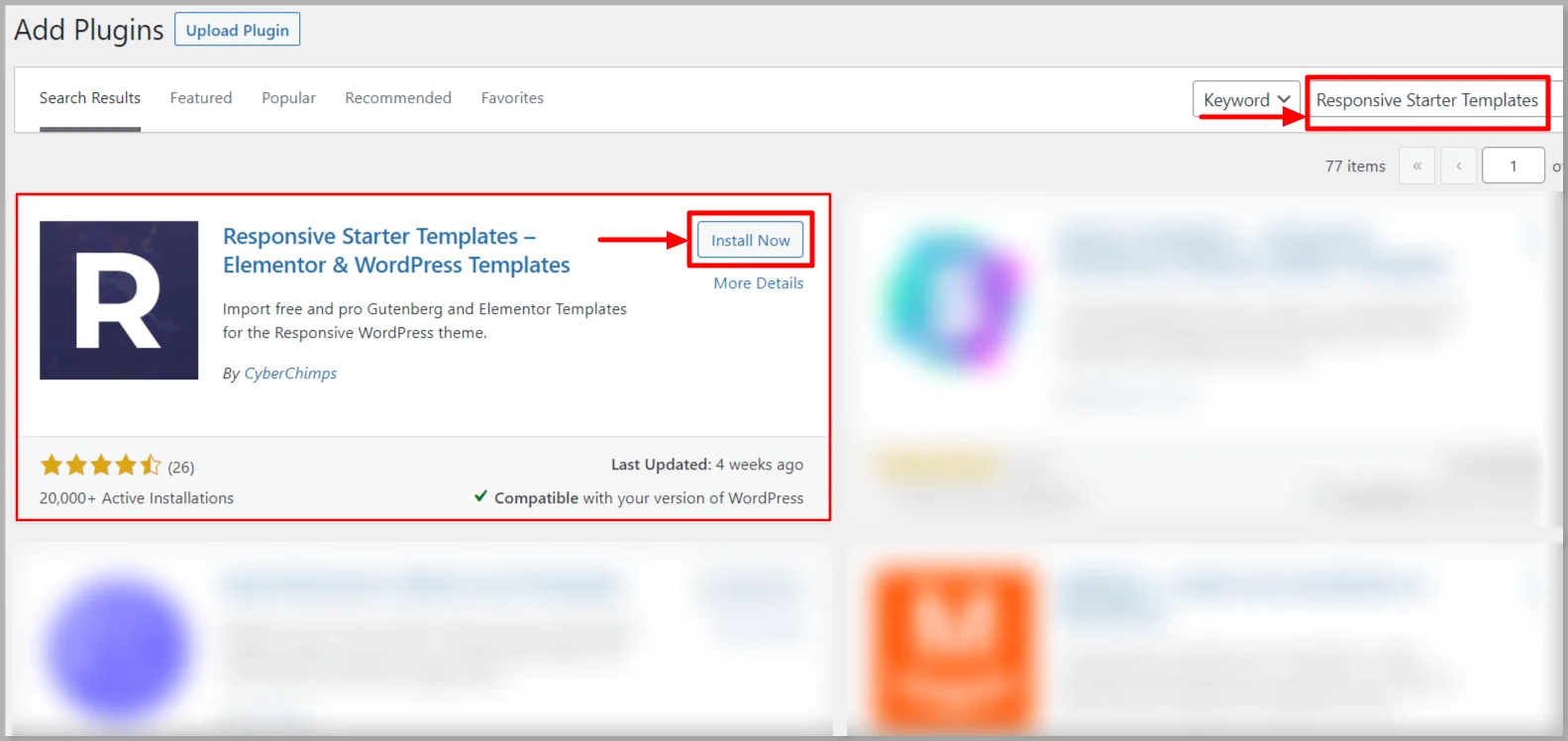
Next, activate the plugin by clicking on Activate button.

After activating the plugin, go to the Responsive menu > Responsive Templates.

Search for the template you would like to create a website.

Preview the template and click on the Import site button. The template will be imported into your website.
The last step in the process is to edit the website template using a plugin like Elementor.
That’s it.
You have successfully created a beautiful website.
WordPress Pros and Cons
Below are the WordPress pros and cons that help you decide if WordPress is really good for you.
Pros of using WordPress
After thorough research, we’ve come up with the greatest advantages of using WordPress. Let’s look into them one by one:
- Relatively less expensive website development: Building, developing, and maintaining a blog or website on your own using WordPress is significantly cheaper than hiring a designer to build your site from scratch.
- A wide variety of professional themes: The platform gives you the freedom to choose your desired theme from a wide selection of premium themes. Great themes are available at favorable prices. The availability of professional site themes is one of the compelling reasons for using the platform.
- WordPress sites are mobile-friendly: Making your site as responsive as possible across devices is critical to your success. Having a Responsive theme in your dashboard will make your design look great on all devices.
- Search Engine Optimization Ready: A WordPress site is built with everything an SEO-ready site should have. Constant codes for favorable Google indexing, customizable SEO components for each page, and plugins dedicated to SEO are some of the ways WordPress makes sites competitive in search engine rankings.
- You can easily update your site from wherever you are: You can maintain your site on your own from wherever you are. You can make normal changes to your site when necessary.
- Great for eCommerce sites: Many eCommerce sites use WordPress. The CMS provides a number of plugins, such as WooCommerce, to ensure that your site is efficient for eCommerce.
- Frequent upgrades to your site’s capabilities: Unlike other CMSs, where adding new features or functionalities is cumbersome or difficult, WordPress-based sites are easy to upgrade. WordPress uses plugins that are generally easy to install and use.
- Best for aggressive online marketing: WordPress allows you to make as many updates to your content as required. Also, you can make a new WordPress site in minutes to take full advantage of tactical campaigns.
- Increased security compared to traditional sites: With good web design and development skills or a bit of professional help, you can useWordPress’ security plugins and updates to make sure your site remains hack-proof.
- Easy transition from one designer to another: As your business grows, there are chances that different designers will work on your site over time. However, WordPress is an open-source platform that makes it extremely easy to transition between different designers.
Cons of Using WordPress
Using WordPress has its drawbacks. These include:
- Difficult: It can be difficult to navigate through WordPress web design, development, and maintenance, especially if you don’t have any prior experience.
- Costly: While the WordPress platform itself is free, using it efficiently relies on customization themes and plugins. Most of these efficiency-enhancing features and tools have a price. The more of them you use, the higher the cost of using WordPress goes.
- Website Vulnerability– Security is a big challenge for many users. The mere fact that WordPress is the most widely used CMS makes it a prime target for cybercriminals. Its heavy reliance on plugins developed by different people also increases the chances of malicious code slipping through to your site’s functionalities.
- Frequent Updates: It’s not enough to simply install WordPress. You must install various plugins and themes to ensure that it functions properly. The more plugins you utilize, the more compatibility issues you’ll have to deal with. For this reason, you need to know how to update your WordPress theme without losing customization (and keep your design tweaks, plugin settings, etc. intact).
- Poor SEO: The SEO friendliness of WordPress can mean problems for people with no SEO experience. In WordPress, if the content is marked into many categories or is over-tagged, Google flags it as duplicate content. This can significantly affect your site’s rankings on SERPs.
Overall, WordPress is a competitive blogging platform and CMS compared to other related solutions. It is free and super easy to use, which makes it the best option for many starting bloggers and website owners.
Future of WordPress
With the latest advancements in the editor and the shift towards entire site editing features, WordPress has a bright future.
The Gutenberg editor, or the new default WordPress Block editor, is faster and helps you build websites without being impacted by the number of pages or posts. This makes WordPress an ideal choice for building blogging or eCommerce websites.
WordPress sites are multilingual, so they’re a good choice for creating news websites that share the same content in different languages.
The drag-and-drop website builder approach also boosts WordPress’s adaptability because anybody can build a website using the drag-and-drop functionality without knowing the technical aspects of a website.
Overall, the future looks promising, and WordPress will be a go-to platform for free website building.
WordPress Alternatives
Wix

Wix is a different yet flexible alternative to WordPress. It is a cloud-based web development platform with 2000+ customizable templates. Providing the tools you need for building online, professional-looking sites. It also includes AI-driven design and business tools.
Shopify

If you’re looking to sell products online or create a small business website, Shopify is a good alternative to WordPress. If you wish to sell on Amazon, eBay, Facebook, Instagram, etc., Shopify also provides a free multichannel integration.
BigCommerce
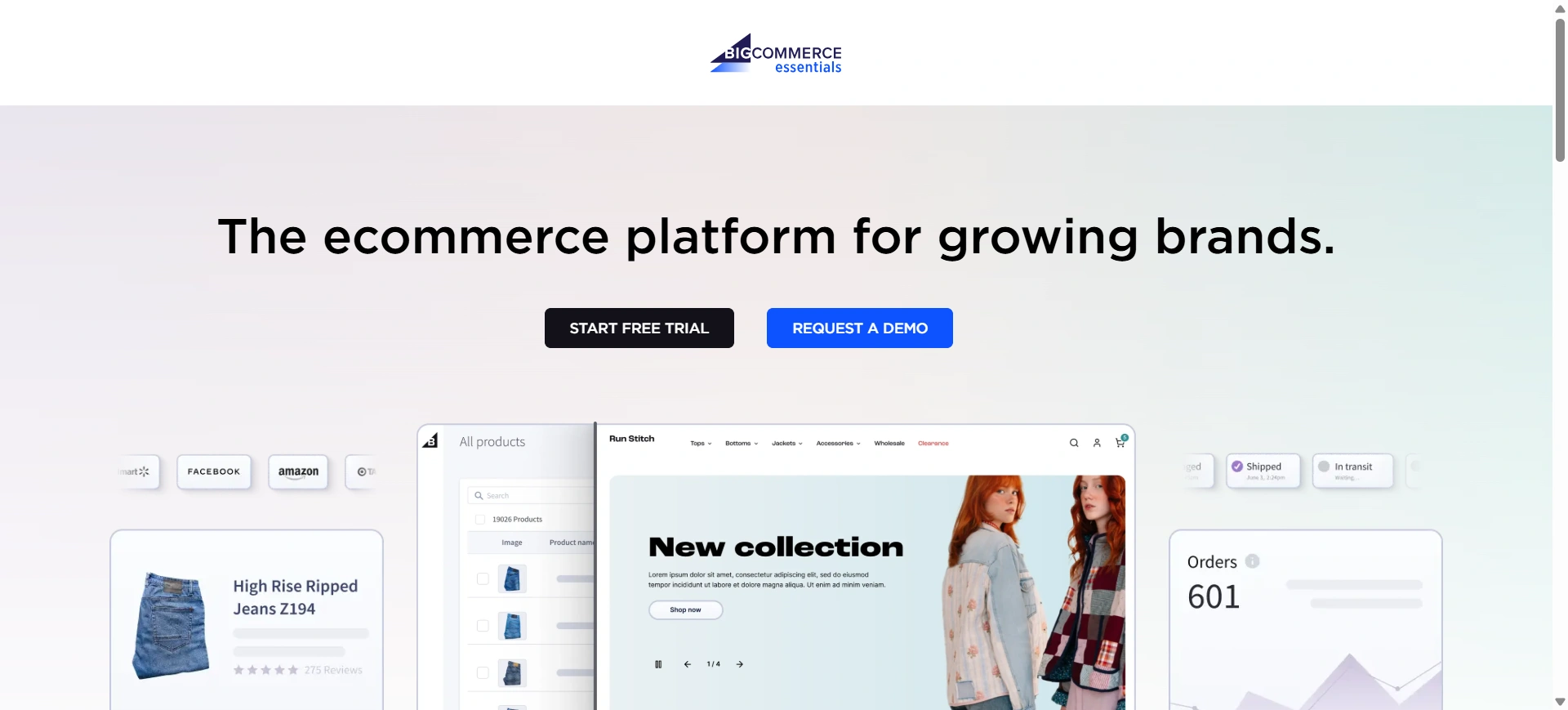
In the world of online websites, SEO practices are important for any business to grow. When it comes to SEO capabilities, BigCommerce is the one. It comes with unlimited bandwidth for product and file storage.
Squarespace

Squarespace is a website builder that comes with stylish and responsive designs. It takes care of all aspects of your website, like templates, automatic updates, e-commerce, and hosting.
Squarespace is best for small businesses if the pricing is considered.
Joomla
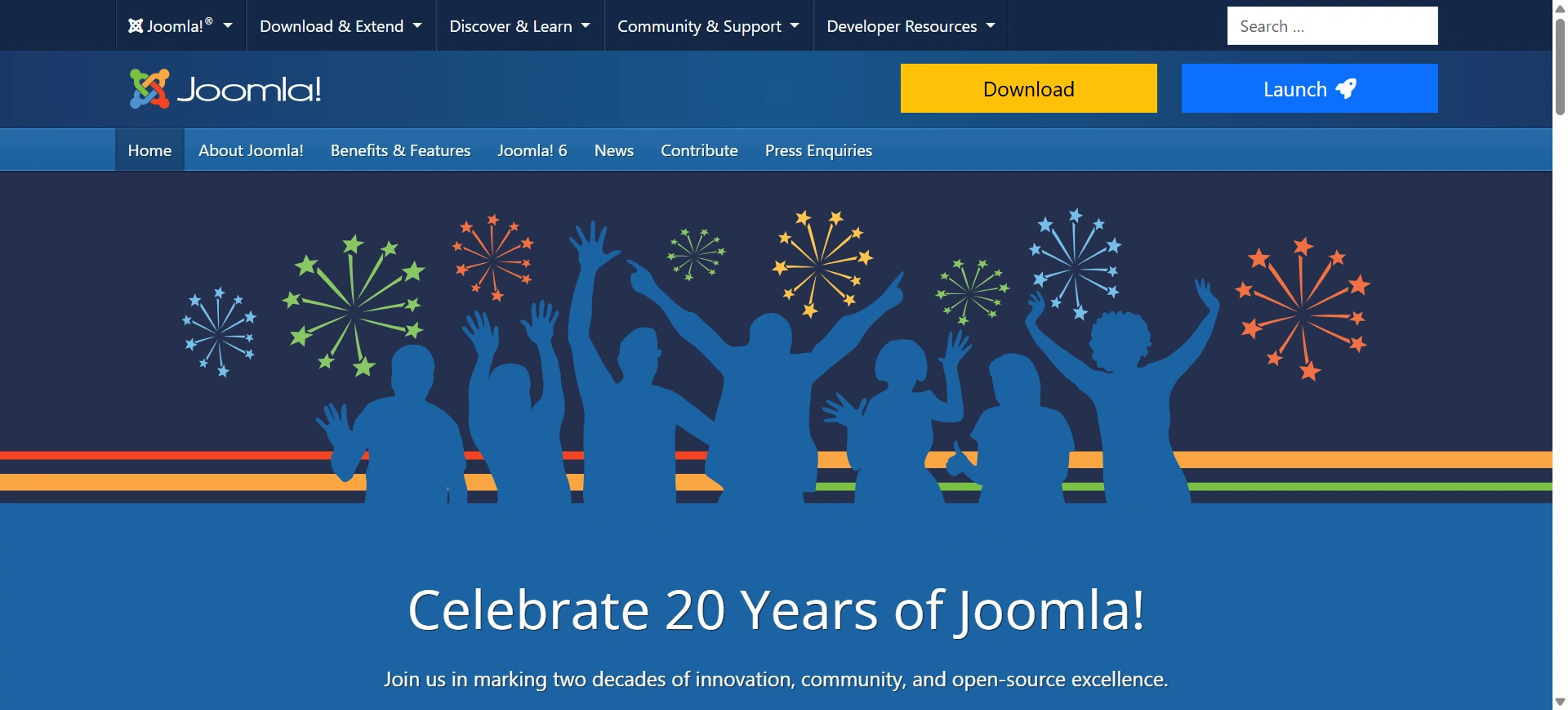
Joomla is a complex but powerful open-source platform on which websites and applications are created. It is a content management system that is a fit for all websites.
Joomla is easy to use, but it also expects you to custom-code the non-standard element.
FAQ
WordPress is a popular platform used to build websites and blogs. It’s a content management system (CMS) that allows users to build, design, and manage websites without needing to code. It’s known for being user-friendly and highly customizable.
WordPress.com is a hosted platform where WordPress manages everything for you, including hosting, maintenance, and security. It has some limitations on customization and plugin access unless you upgrade to a paid plan.
WordPress.org is the self-hosted version, where you download the WordPress software and set it up on your own web hosting. It offers complete control and flexibility, allowing you to install any themes or plugins and customize your site as much as you like.
It depends on the user’s needs:
WordPress offers more customization, flexibility, and control, making it a better choice for users who want a more complex site or long-term scalability.
Wix is simpler and faster for beginners, with an easy drag-and-drop editor but fewer customization options. It’s good for basic websites, but may have limitations for growth.
Yes, WordPress is an excellent choice for building business websites. It offers professional themes, plugins for SEO and marketing, and is scalable to support growing businesses. Its flexibility allows businesses to create a unique, tailored site that meets their specific needs.
Conclusion
WordPress is the best platform to create a website or a blog site. You can uniquely customize your website with its extensive features and easy-to-use interface.
A theme like Responsive makes your website look fascinating and provides additional design capabilities.
WordPress easily integrates with Elementor and Responsive Starter Templates plugins, the two important plugins for website creation.
If you’ve liked reading this article, don’t forget to look at our other similar articles:
- What is WooCommerce? Beginner’s Guide
- How to Build a WooCommerce Website with Elementor
- Elementor Review: Is It Still Relevant?
Are you already excited about building a website with WordPress? Grab the Responsive theme and Elementor to build the best website!