This block allows you to stream Instagram content directly to your WordPress website, thus increasing your odds of getting new followers and clients.
How To Add The Instagram Block
Open a page or a post and click on the plus icon to add a new block, and look for ‘Instagram’, or you can search for it if it doesn’t pop up quickly for you.

How To Configure The Instagram Block
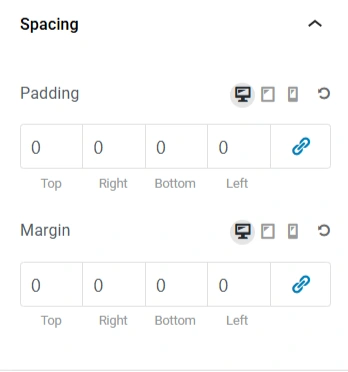
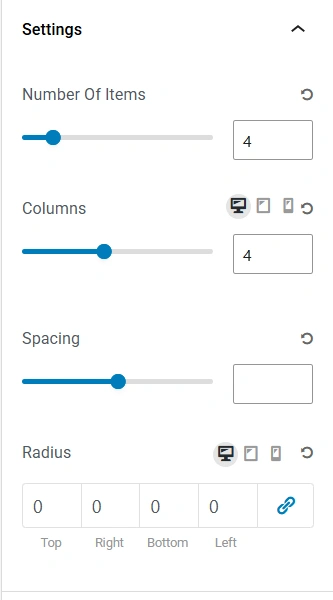
Under the Content Tab, General Settings like Columns, Spacing, Border Radius, and options to choose the number of posts to be displayed are available.
Content API Key
This block requires you to obtain an Instagram Access Token to connect Instagram with WordPress. To do so, follow the steps below:
1. Convert your Instagram account to a business or creator account:
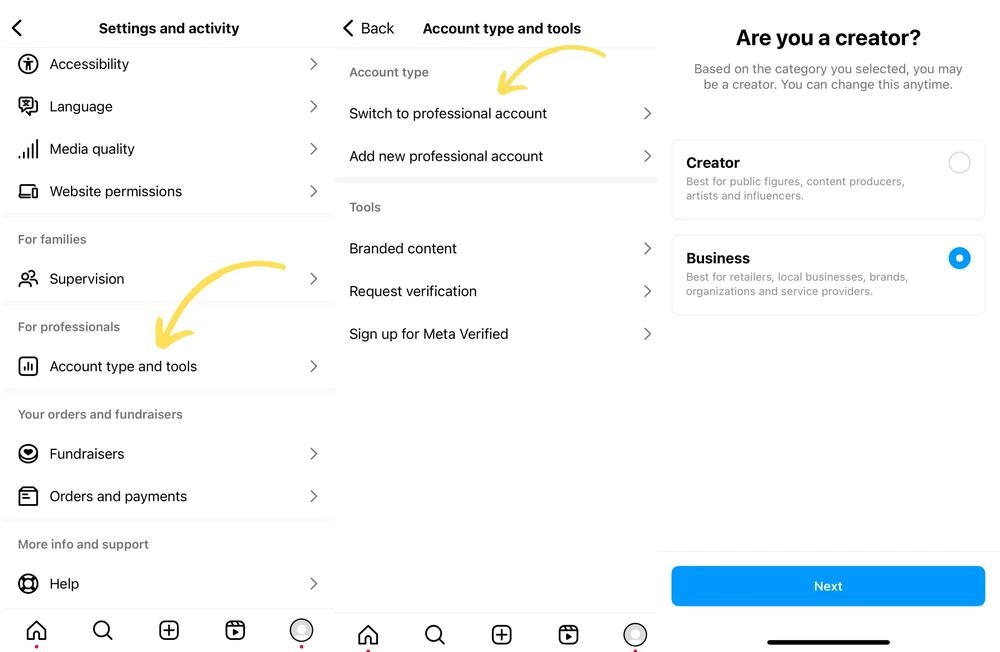
You first need to convert your Instagram account to a business or a creator account by navigating to the Profile. Click on Account type and Tools, and then Switch To Professional Account. Then select which type of account you want and complete the process.
2. Connect the Instagram account to Facebook:
Connect your professional Instagram account to your Facebook page by clicking on Profile on your Facebook page and navigating to Settings and then selecting Linked Accounts. Next, click on Instagram and click connect. You’ll also need to have a business portfolio. If you don’t have it, create one.
3. Open Facebook for Developers:
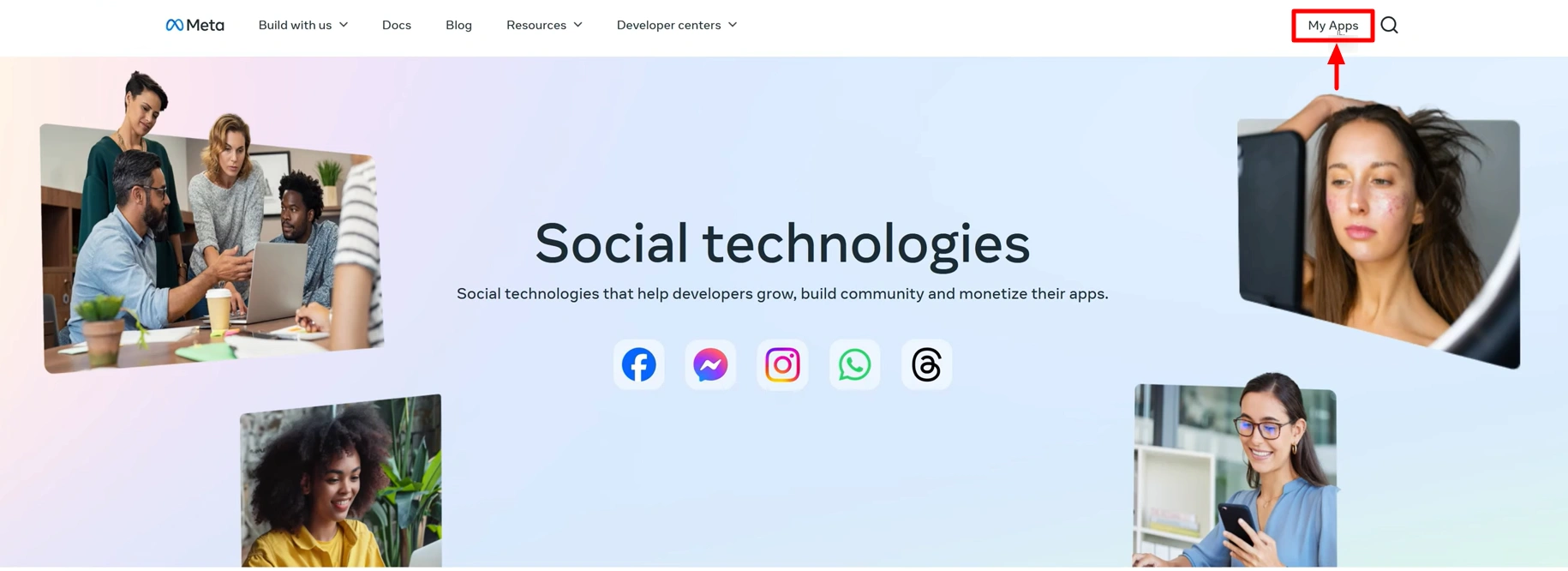
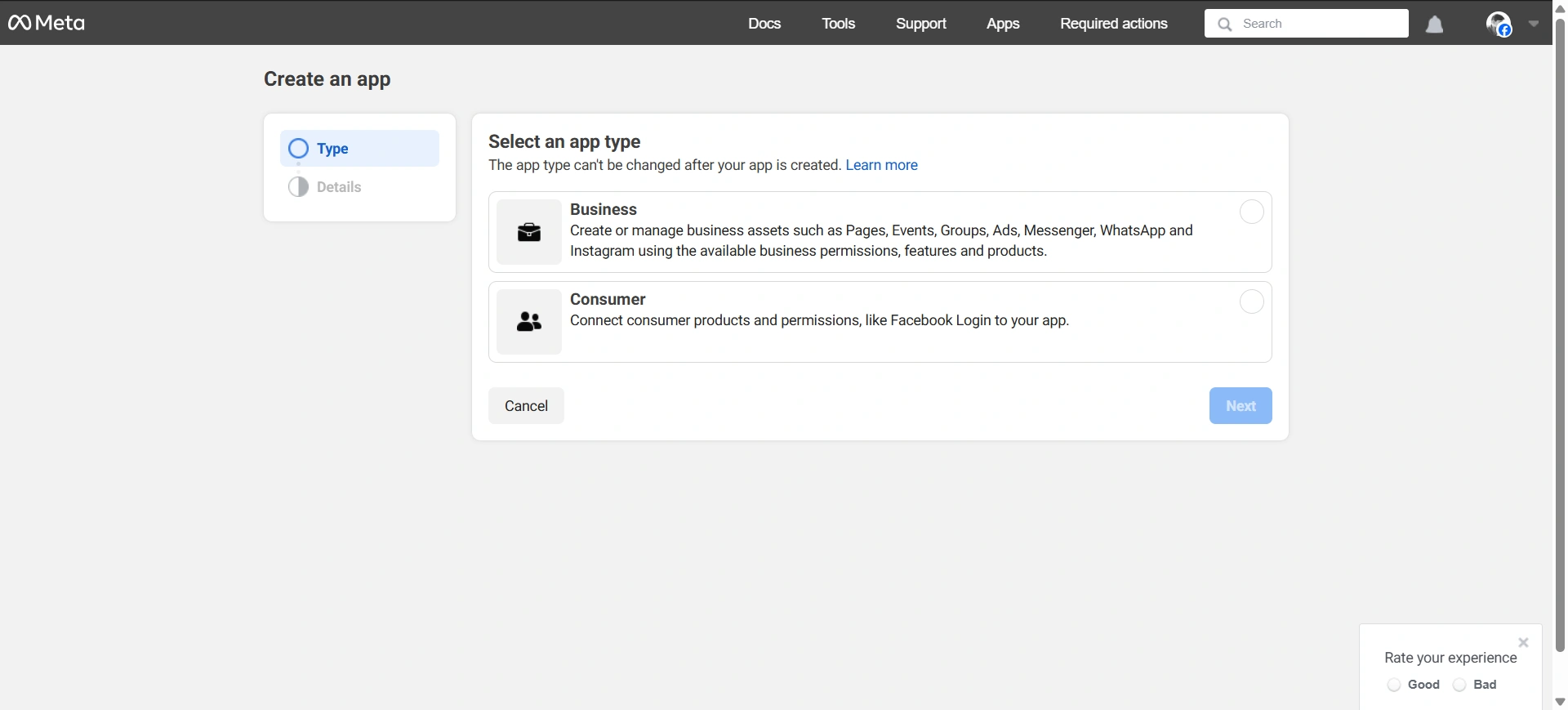
Go to developers.facebook.com and click on MyApps, and click on Create App.
Find Facebook Login for Business. Then, click Setup. Add the information and hit Save Changes.
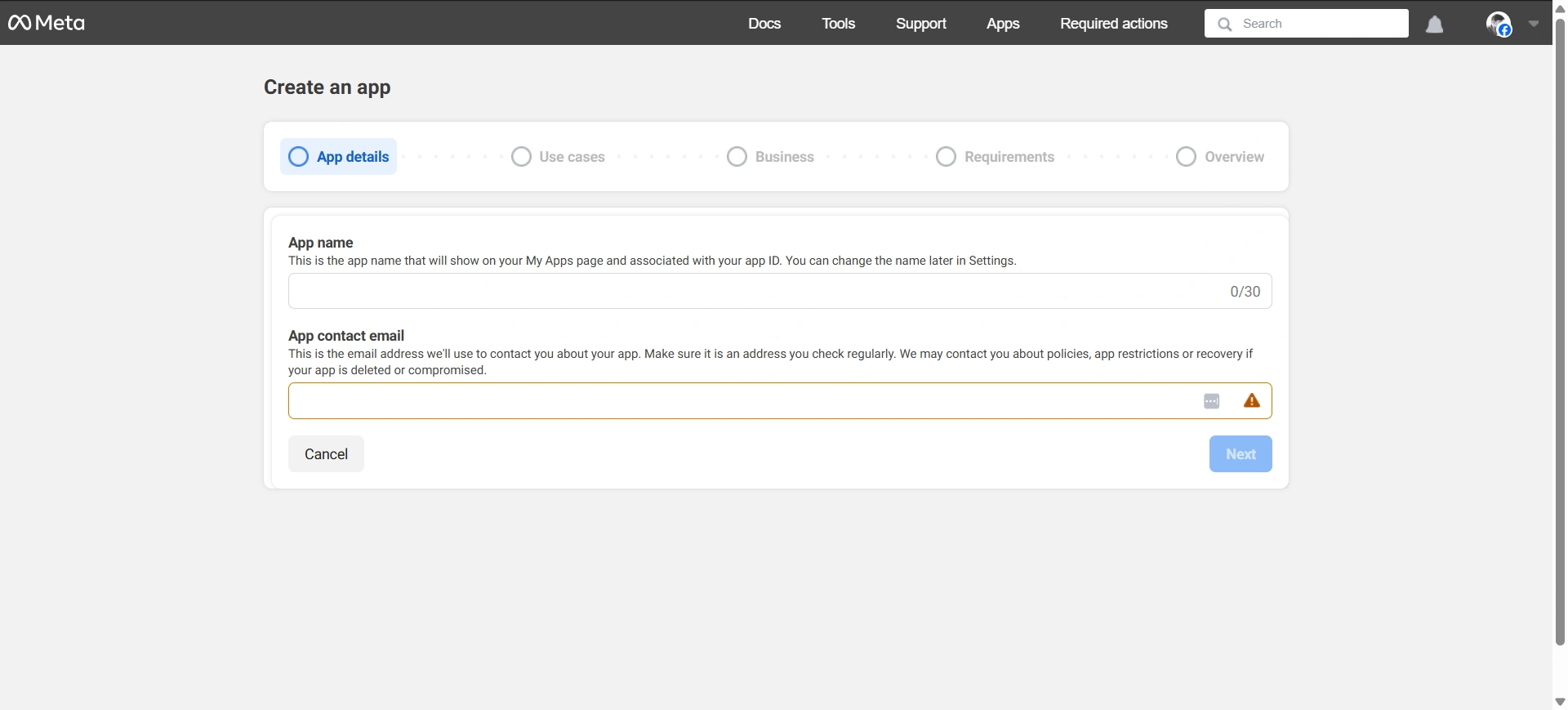
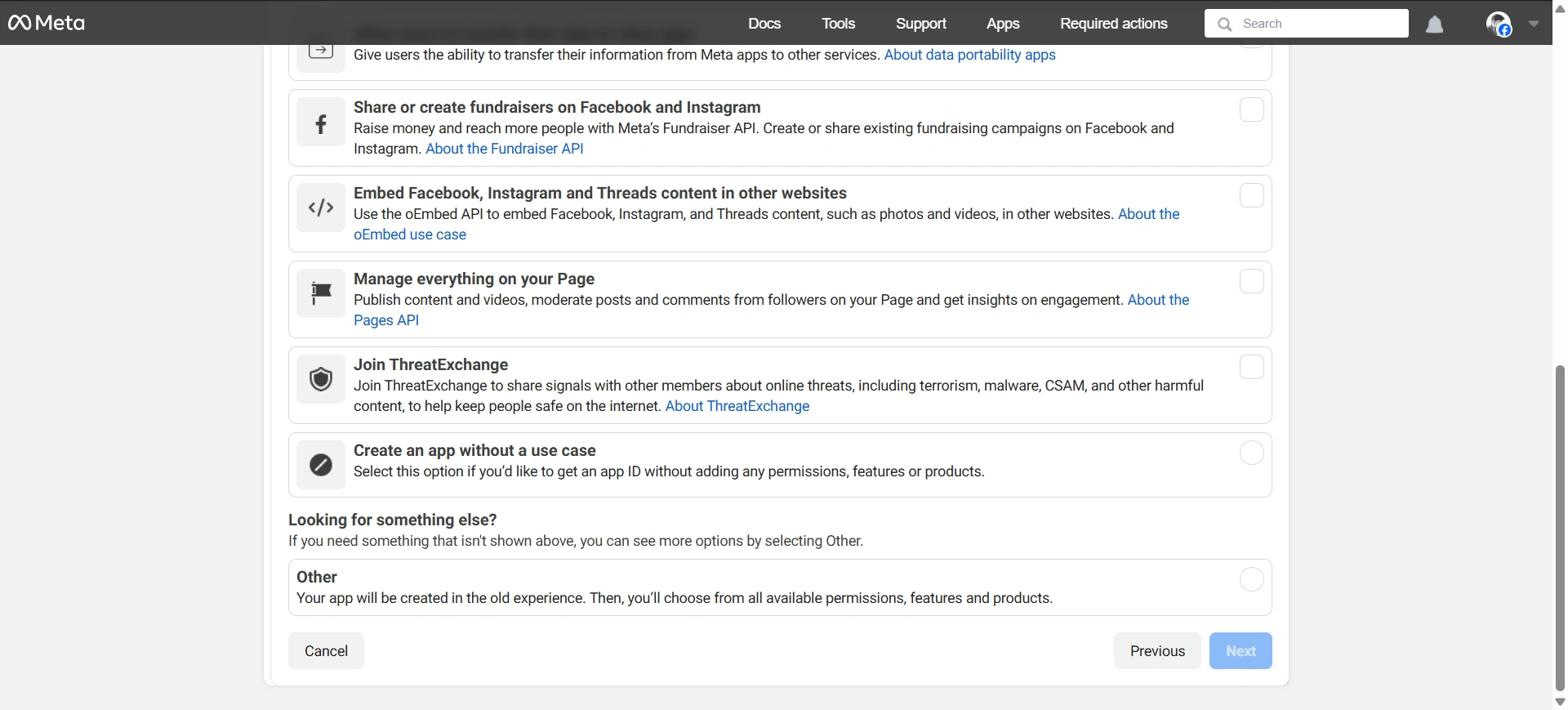
Click on Business.
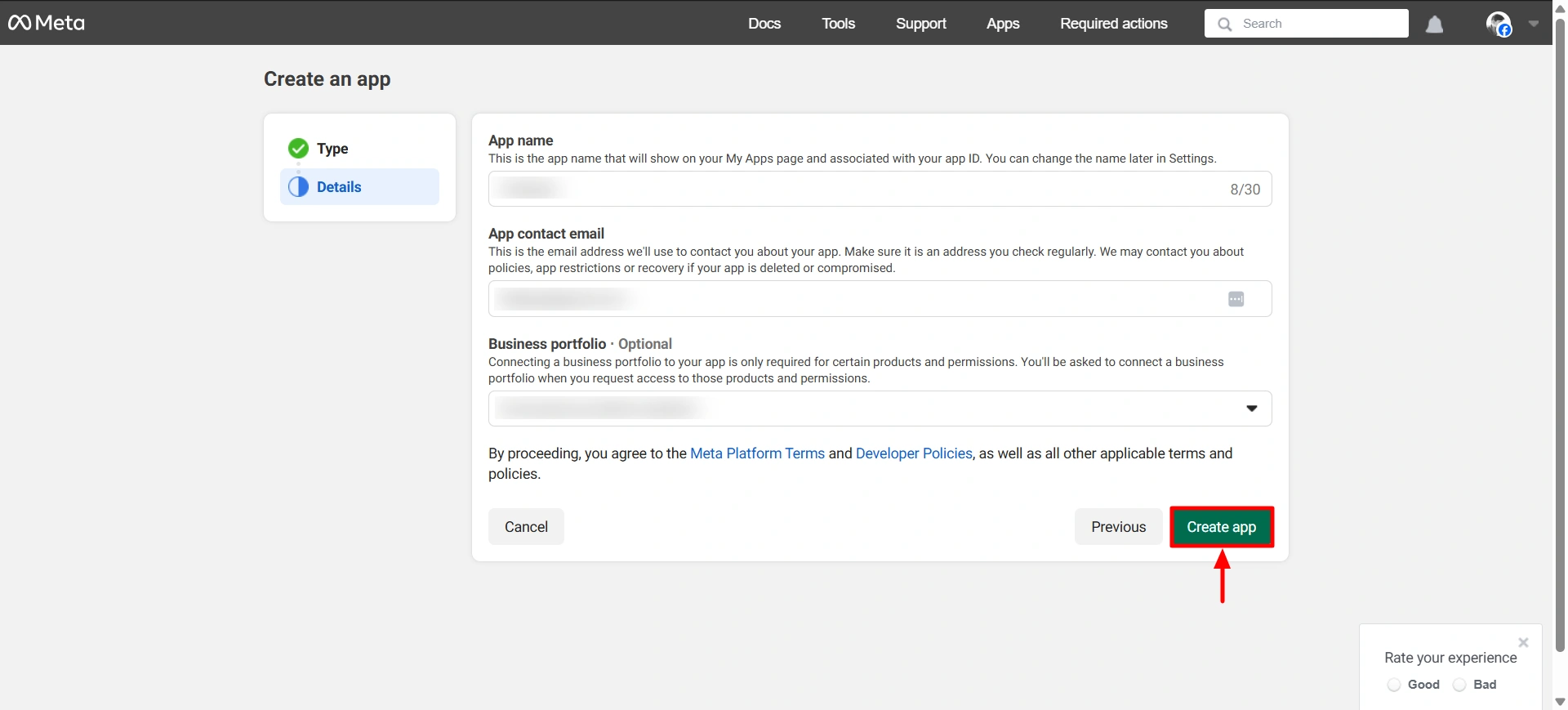
Hit Create app.
Find Facebook and click Set up.
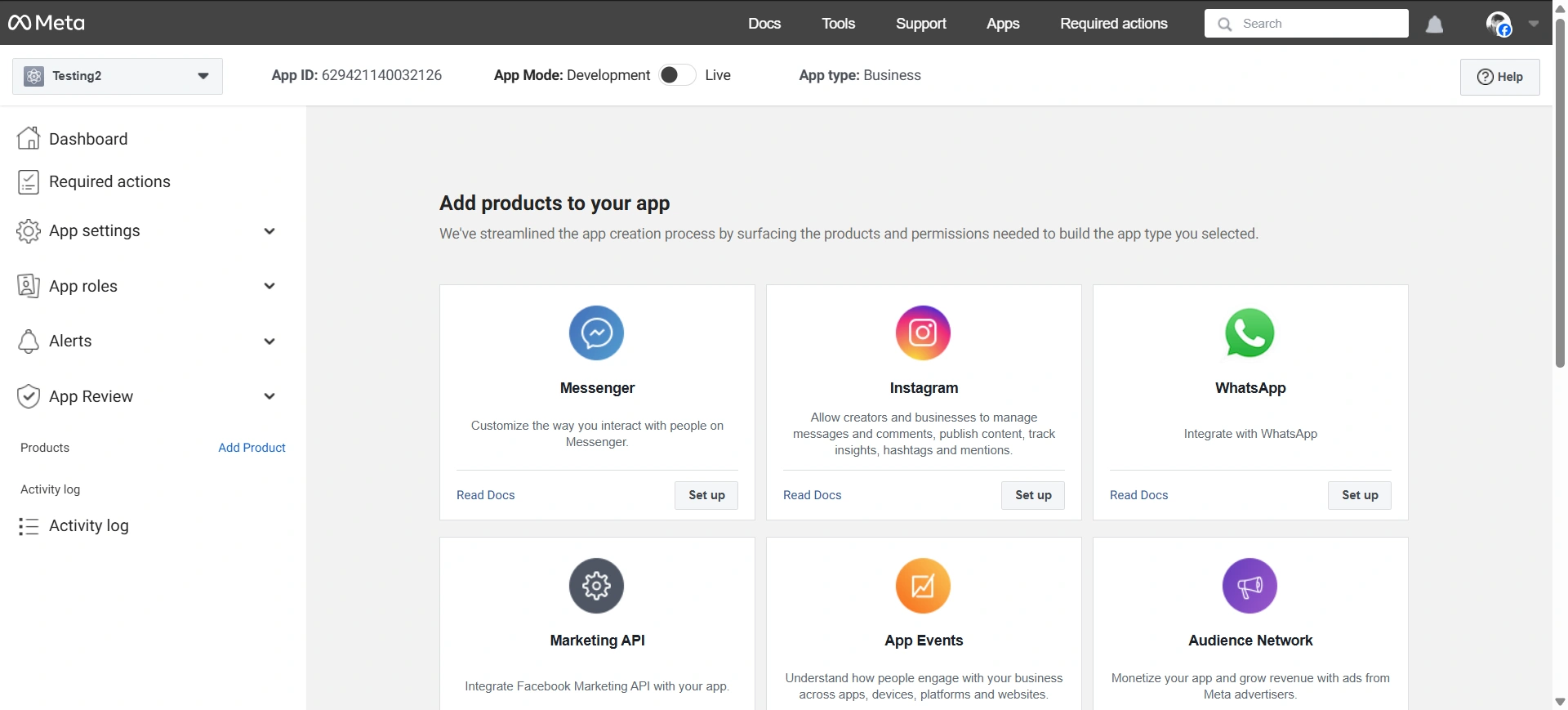
4. Set up Facebook login for businesses:
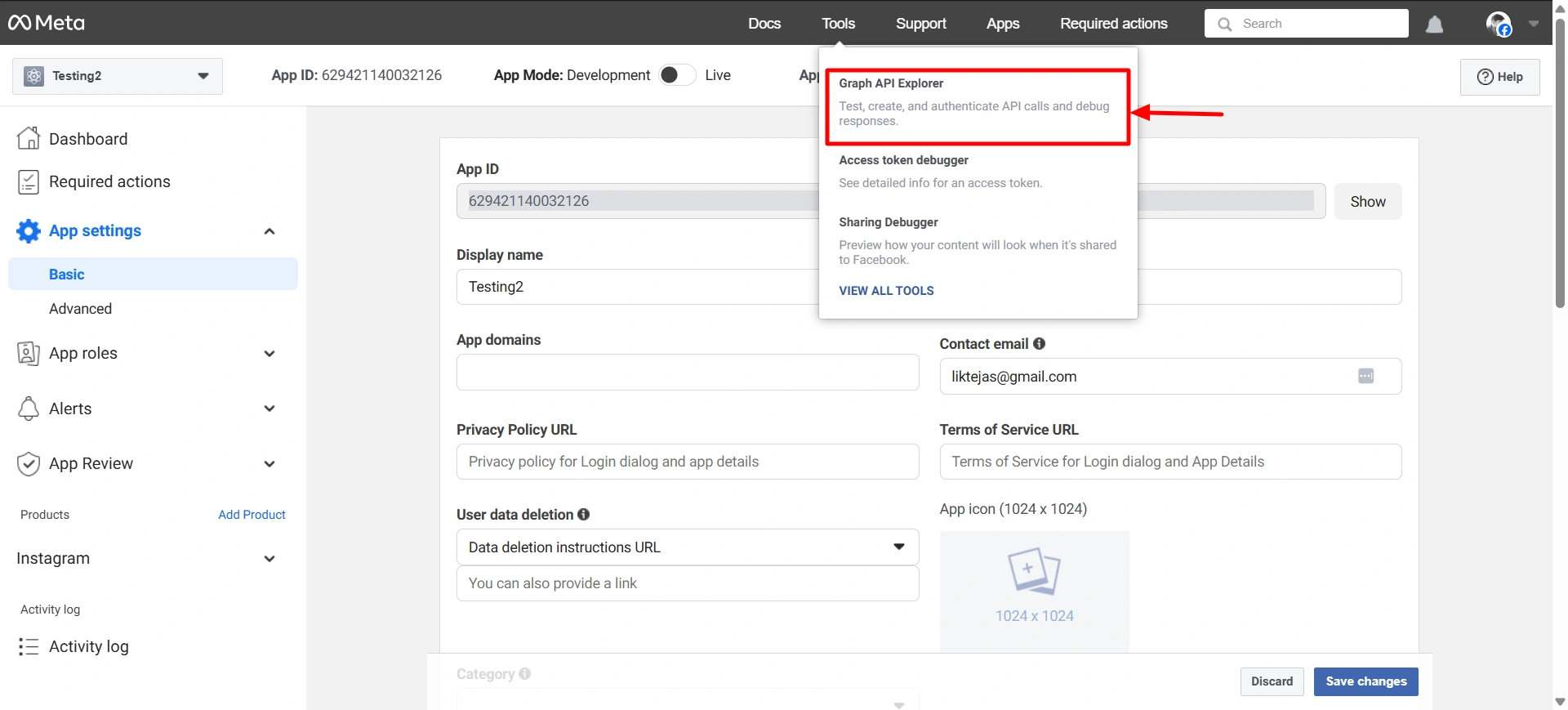
Hover on Tools, click on Graphic API Explorer.
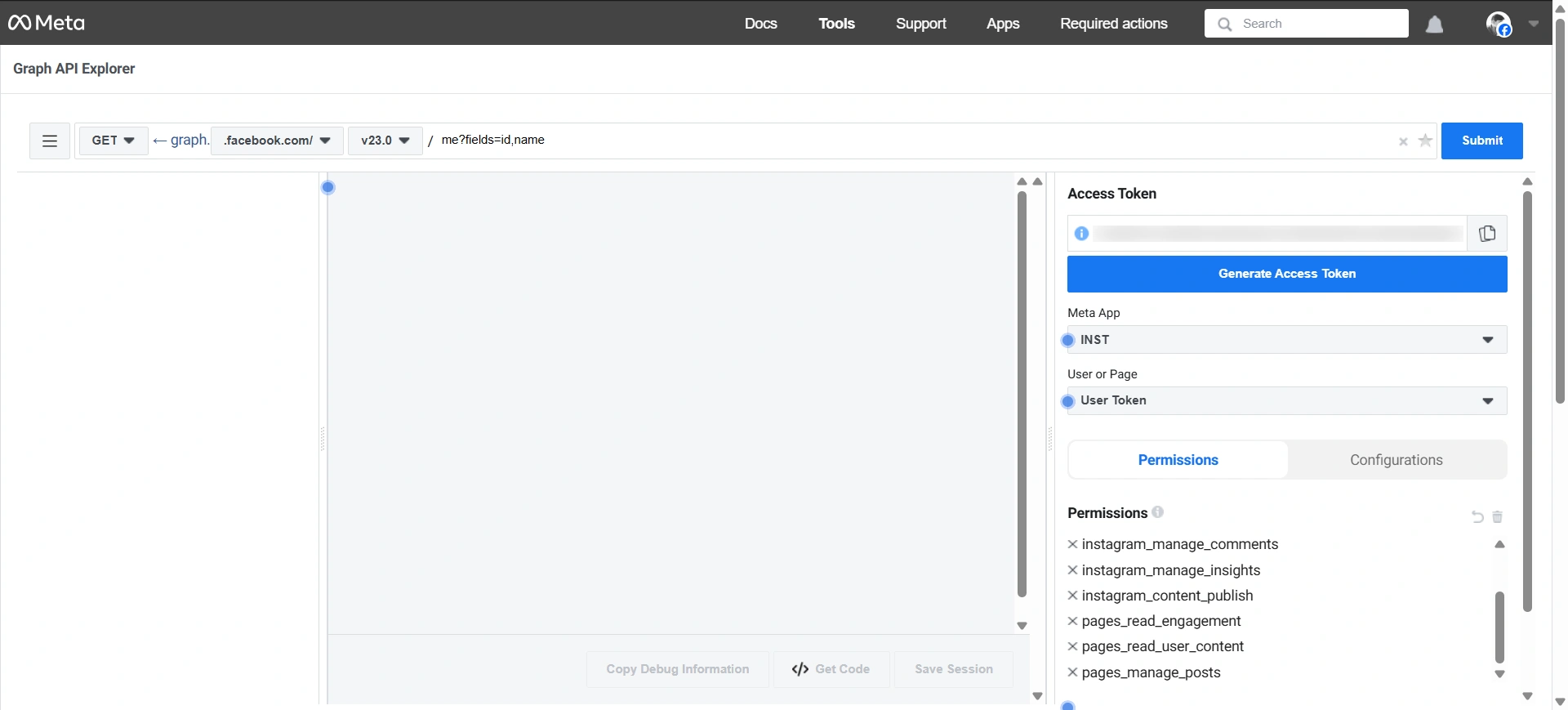
Under Meta App, select your app name. Under User or Page, make sure it is selected as Get Token. Under Permission, add your permissions. Then click on Generate Access Token.
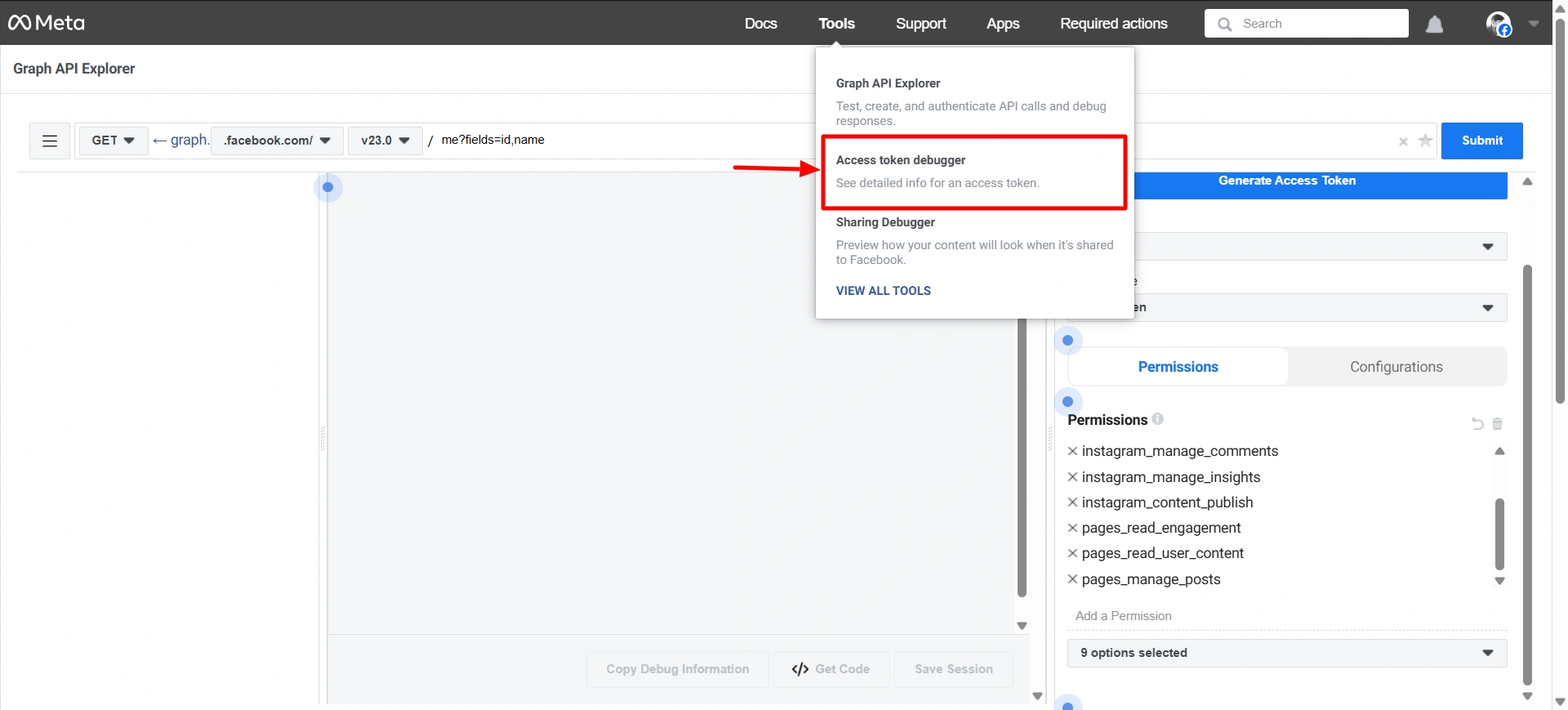
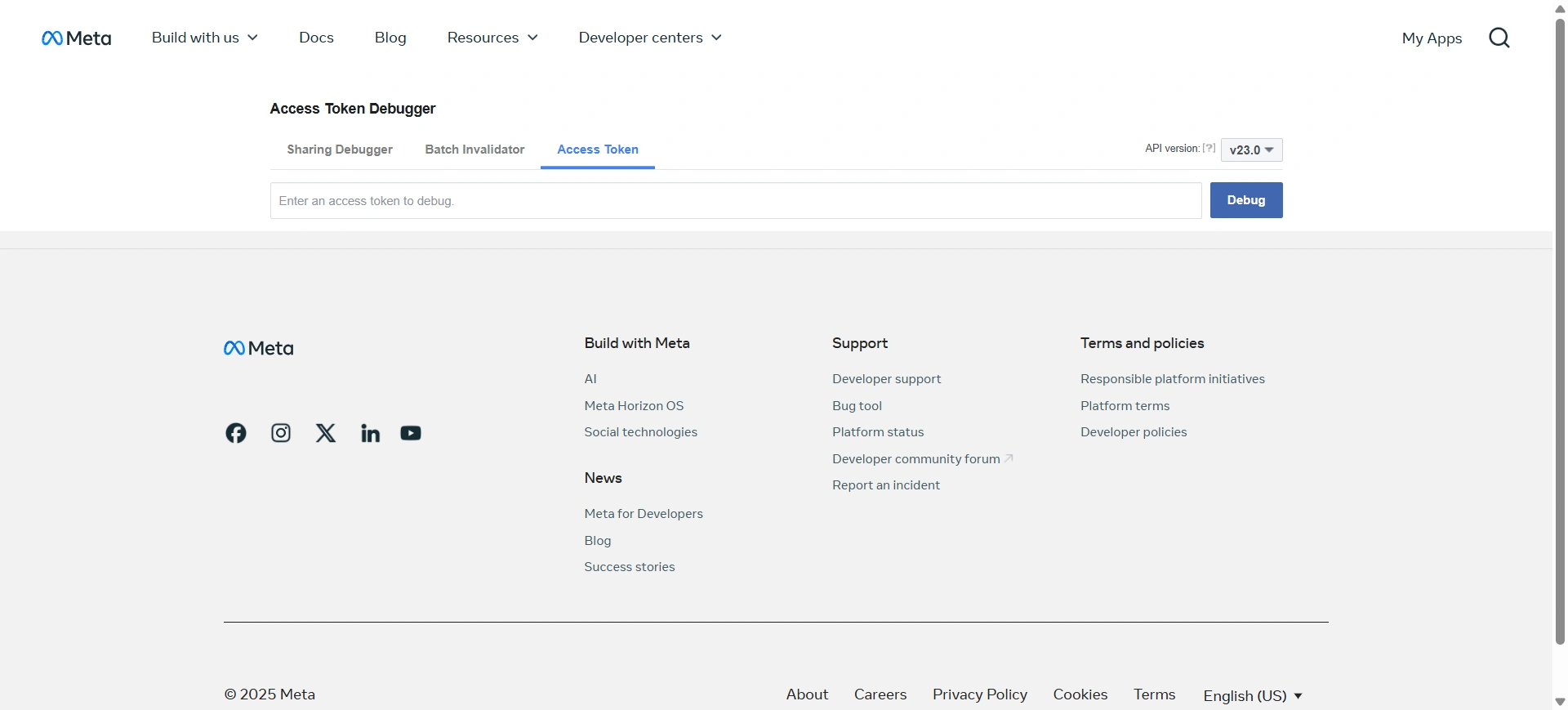
Once the token is generated, copy it and navigate to Tools, click on Access Token Debugger, and paste the copied access token in the field. Then hit Debug. Check if all of the information is correct and then click on Extend Access Token.
Finally, you have successfully generated the access token to integrate Instagram with WordPress using the Instagram feed block.
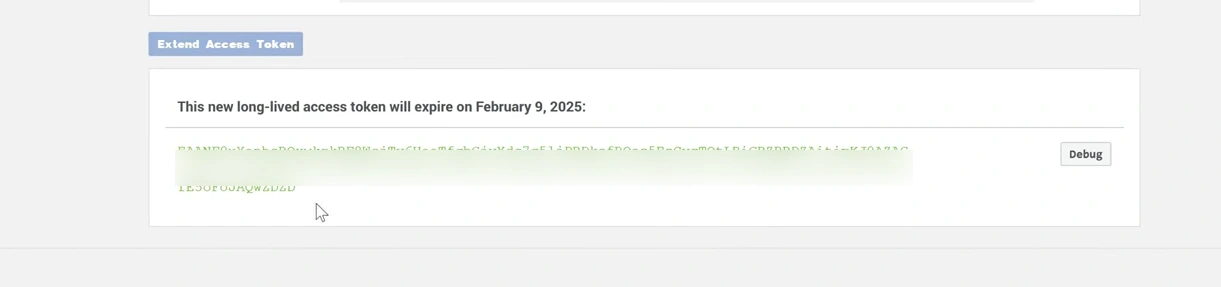
Enter Access Token
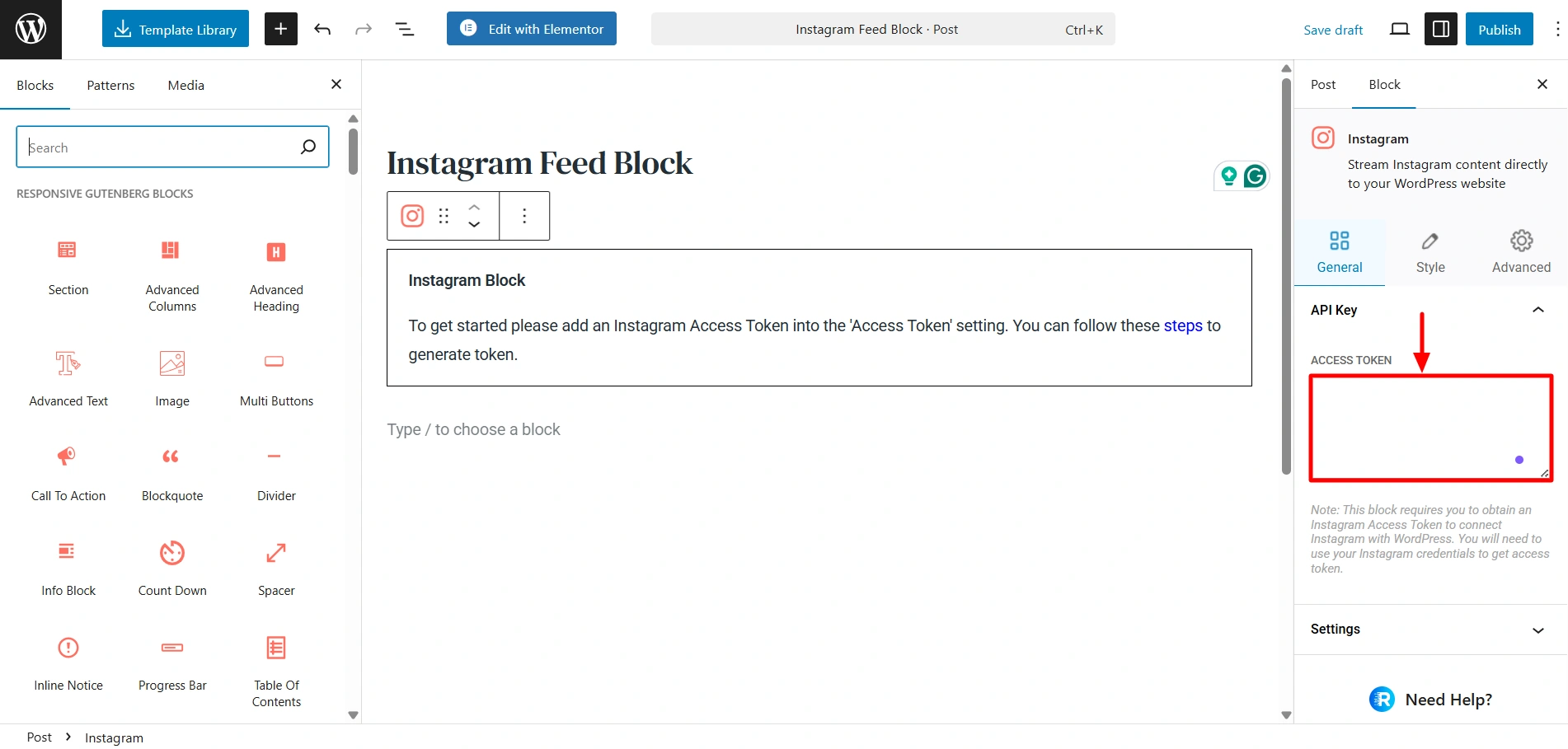
Now that you have the access token with you, paste it into the field provided once you add the Instagram Feed Block to your page or post and save the changes.
Settings
How To Style The Instagram Block