
Wondering how to edit an imported site template in WordPress?
Wonder no more!
Customizing your website might be a troublesome task. However, ready-to-use website templates make the process simple.
To build a unique, eye-catching website, you only need to download your favorite template and edit it according to your brand’s tone.
This document will walk you through the simple steps of downloading and editing a suitable website template in WordPress.
Editing An Imported Starter Template In WordPress
Editing an imported site template is easy. This document will show you how to edit imported site templates via Elementor and Gutenberg.
We will edit with both the methods using CyberChimps Responsive Addons plugin. It provides you with 500+ multipurpose website templates with easy and convenient customization options.
So, before we get started, make sure you have installed and activated the Responsive Addons plugin.
[Refer to How to Install & Activate Responsive Addons Plugin to learn how to get the Responsive Addons plugin]
1. Editing Imported Site Template Using Elementor
To edit imported site templates using Elementor, follow the instructions:
Access the template library from Dashboard > Responsive > Templates.

Select Elementor from the drop-down option.

Choose a suitable Elementor template for your website.

Next, click on Import Site.

Add site logo, select font pair and color palette as per your requirement.
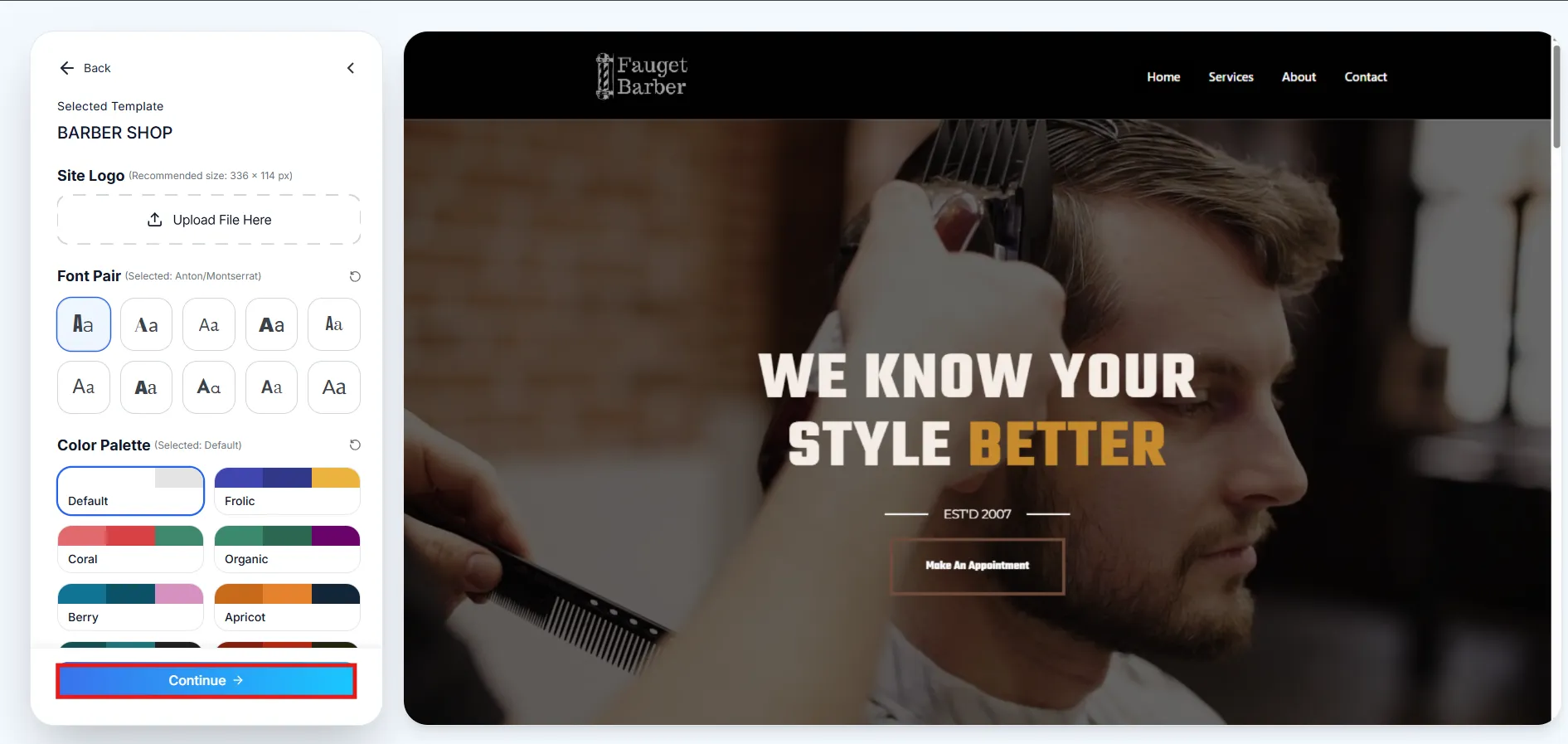
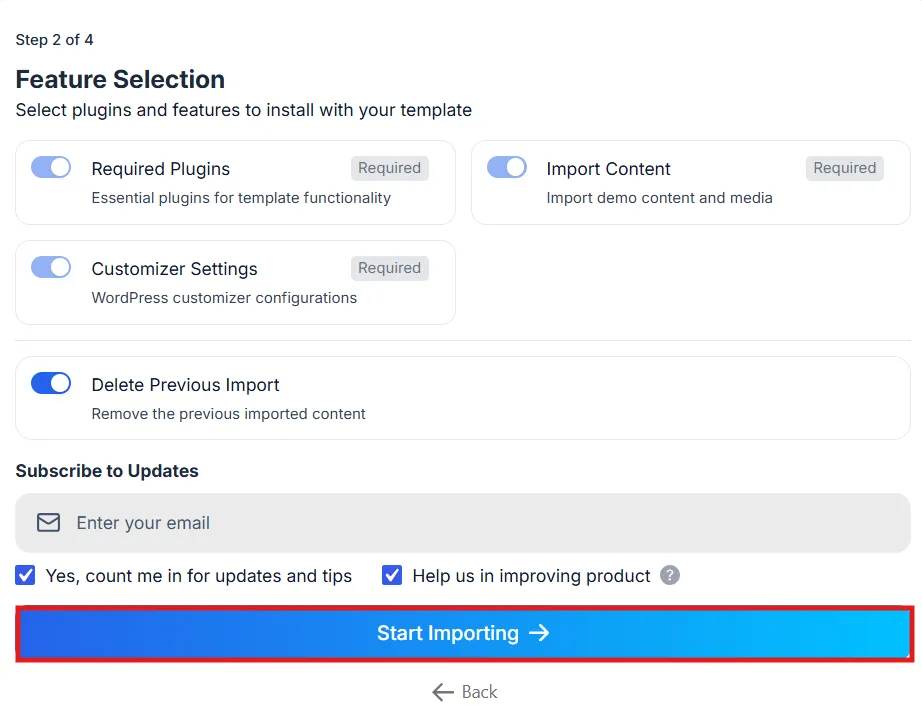
Click on Start Importing.
Once the template is imported, click on Visit Website.
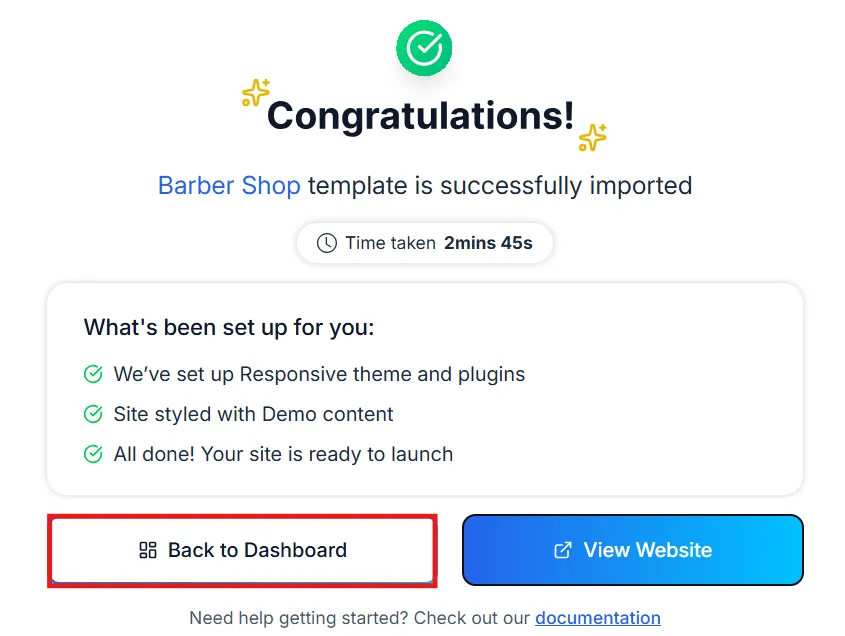
Go back to Dashboard, navigate to the imported page and click on visit site.
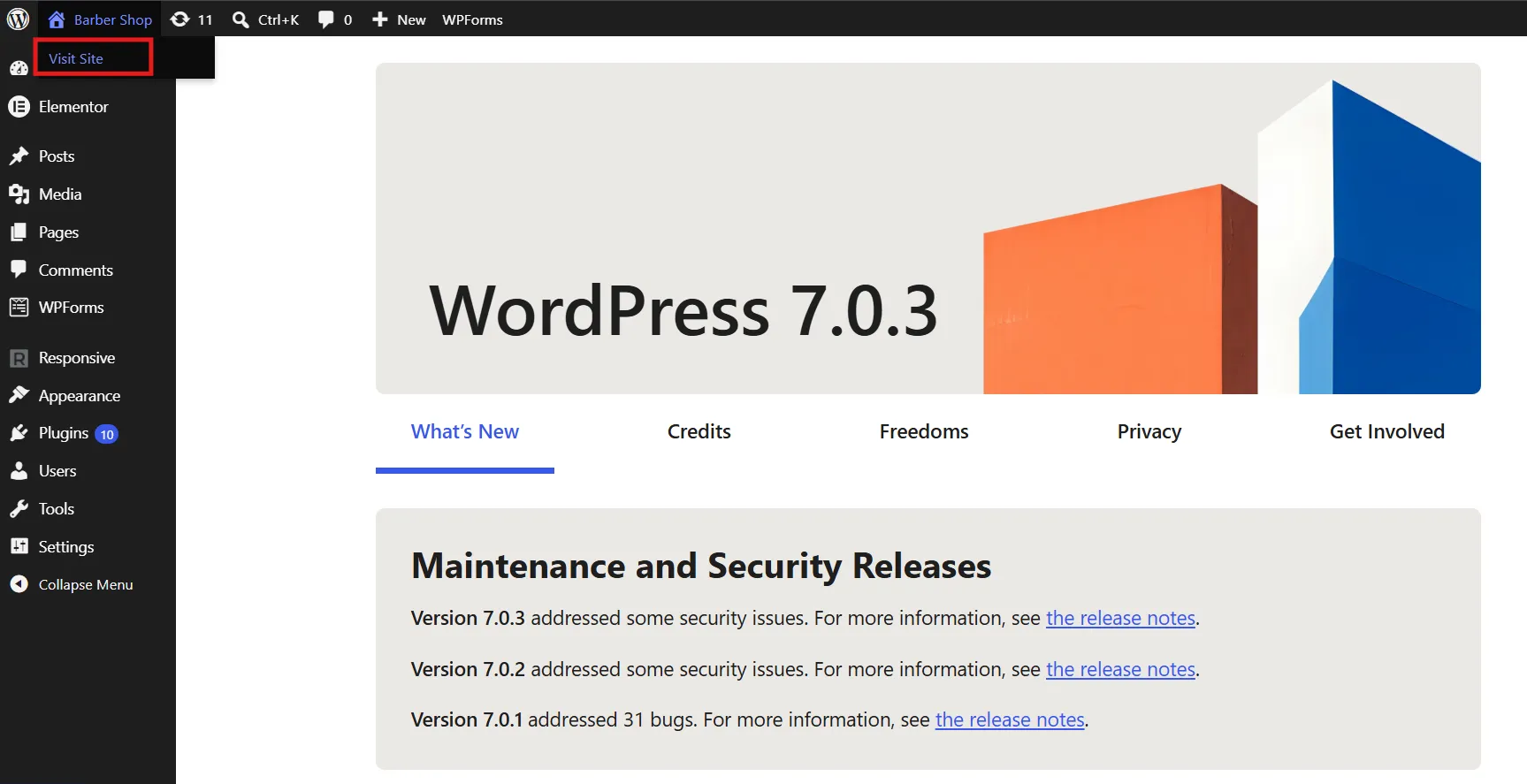
Select Edit site.
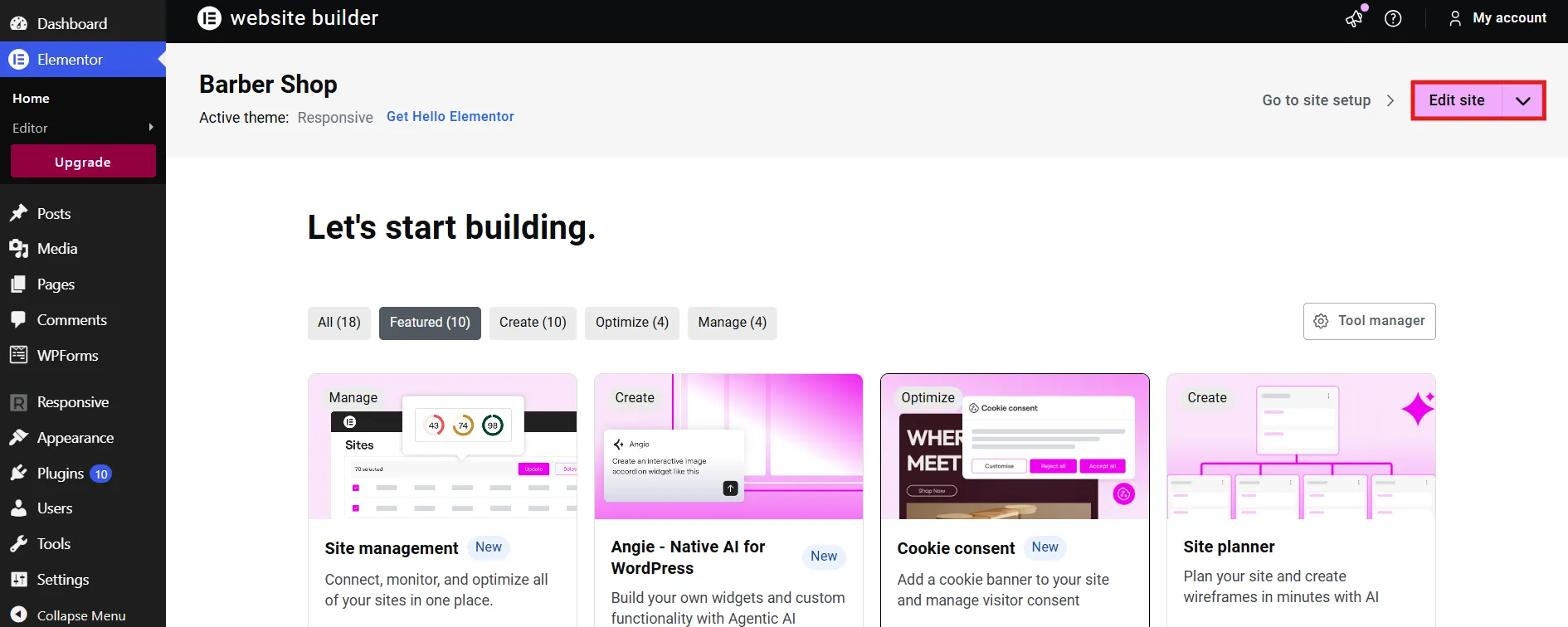
Upon opening the site you will be restore the default elementor kit, click on Recreate Kit to restore.
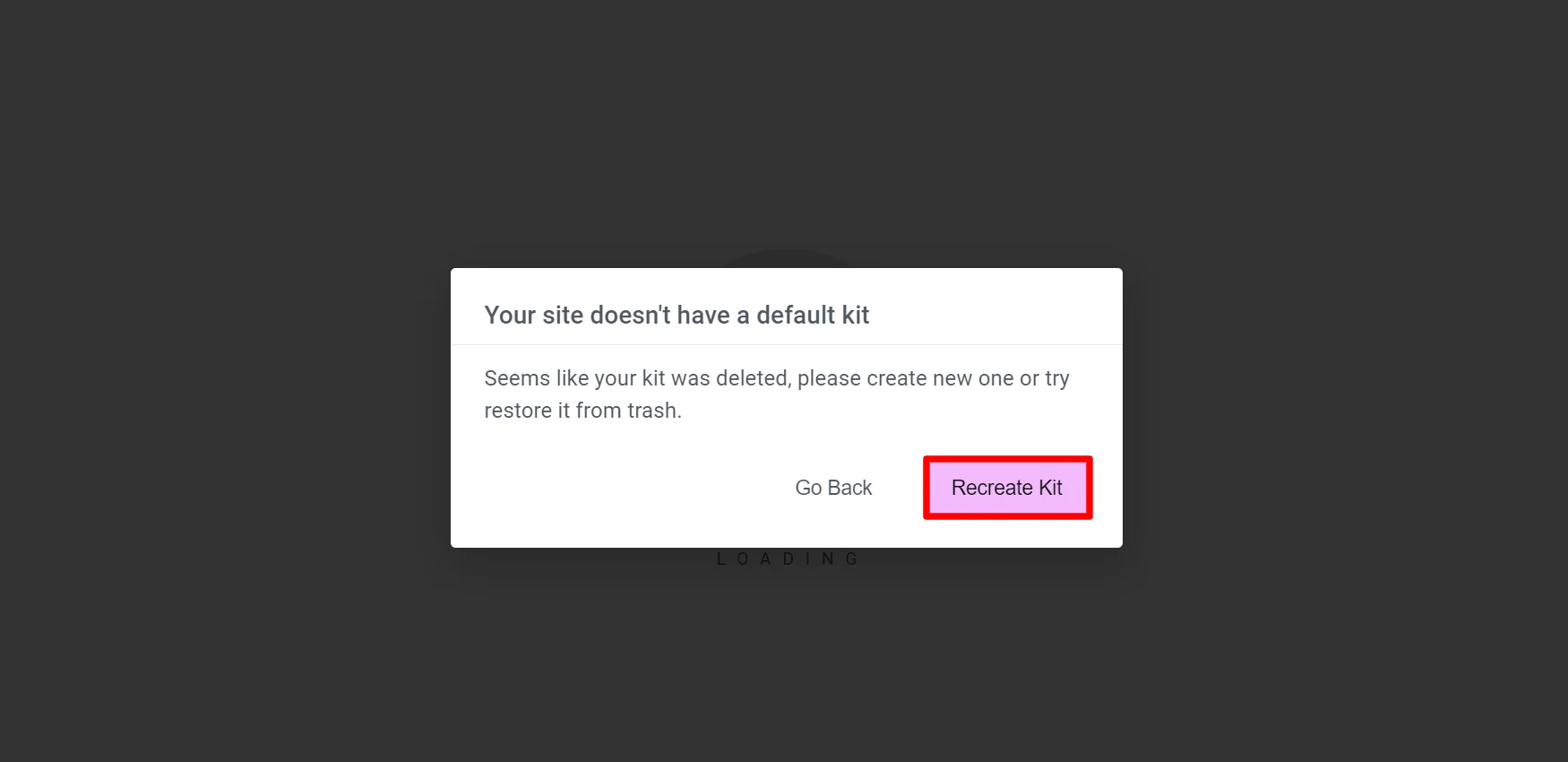
Next, click Recreate Kit button and the Save Changes.
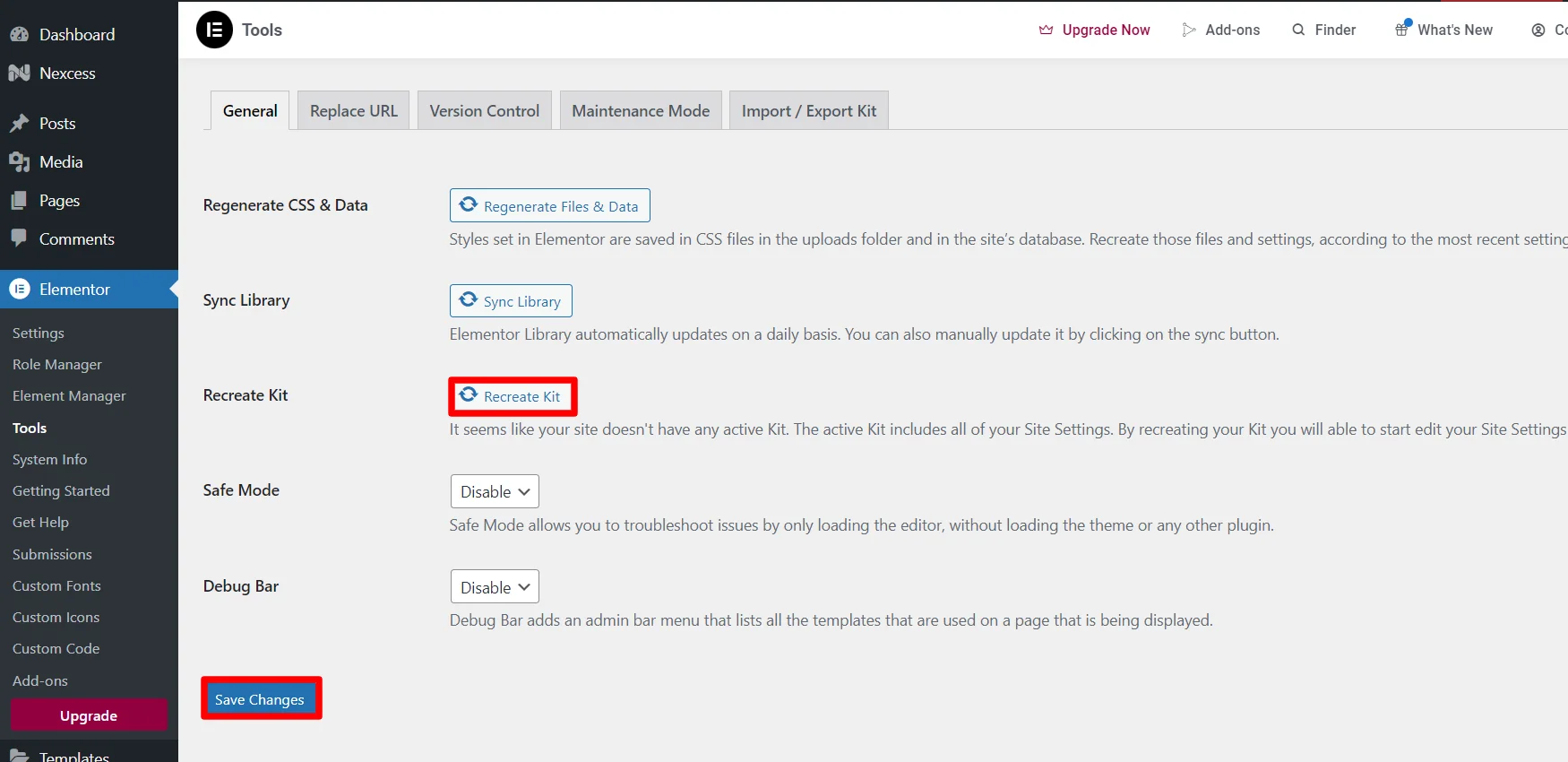
After restoring the default elementor kit, revisit your WordPress site and click Edit With Elementor.
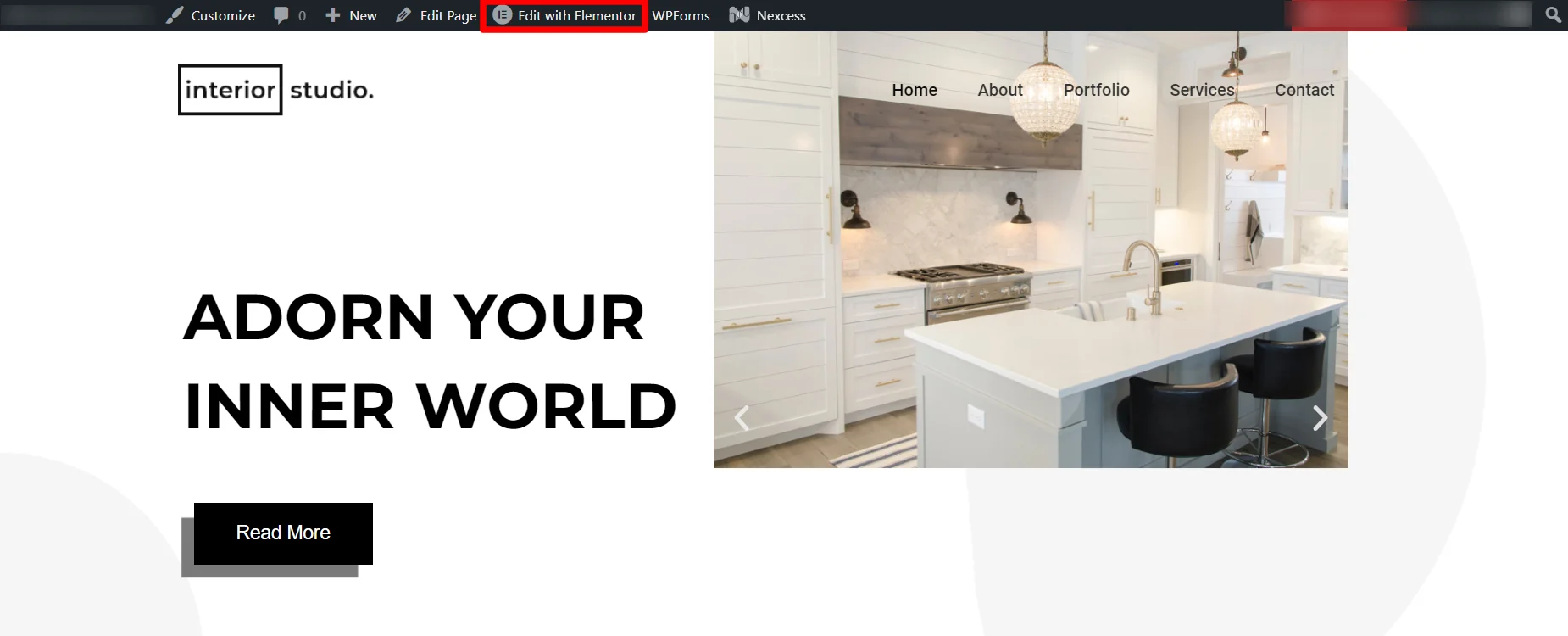
You can now access all the widgets and customization options on you website. This will allow you to change or edit the text, image, layout and overall look and feel of your page.
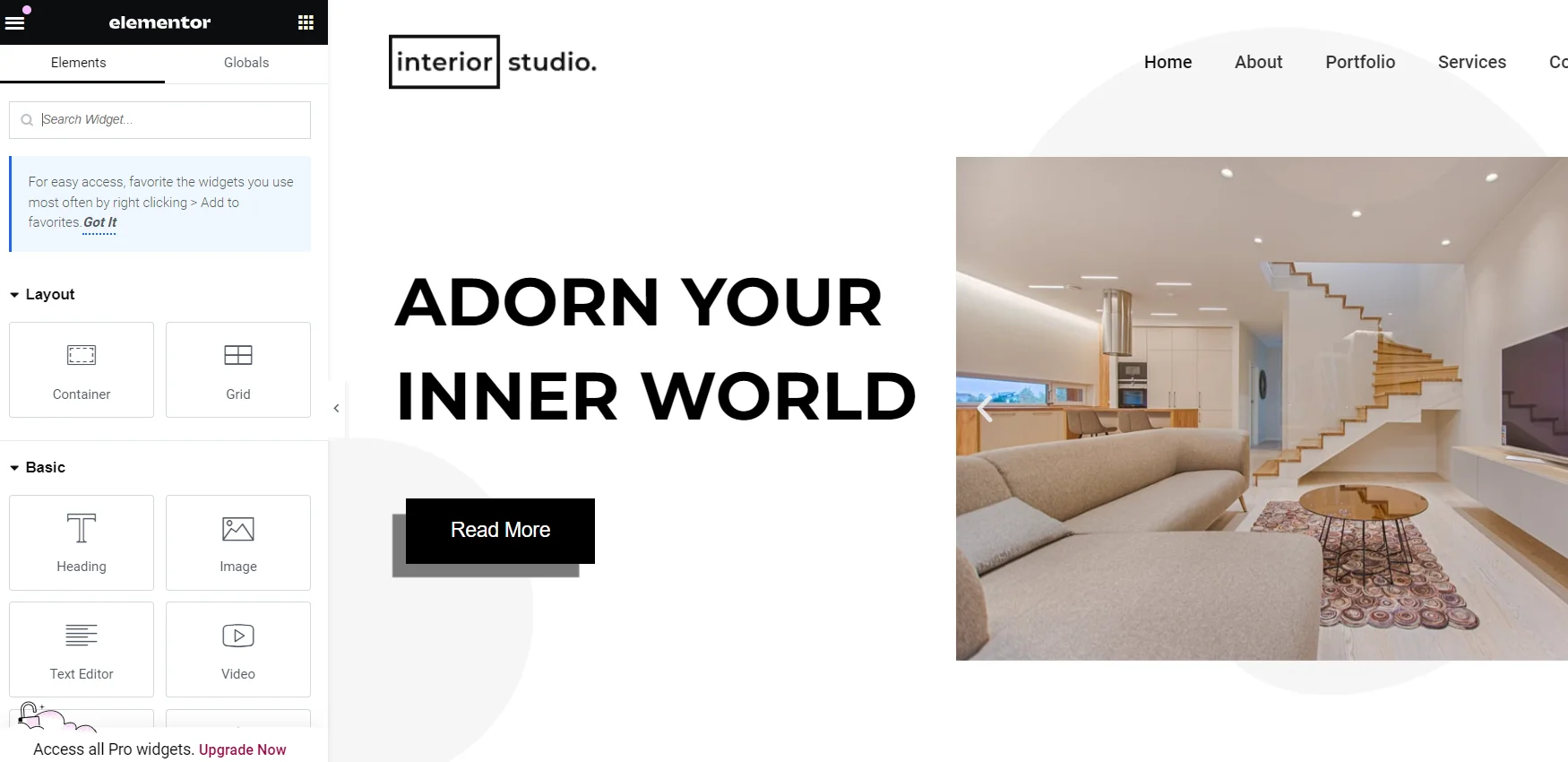
To edit your website page you just need to click on the element of the page and you will be able edit it. For example you can check out the option available to customize all the texts on the page and images.
Example 1: Customizing Text
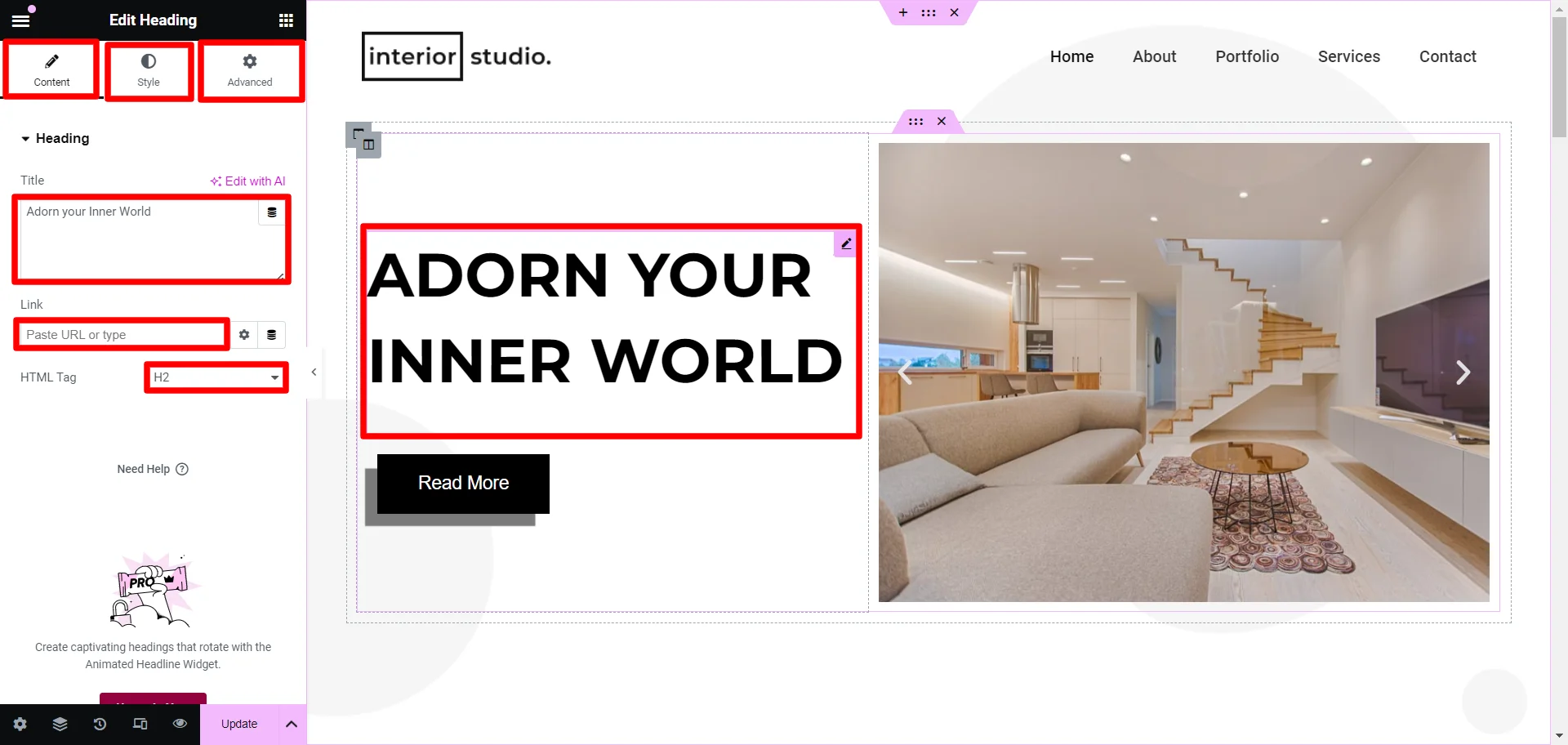
To change or edit the text on the page you need to first click on it.
On the left side of the page you will be able to check the changes you can make. This include:
- Changing or editing the entire text or a part of it.
- Adding link to the text.
- Configuring the title tag of the text .
- Editing the text style i.e. the font, height, spacing and more.
- The advanced settings allows you to make further technical customizations to the text.
Example 2: Customizing Images
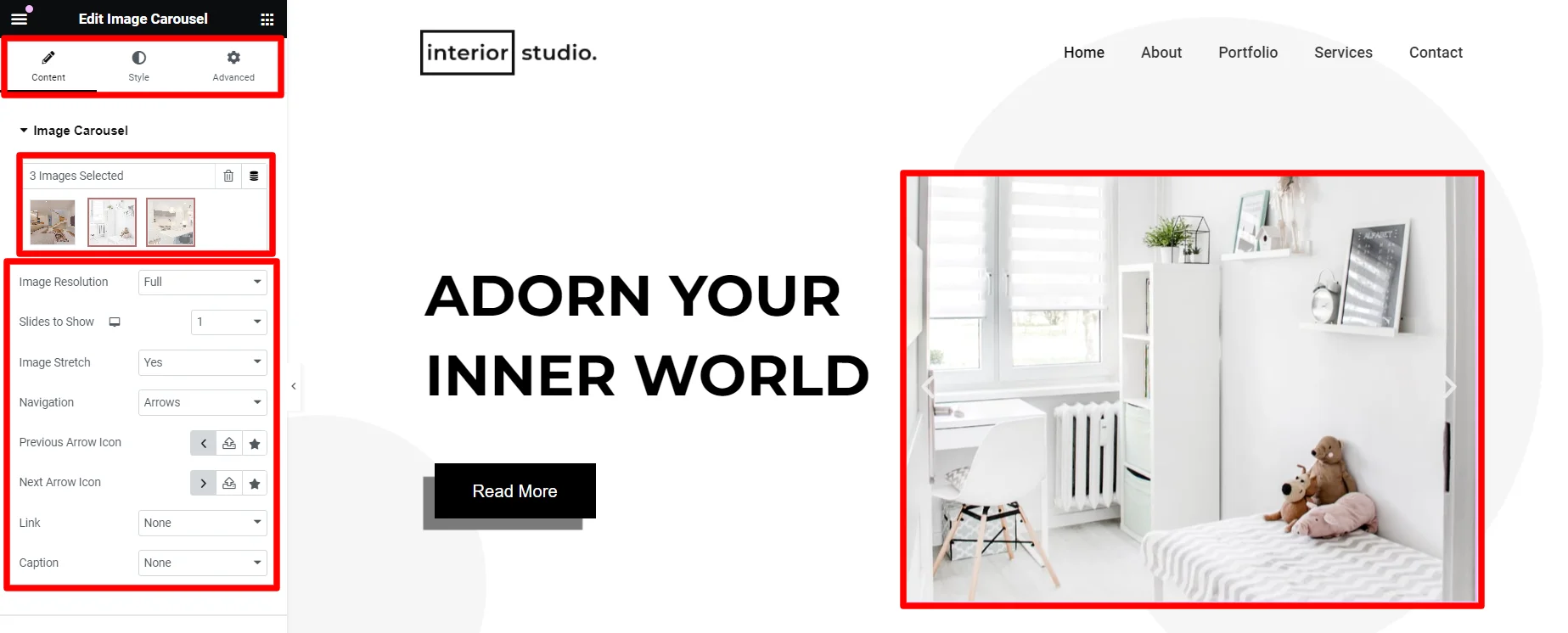
To change or edit the Images on the page you to need click on image you want to customize.
On the left hand side of the page you will be able to check the cutomization options such as:
- Editing image resolution.
- Changing the size and stretch.
- Adding links or captions to the image.
- Styling image position its size and background color.
2. Editing Imported Site Template Using Gutenberg
To edit imported site templates using Elementor, follow the instructions:
Access the template library from Dashboard > Responsive>Gutenberg.
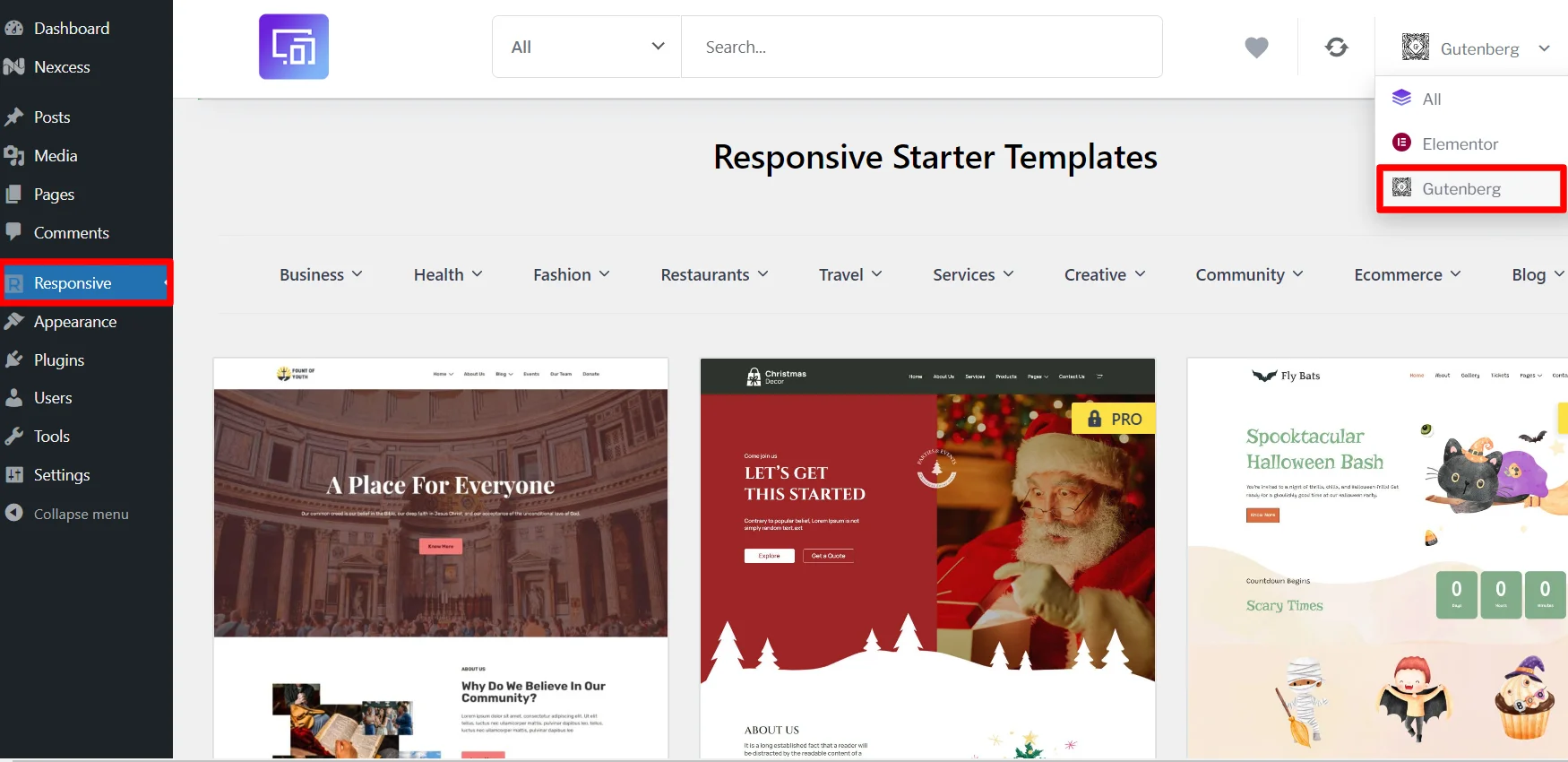
Choose a suitable Gutenberg template for your website.
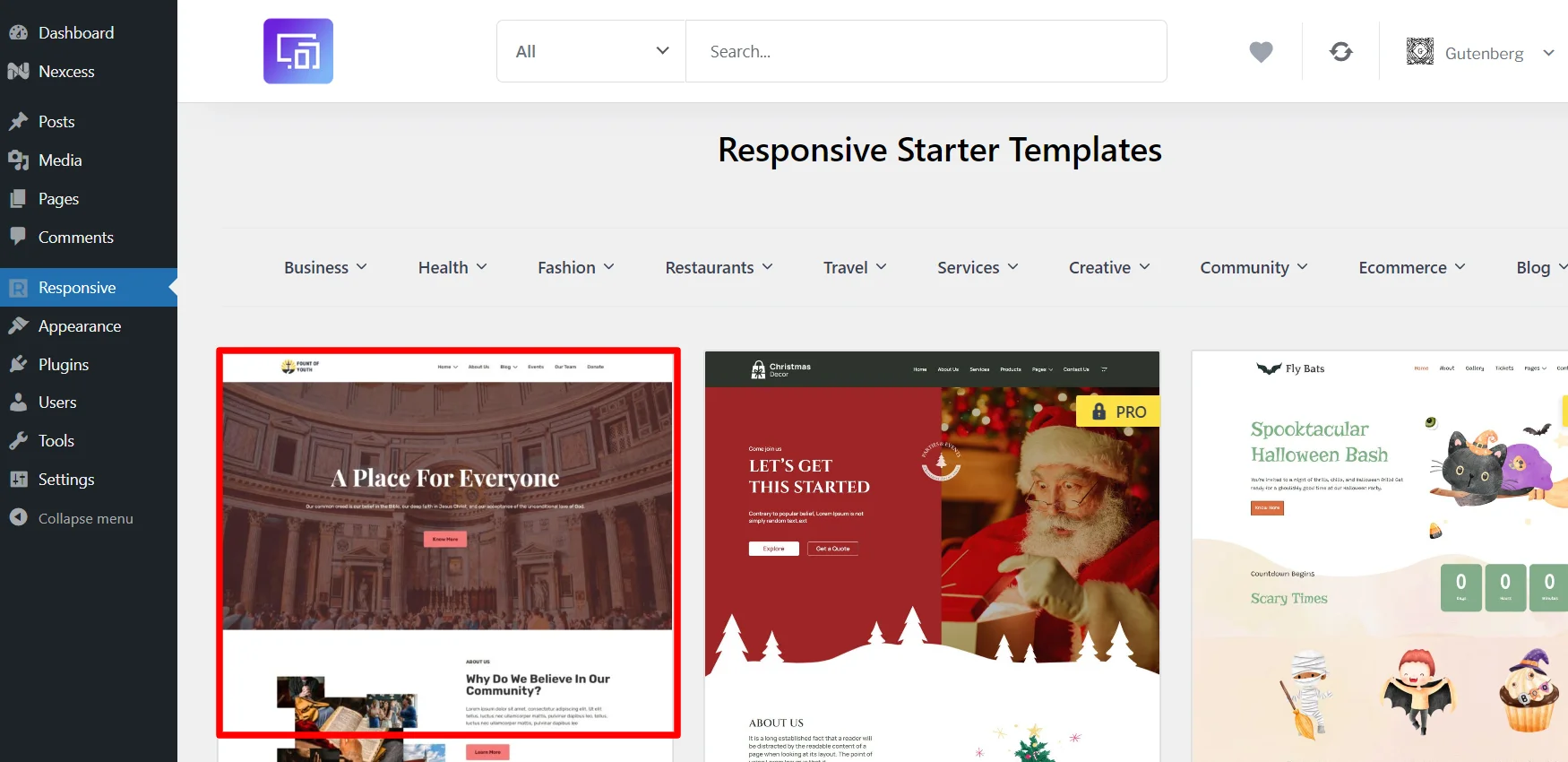
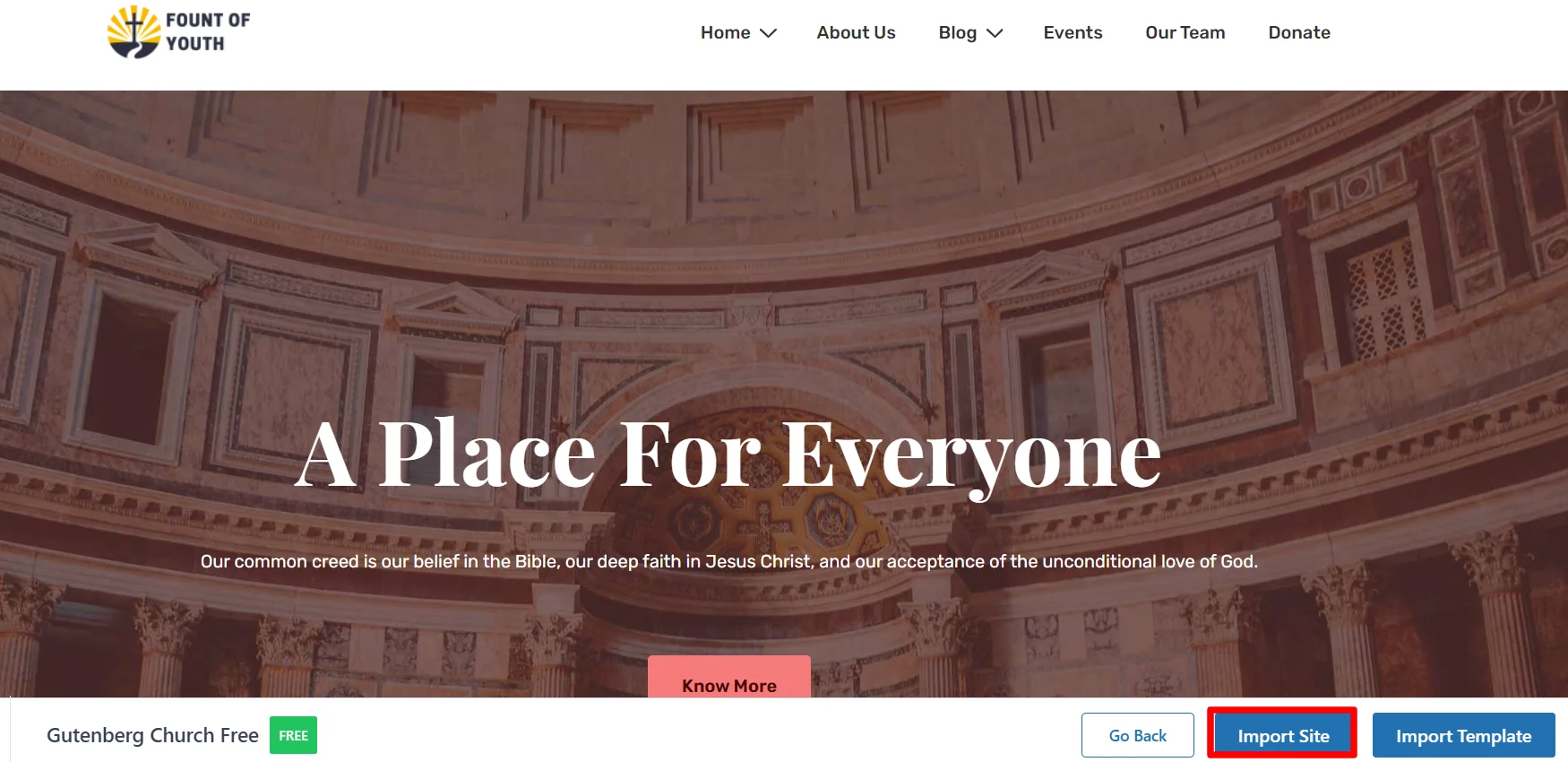
Next, click on Import Site.
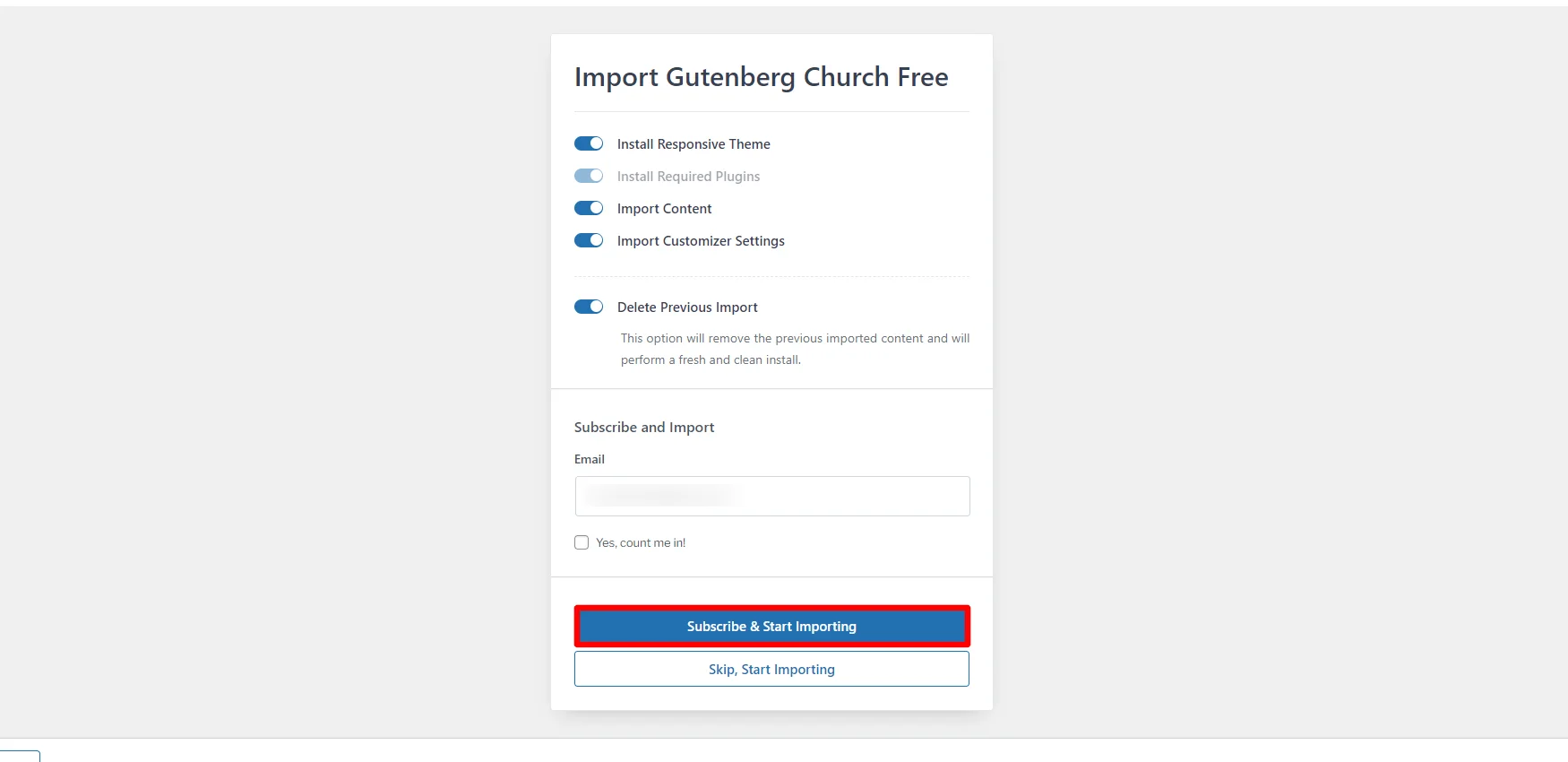
Click on Subscribe & Start Importing.
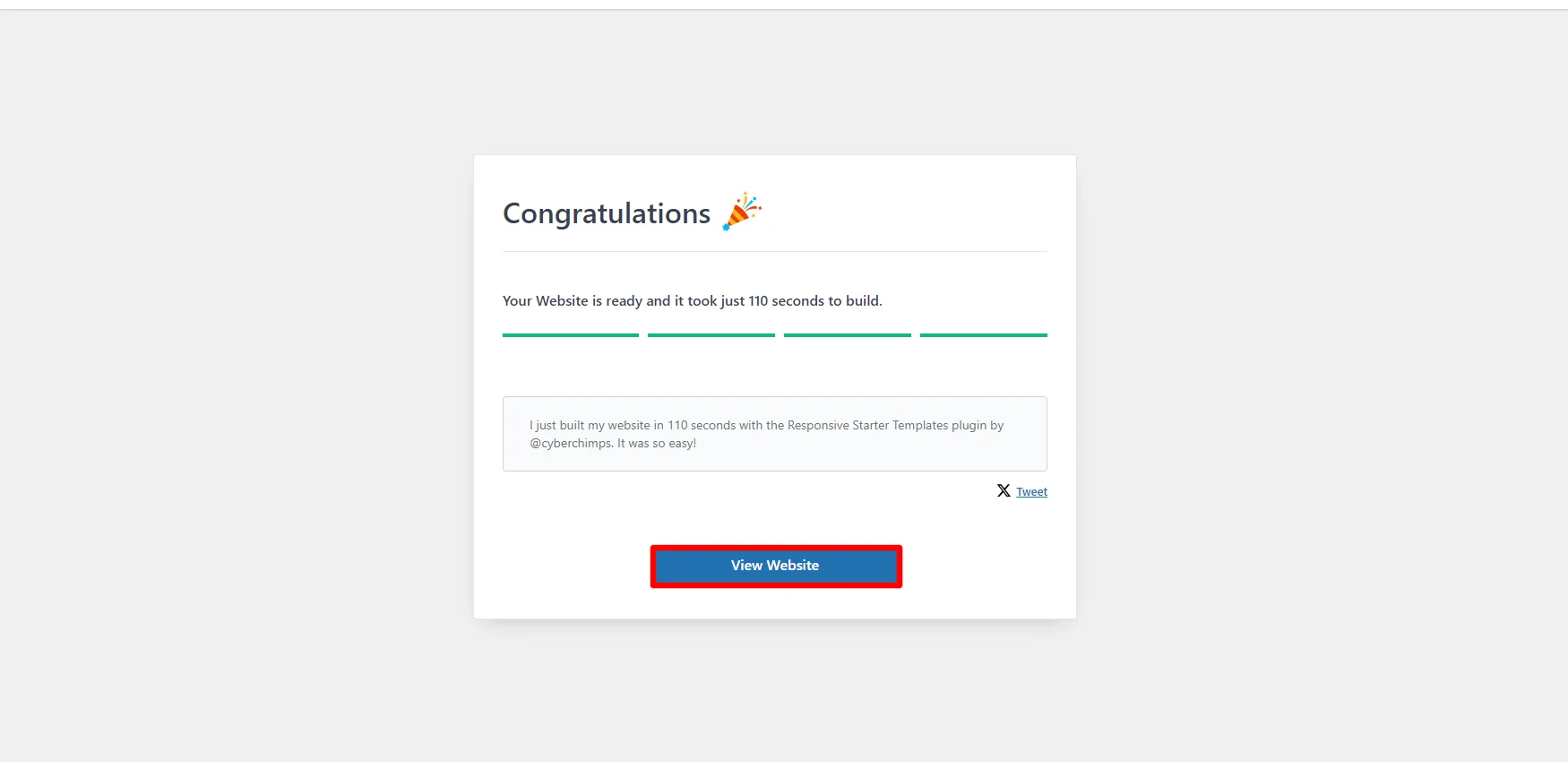
Once your website template is imported, click Visit Website.
Upon visiting your successfully imported site template, to edit the page click on Edit Page.
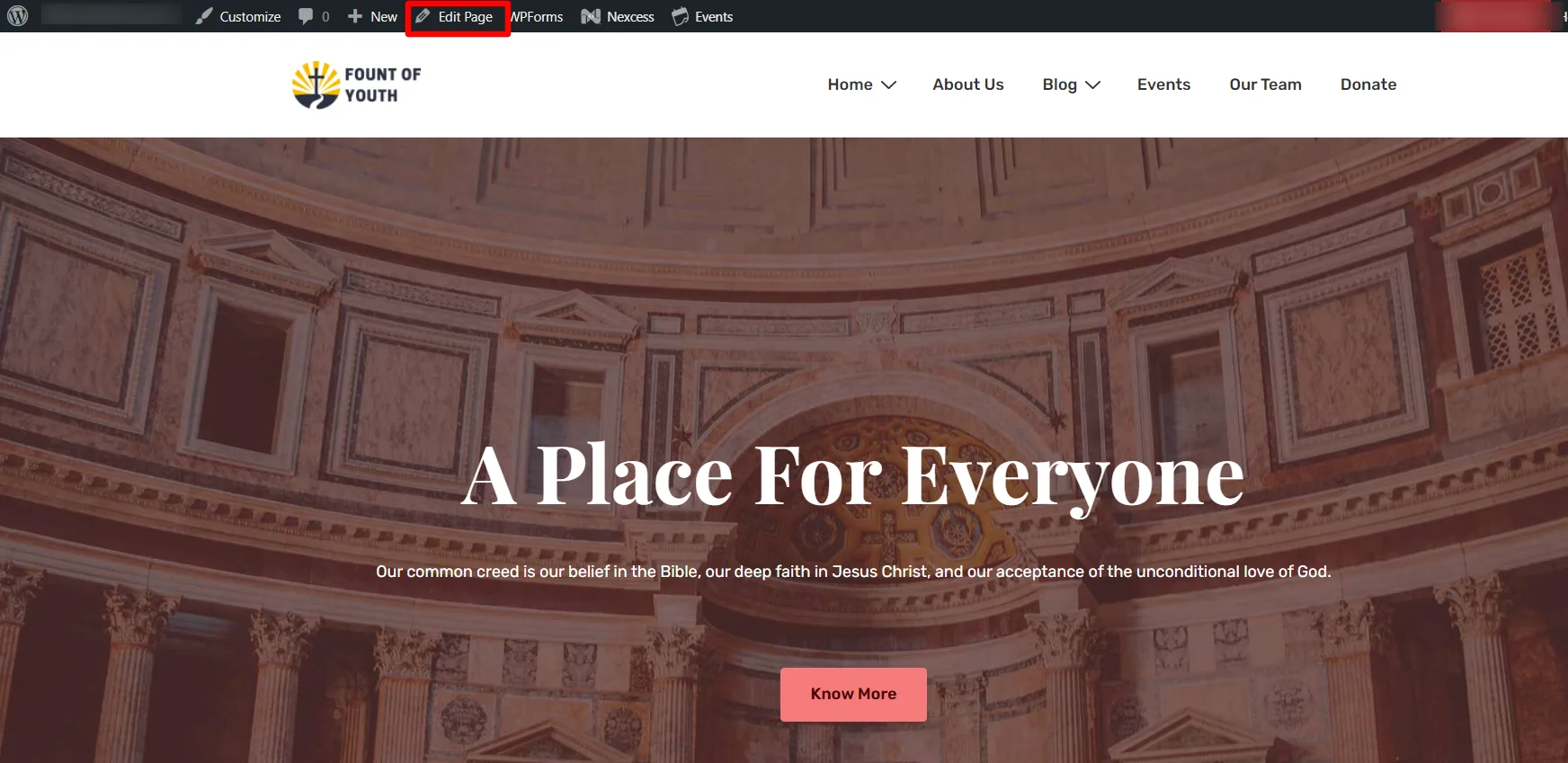
Next, to make changes on the page all you need to do is click on the specoific Gutenberg block you wish to edit.
You can make changes on different elements of the website whether its text background image or others.
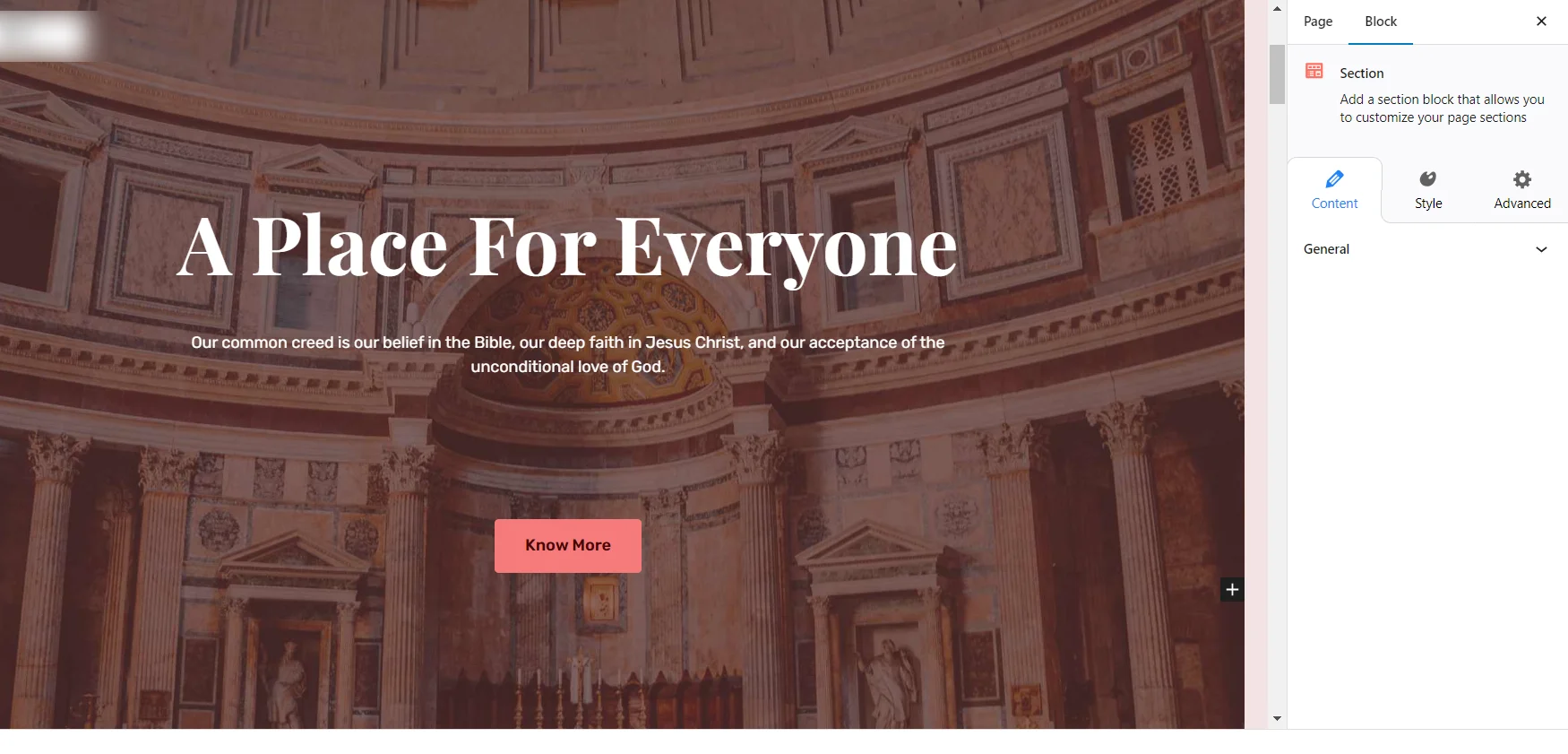
On the right side of the page you will be able to edit the changes you want to make. This include:
- Changing and editing content option.
- Styling the content, tags and typography.
- Adding captions to images.
- Customizing the layout and size.
- Customizing other advanced options such as editing the CSS class, margin, padding and others.
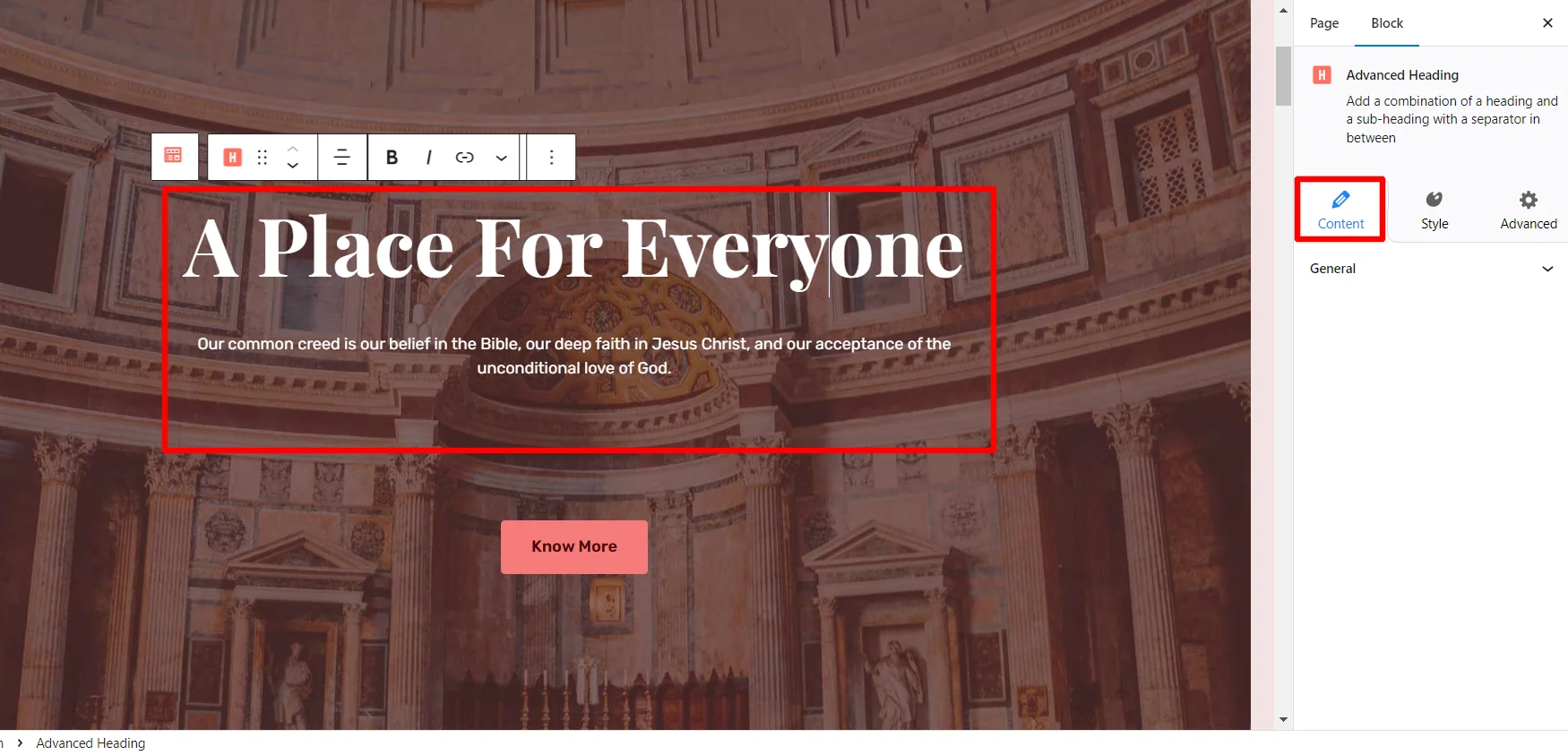
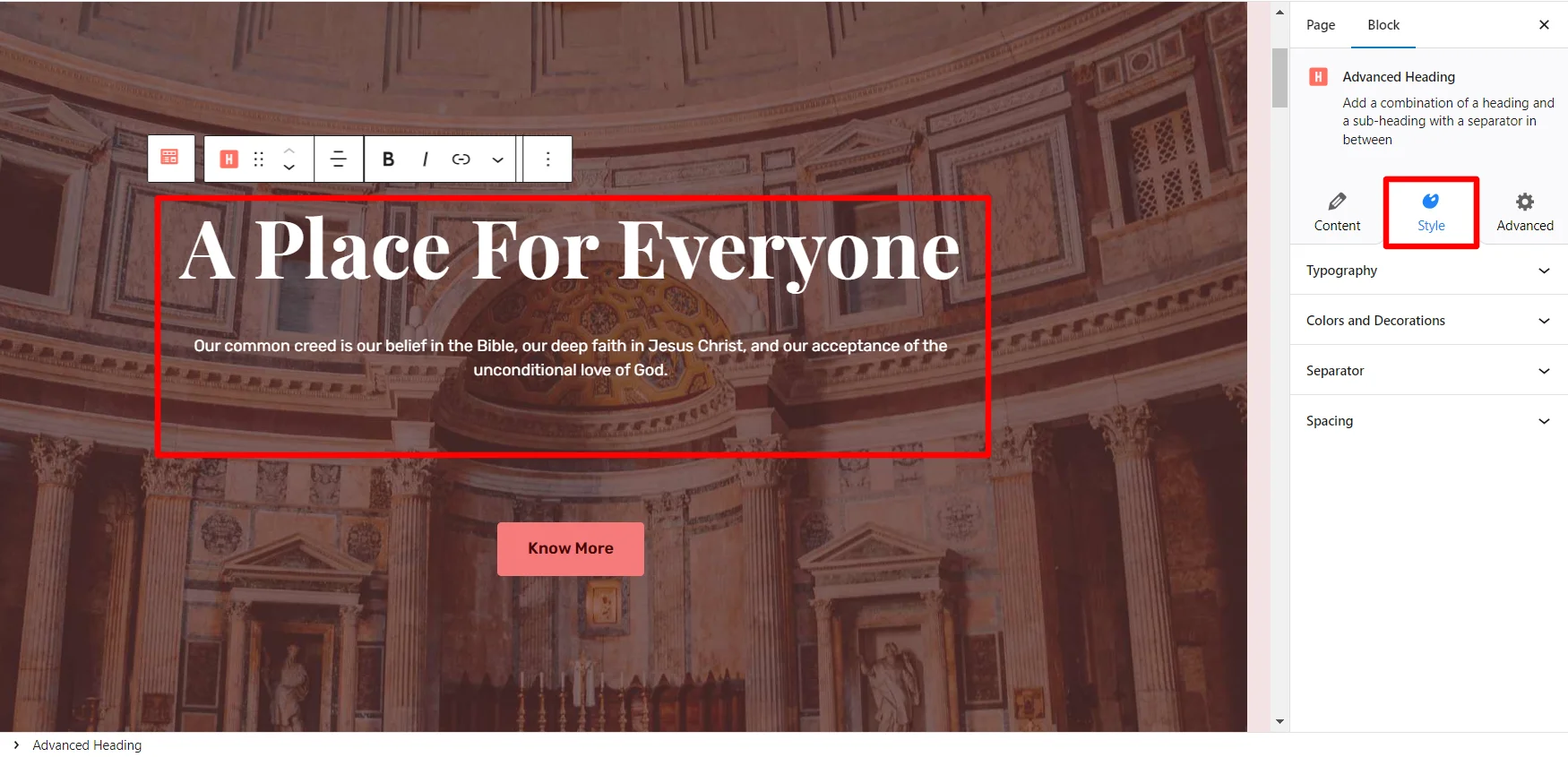
Following the above instructions, you will easily be able to edit an imported site template in WordPress using the Responsive Addons plugin.
Build faster, design better. Upgrade to Responsive Pro to unlock full customization options and premium templates.


