
Summary
Create engaging scroll animations in Elementor using Responsive Addons for Elementor Plugin.
This quick guide walks you through enabling the feature and applying motion effects to sections helping you build interactive, modern pages without relying on Elementor Pro.
Many websites still rely on static layouts where all content appears instantly on the screen. This can make pages feel dull and overwhelming. As a result, users often lose interest quickly or skip important sections of the page.
Adding Elementor scroll animations can solve this issue. Instead of seeing everything at once, elements can be displayed on-screen with various slide, fade, and subtle motion effects.
This creates a more engaging browsing experience for users.
Using RAE’s scroll animation extension, website owners can highlight key sections, improve storytelling, and create a more interactive design that keeps users interested while scrolling through the page.
- What Are Scroll Animations in Elementor?
- Why Use Scroll Animations on Your Website
- Scroll Animation Feature in Responsive Addons for Elementor (RAE)
- How to Add Scroll Animations in Elementor Using RAE (Step-by-Step Guide)
- Best Practices for Using Scroll Animations
- Responsive Addons vs Elementor Pro Scroll Effects
- Conclusion
Responsive Addons for Elementor is the Best Elementor Addons plugin – Get it for free!
What Are Scroll Animations in Elementor?
Without the scroll animation effect
With the scroll animation effect
As you can see, we have two very amazing websites, but which one is more interesting to use?
Most of you will say the second one.
It is because of the scroll animation effects.
When users scroll across a website, scroll animations are used to create visual effects.
Rather than having static objects appear instantaneously, scrolling effects, fading, and transformation to create motion effects based on how the user scrolls the page.
Scroll animations are typically used to gradually reveal content on the page, creating a more interactive experience.
A heading can slide up onto the page as it enters the page when you scroll down the page, or an image can fade into view when you scroll down the page.
Elementor offers motion effects, including scrolling animations. But these features are available only in Elementor Pro.
This means users who rely solely on the free version of Elementor cannot access these advanced effects.
Responsive Addons for Elementor solves this limitation by providing scroll animation capabilities for free. It allows users to create engaging designs without upgrading to Elementor Pro.
Why Use Scroll Animations on Your Website
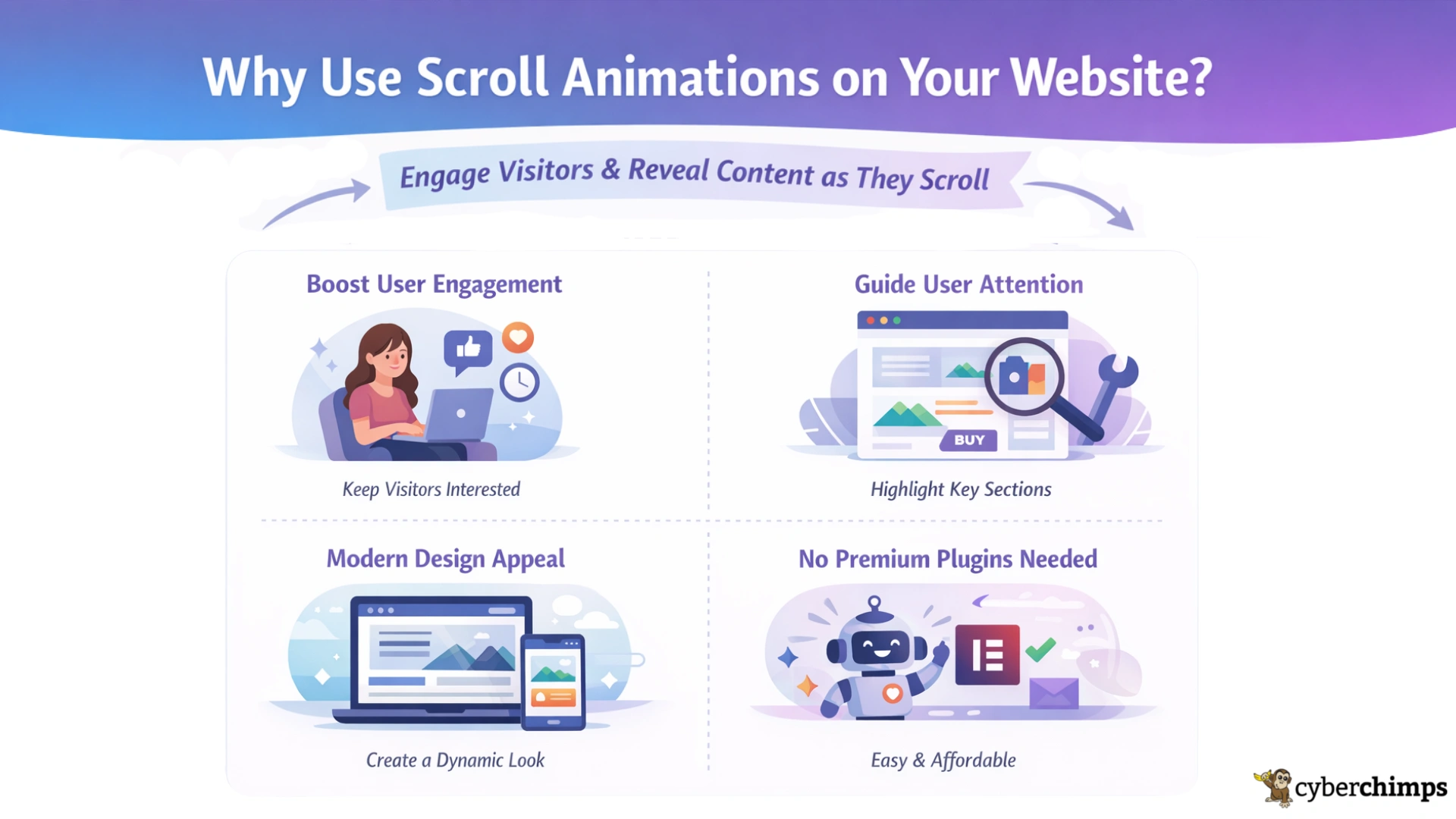
Scroll animations can greatly improve the visual experience and engagement level of your website. Instead of presenting information all at once, animations reveal content gradually as users move through the page.
One major benefit is that it improves user engagement.
When elements animate into view, visitors are more likely to stay focused on the content and continue scrolling through the website.
Scroll effects help direct user attention. Designers use subtle motion effects to highlight specific areas, such as product features, service offerings, and call-to-action buttons.
With tools like Responsive Addons for Elementor, you can add these animations easily without needing custom code or expensive premium plugins.
Scroll Animation Feature in Responsive Addons for Elementor (RAE)
Responsive Addons for Elementor (RAE) is a powerful plugin designed to extend Elementor’s functionality with additional widgets, templates, and design features.
RAE provides an exceptional user experience by letting you create animations as you scroll up or down your page with its scroll animation feature.
📢 My Real-World Test Results:
- Number of widgets: 80+
- GTmetrix Performance Score: 100%
- Includes Cross-site Copy-paste feature
- 5+ Extensions like Scroll animations, Sticky Section, Page Duplicator, & more.
- Save design time with 100+ Premium-grade Starter templates
Although motion effects are available in the Motion Effects feature of Elementor, those effects are only accessible through the use of Elementor Pro. However, the RAE animation also makes this feature available for free in Elementor.
With Elementor scroll animation, you are able to create a variety of scroll effects. Choosing a specific animation direction, adjusting the animation speed, and customising viewport settings, all within the Elementor editor.
RAE provides a practical alternative for users wanting to use motion effects on their site without paying for Elementor Pro.
How to Add Scroll Animations in Elementor Using RAE (Step-by-Step Guide)
Responsive Addons for Elementor (RAE) allows you to quickly set up scroll animations without writing code. You just need to enable the feature and configure it inside the Elementor editor.
1. Enable the Scroll Animation Extension
Before you can start using scroll effects, you need to activate the animation feature inside the plugin settings.
To activate the scroll animation extension, log in to your WordPress dashboard. Click on Responsive and see if the animation toggle is on.
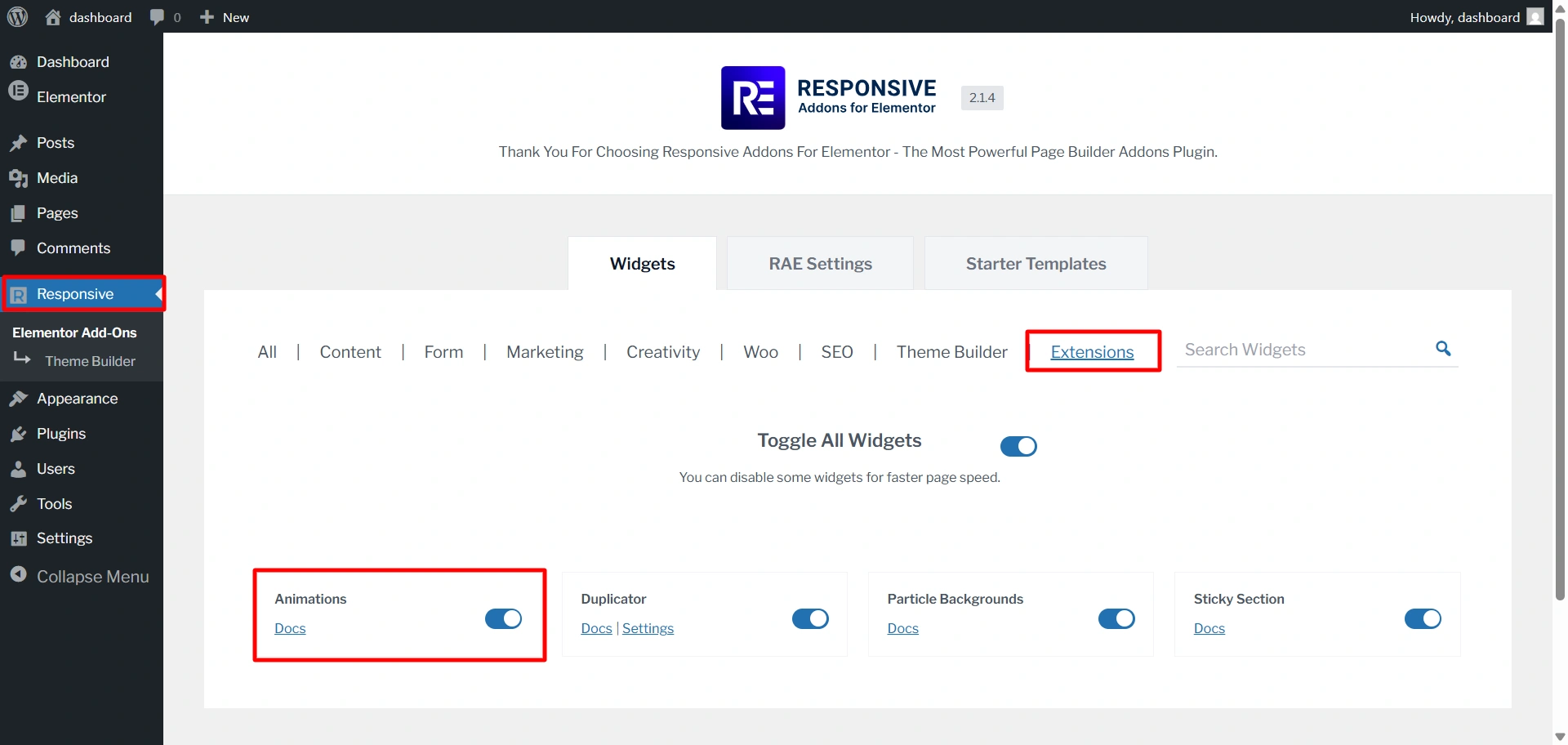
Now that you have activated the extension, open a post in Elementor.
2. Add Scroll Effects in Elementor
After enabling the extension, you can add scroll animation in Elementor
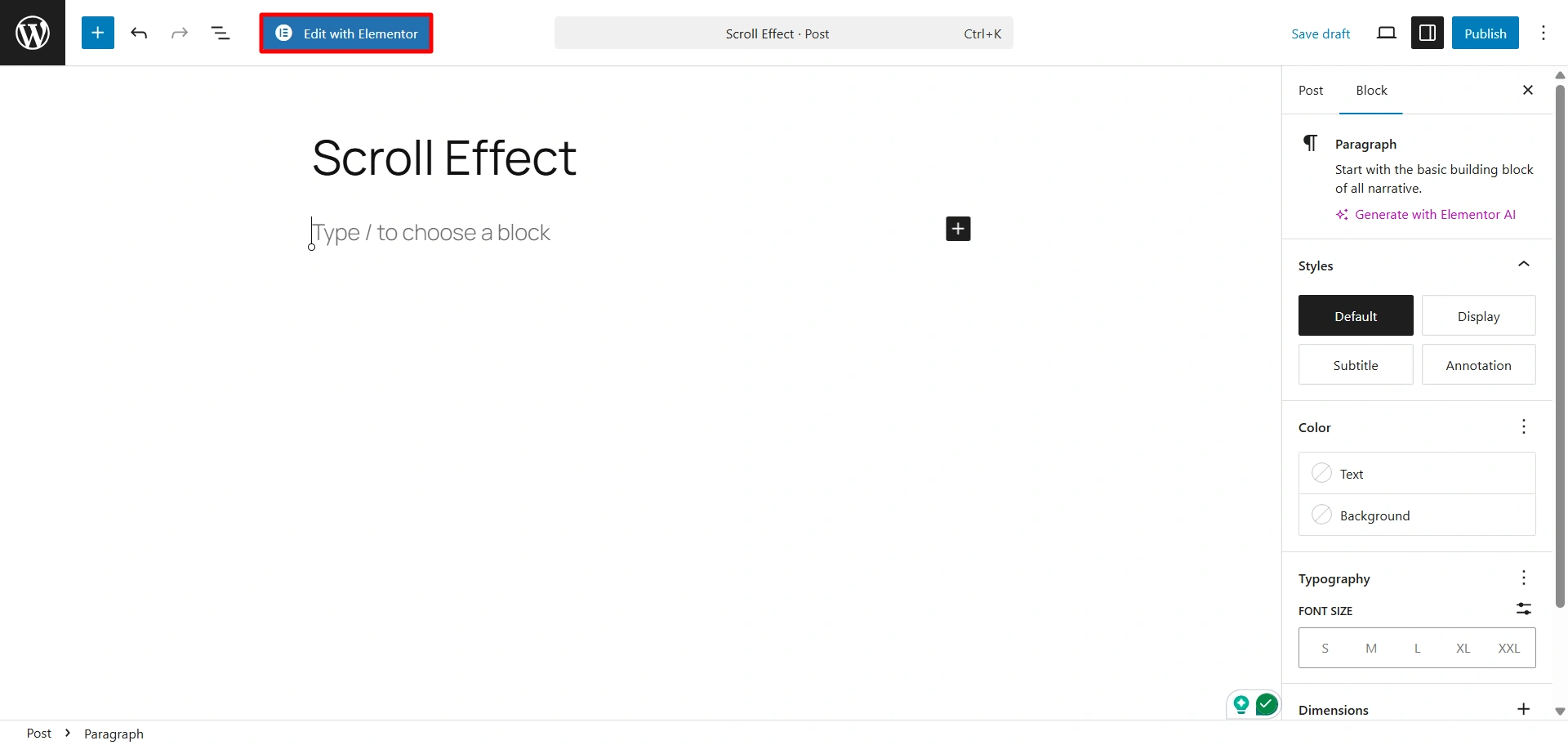
First, drag and drop a container into your layout. Then, add the widget inside the container where you want to apply the scroll animation.
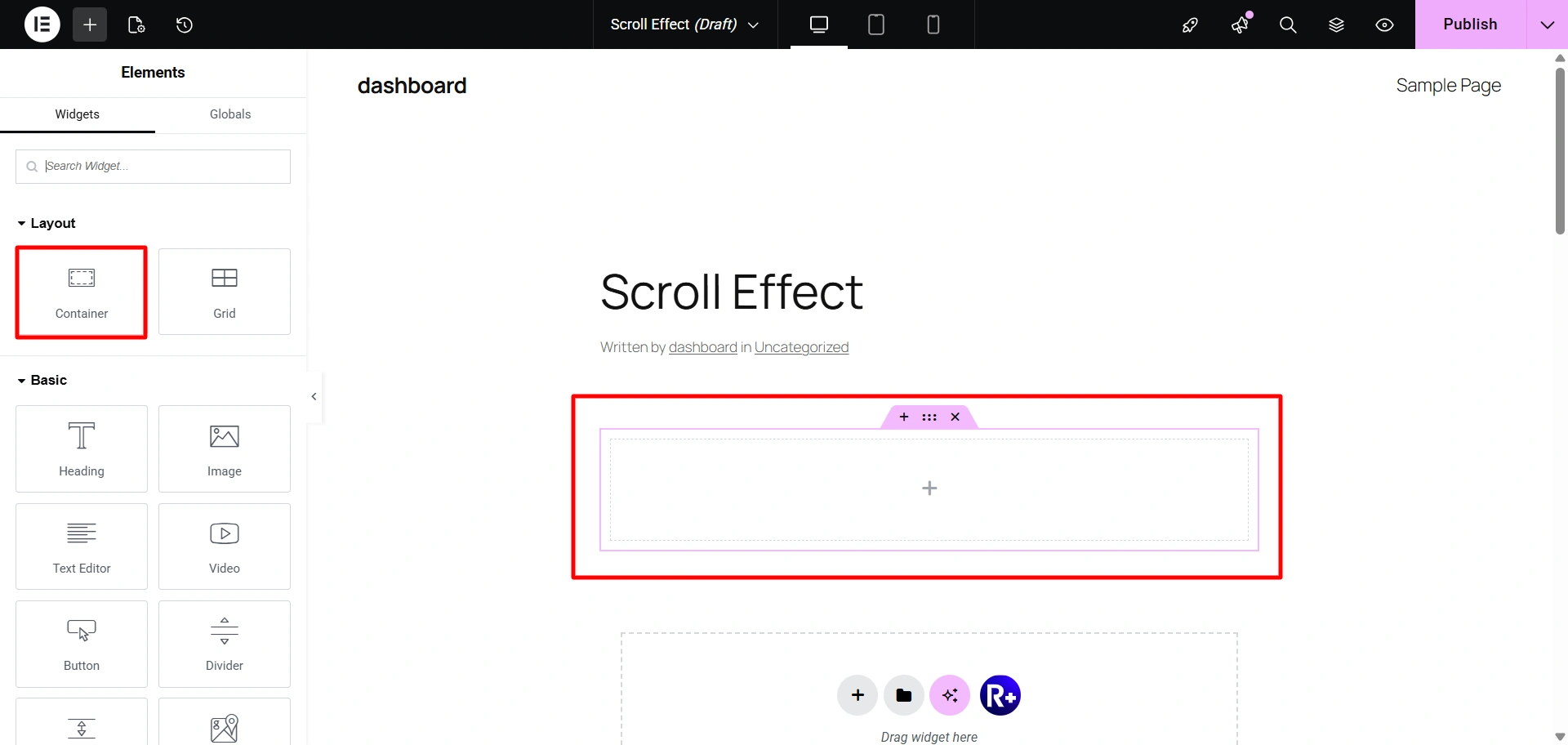
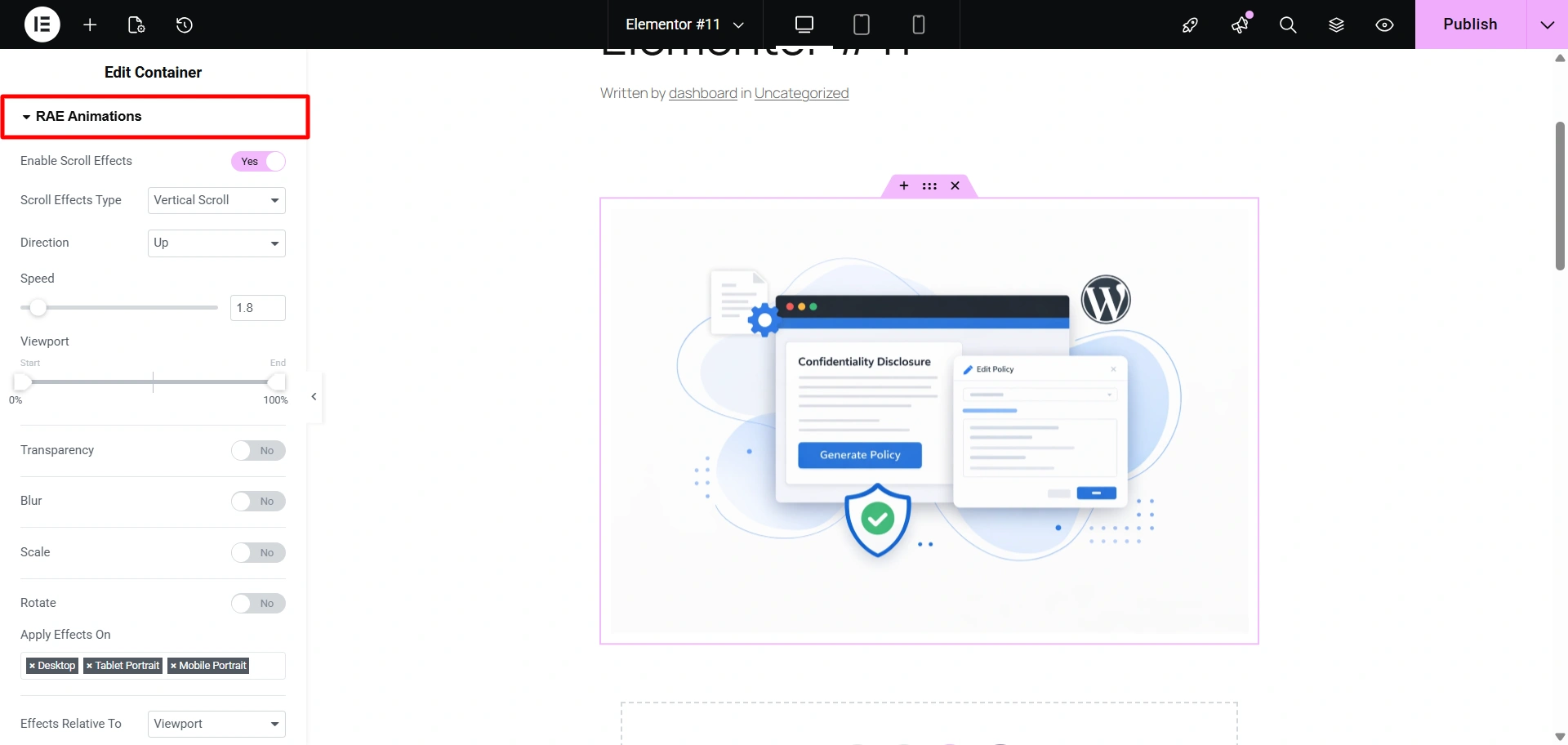
After adding your widget, click on the container and open the RAE Animations settings from the panel.
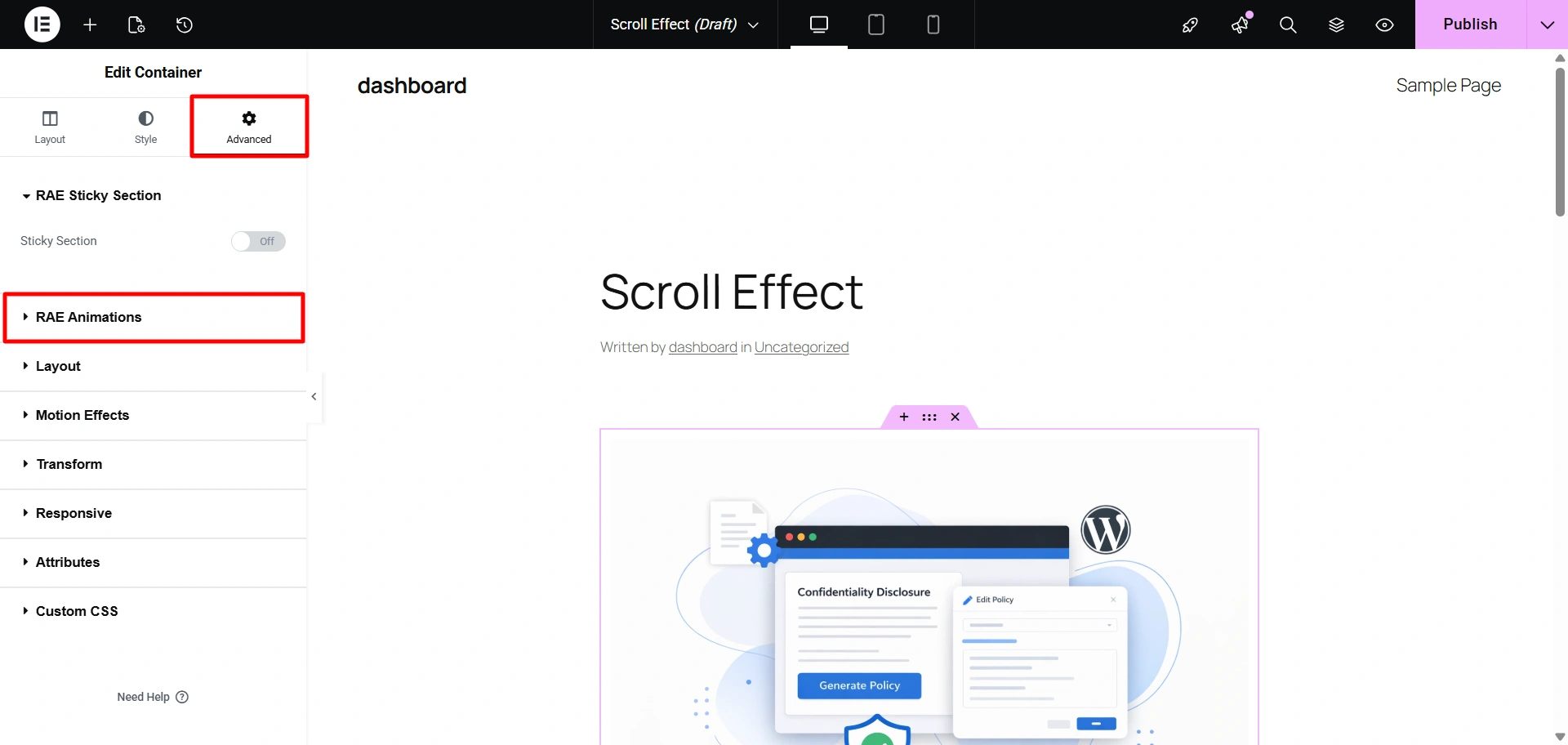
Turn on the Enable Scroll Effects toggle to activate animation controls.
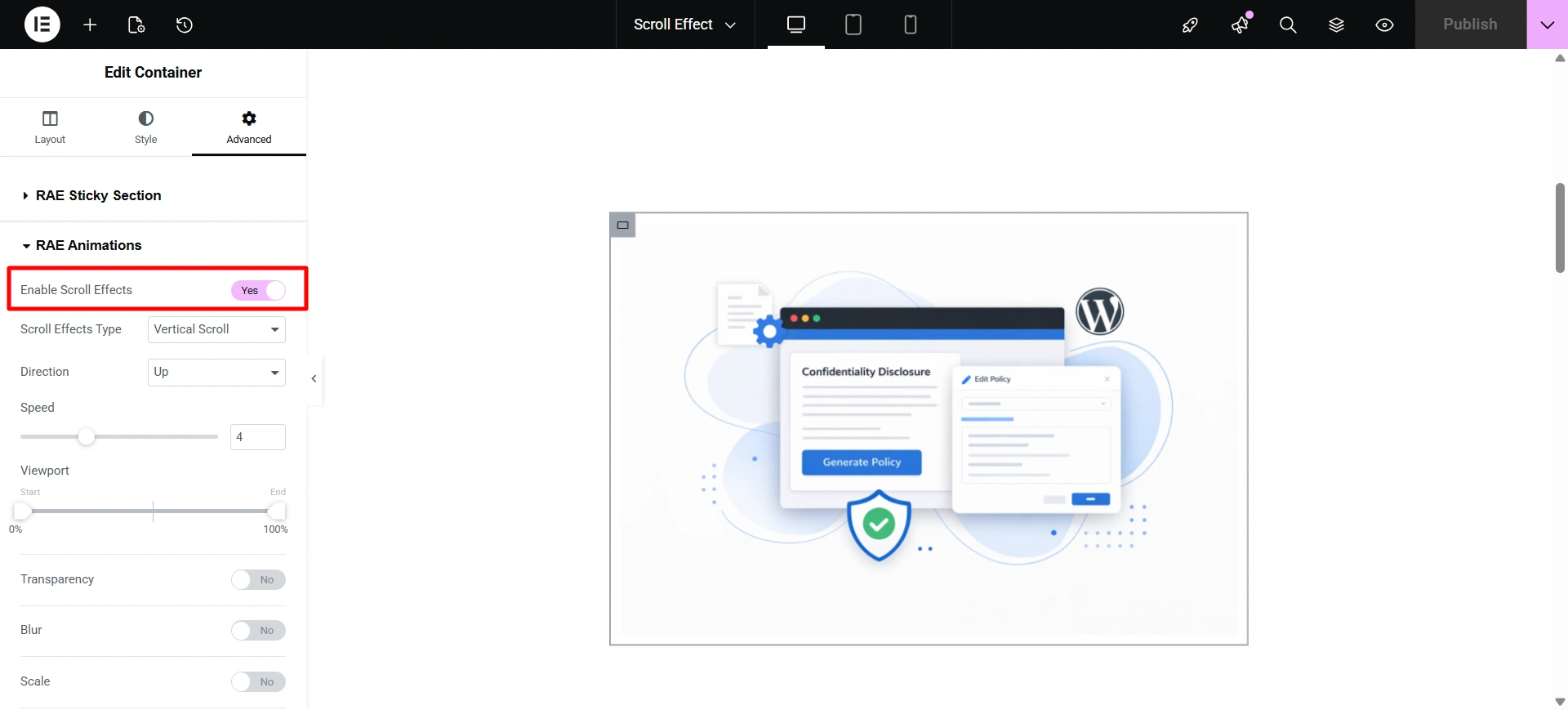
Choose the kind of scroll animation you want to apply. Some common options for scroll animations include:
- Vertical or Horizontal Scroll Animation – Animation that moves an object up or down the page.
- Transparency Animation – Animation that fades in or fades out.
- Blur Animation – Animation that gives an object a soft blur effect during motion.
- Scale Animation – Animation that enlarges or reduces the size of an object while scrolling.
- Rotation Animation – Animation that rotates the object’s position to give it a unique, creative look.
Select the direction you want your element to move as you scroll.
- Element Moves Up as You Scroll (Go Up) – Moves the object further up the screen as you scroll.
- Element Moves Down as You Scroll (Go Down) – Moves the object further down the page as you scroll.
Both of these methods create a natural feel and visual hierarchy in your page layout.
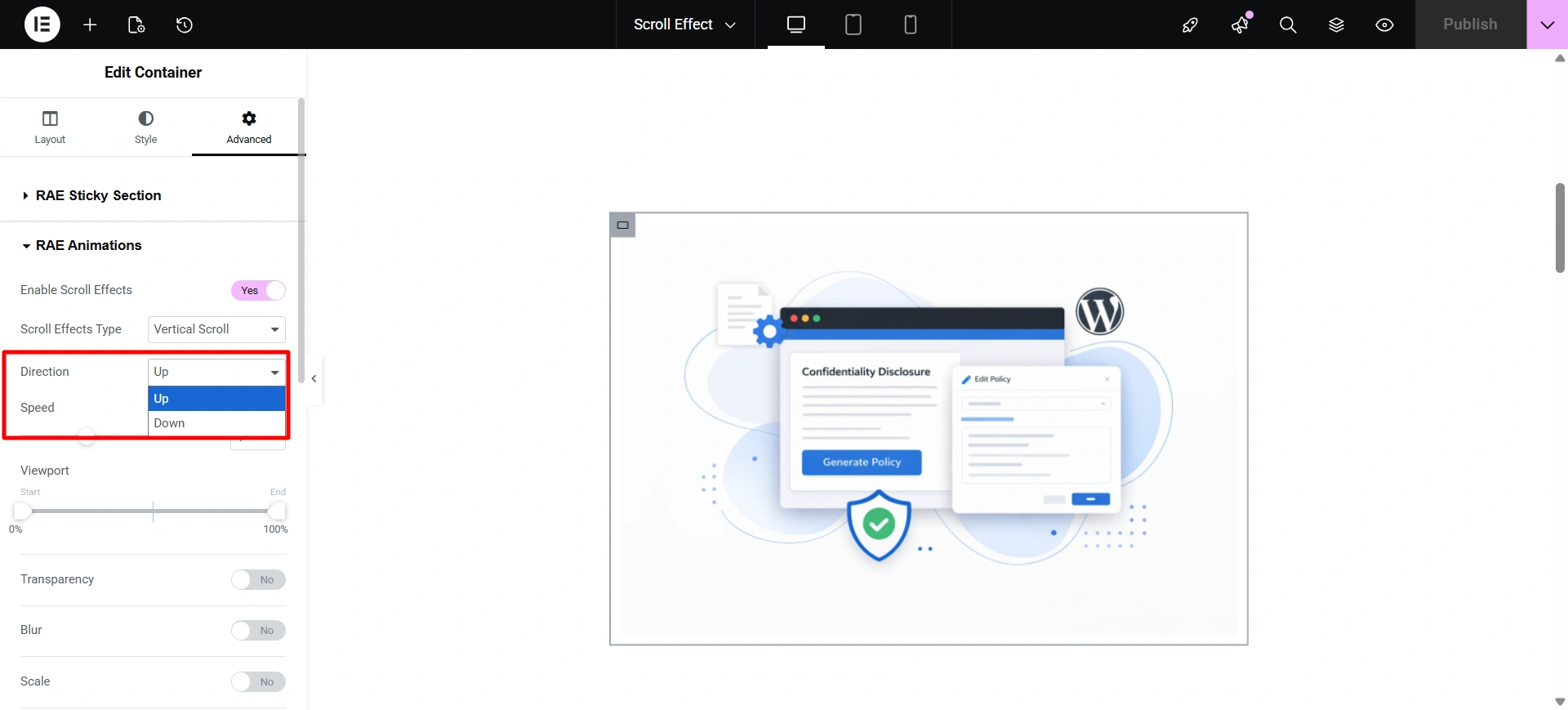
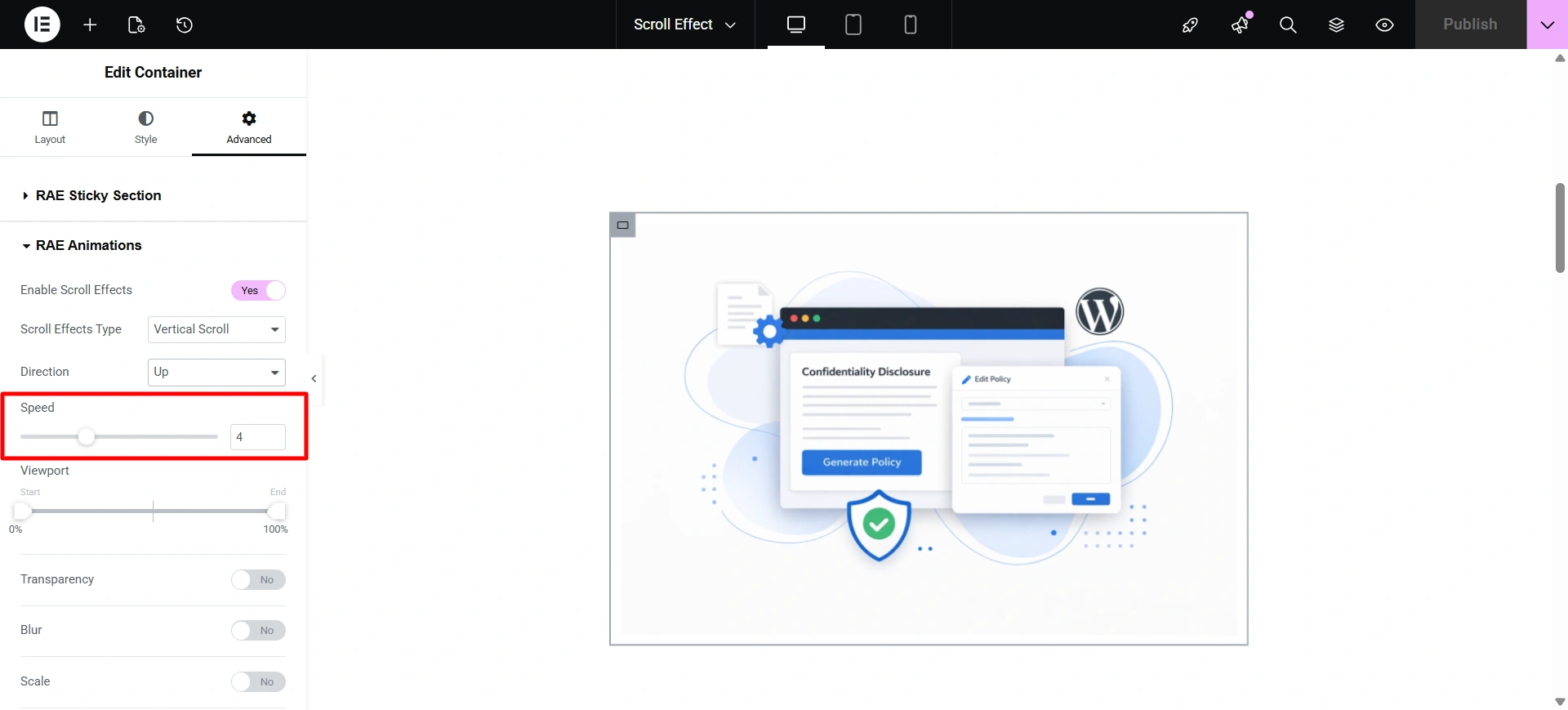
Set the speed of your animation by using the speed control. A slow speed will produce a subtle and smooth moving effect, while a fast speed will create a more prominent moving effect.
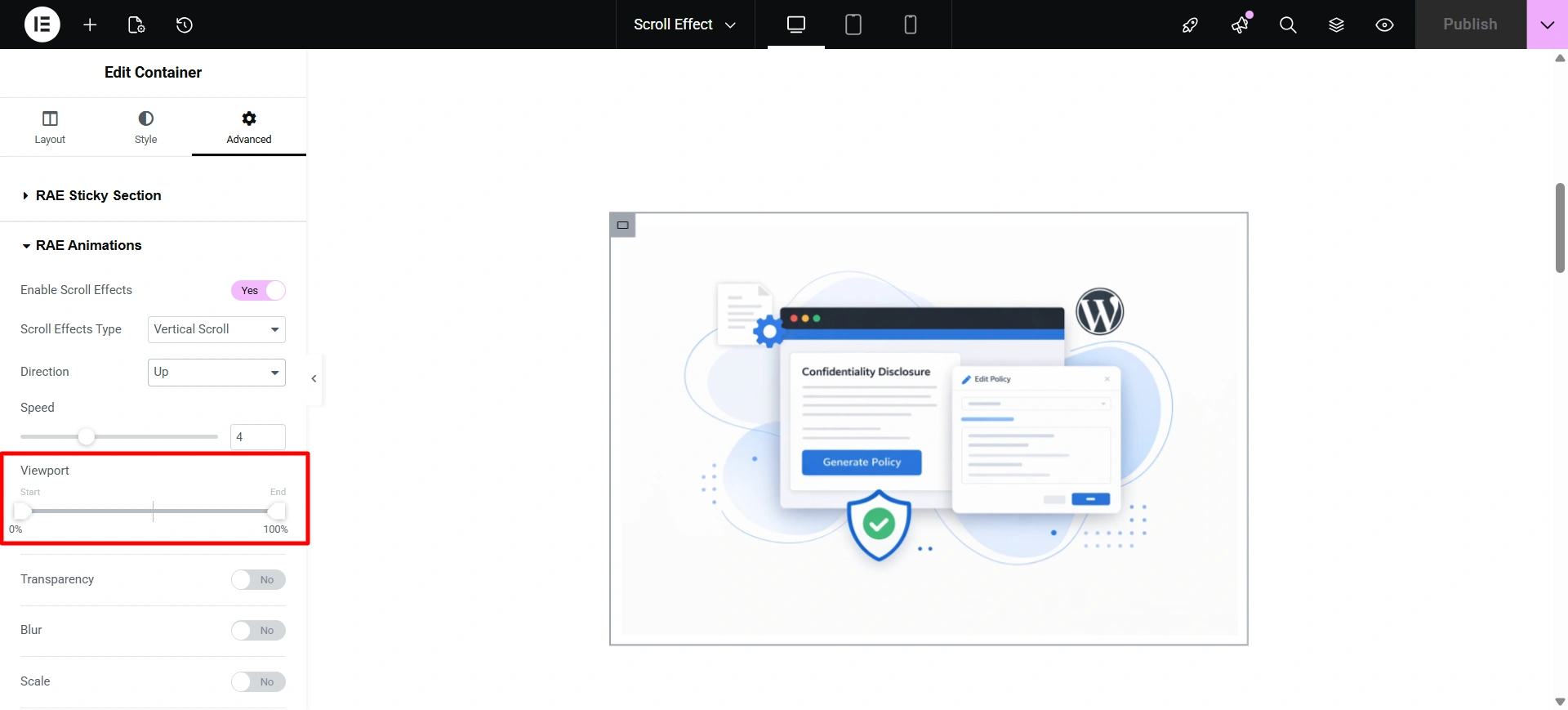
Use the viewport settings to determine when your animation should begin and when it will end, based on the user’s position on their screen. This allows you to create a better overall user experience because it will make certain that your animation occurs at the proper time.
After everything is in order, you can click Publish and use your development page view to scroll through your page and view the animations being applied.
With these steps, you can easily create smooth and engaging scroll animations in Elementor using RAE without needing Elementor Pro or any custom code.
Best Practices for Using Scroll Animations
Using scroll animations effectively can enhance your website’s design, but they should be applied thoughtfully to avoid harming the user experience.
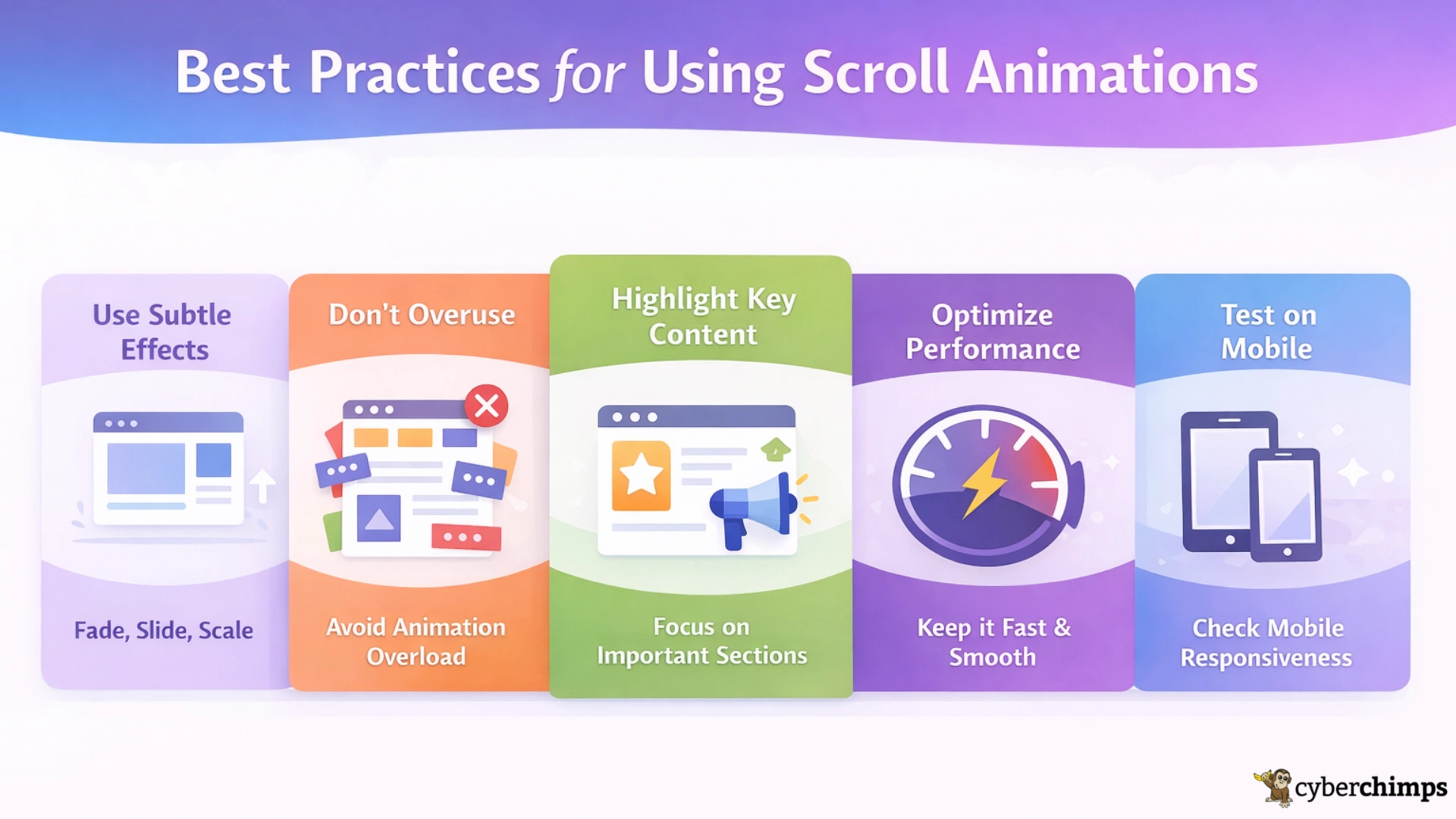
1. Use subtle effects
Use subtle effects with your scrolling animations. Animations should enhance the design and not dominate it. Subtle scroll animations such as fading in, a small upward movement, or an easy scale-up create a seamless, professional atmosphere. On the other hand, overly exaggerated animation effects will distract from the content and reduce readability.
2. Avoid overusing Scroll animations
It is easy to add an animation to every section of your website. However, an excessive number of scroll animation effects creates overwhelming visual clutter. Therefore, limit them to maintain a clean and properly distributed layout.
3. Focus on important sections
Use Elementor parallax scroll to emphasize content that is most critical to a user throughout your page, such as headliners, features, testimonials, and call-to-action sections. The animations will help the user to navigate your homepage and find the critical content.
4. Maintain good performance
Performance can be affected by the use of animation, especially heavy or complex animations on lower-powered devices. Use lightweight animation settings and avoid stacking animations on a single object to ensure your site performs well.
5. Test animations on mobile devices
Mobile devices will display animations differently. Before going live with your site, preview the design on Mobile and Tablet devices to ensure your animations have a smooth display, are not animated too quickly, and do not impede the experience of using your site.
Responsive Addons vs Elementor Pro Scroll Effects
Elementor Pro has the Motion Effects feature, which allows users to add scroll animations and a wide range of advanced effects, such as vertical scrolling, parallax backgrounds, and user-triggered animations.
Therefore, users who are looking for budget-conscious alternatives will be disappointed by the lack of free options available to them.
Responsive Addons for Elementor (RAE) is an Elementor motion effects alternative. It offers an affordable, practical solution. Using RAE for free to create scroll animations with your Elementor plugin without requiring you to upgrade to Elementor Pro.
RAE gives you the ability to create vertical scrolling animations, change the speed at which the animations occur, adjust the viewport settings, and even include additional effects, such as transparency, blurring, scaling, and rotation, to your scroll effects.
RAE is an excellent option for freelancers, newcomers, and website owners who want to create visually appealing designs at no additional cost.
Conclusion
Using scroll animations on your website can enhance your user experience. It’s a great way to introduce content to your visitors a little at a time, rather than overwhelming them with large, static blocks, and to draw their attention to the important areas of your site.
Elementor motion effects allow you to use scroll effects. However, these are only available to users who have purchased Elementor Pro.
Therefore, some Elementor users may want to use scroll animations without upgrading to a paid plan.
Responsive Addons for Elementor (RAE) has created a great alternative to the scroll effects provided by Elementor Pro. With a standard set of controls, a small file size, and seamless integration with your existing website, RAE lets you create a smooth, dynamic scrolling experience without any coding.
If you enjoyed this article, check out our other articles:
- WordPress Themes Built for Speed and Performance
- How To Create Stacking Cards on Scroll Using Elementor Free
- How to Duplicate Posts and Pages using Responsive Addons for Elementor
Grab the Responsive Addons for Elementor for free Elementor scroll animations.