

Struggling to duplicate pages built with Elementor?
The free Duplicator extension from Responsive Addons for Elementor plugin is a solution. The extension helps you speed up your WordPress workflow. It allows you to instantly duplicate any page, post, or custom post with a single click.
You can make a draft copy of a live post for editing without affecting the published content.
By default, the duplicate content is saved as a draft, ensuring you have a safe and non-published copy to edit before you publish it.
Follow this guide to learn about it.
Responsive Addons for Elementor is the Best Elementor Addons plugin – Get it for free!
What are the Requirements and Compatibility?
To ensure the Responsive Addons for Elementor Duplicator extension integrates seamlessly with your site, activate the Elementor page builder, since most of the duplication involves Elementor-based layouts.
The Responsive Addons for Elementor plugin must be installed and activated on your site.
📢 My Real-World Test Results:
- Number of widgets: 80+
- GTmetrix Performance Score: 100%
- Includes Cross-site Copy-paste feature
- 5+ Extensions like Scroll animations, Sticky Section, Page Duplicator, & more.
- Save design time with 100+ Premium-grade Starter templates
This plugin powers the Duplicator Extension along with several other productivity and design features.
The Duplicator Extension is designed to work with most major WordPress plugins, but in rare cases, caching or security plugins may delay the appearance of the duplicated draft.
Using RAE Duplicator Extension – Step by Step
Before you begin, make sure that you have the Responsive Addons for Elementor plugin installed.
To access the settings, open your WordPress dashboard and go to: Responsive Addons for Elementor > Widgets > Extensions
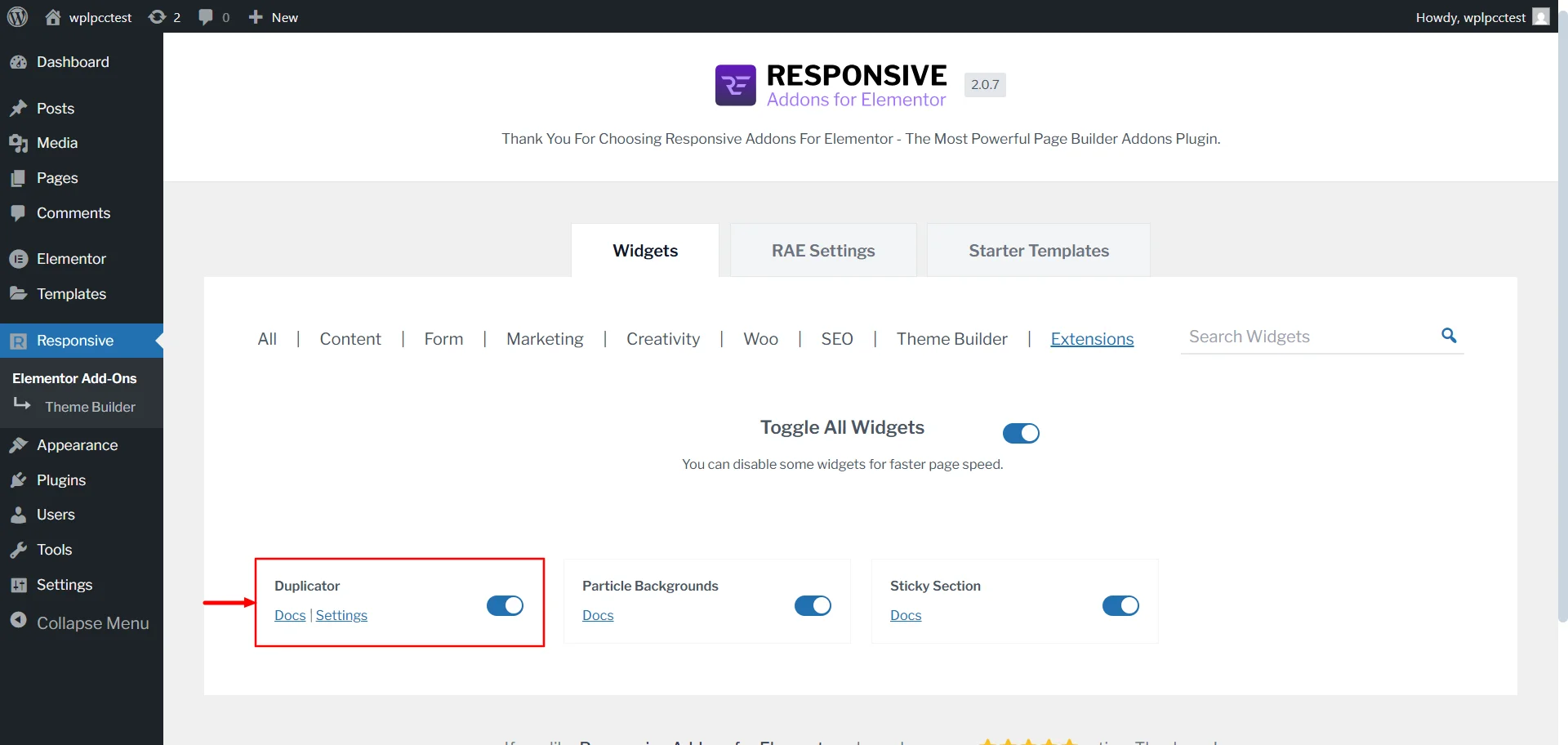
On this page, toggle on the Duplicator widget to activate it. Once it’s activated, choose the post types where you want the RAE Duplicator option to appear.
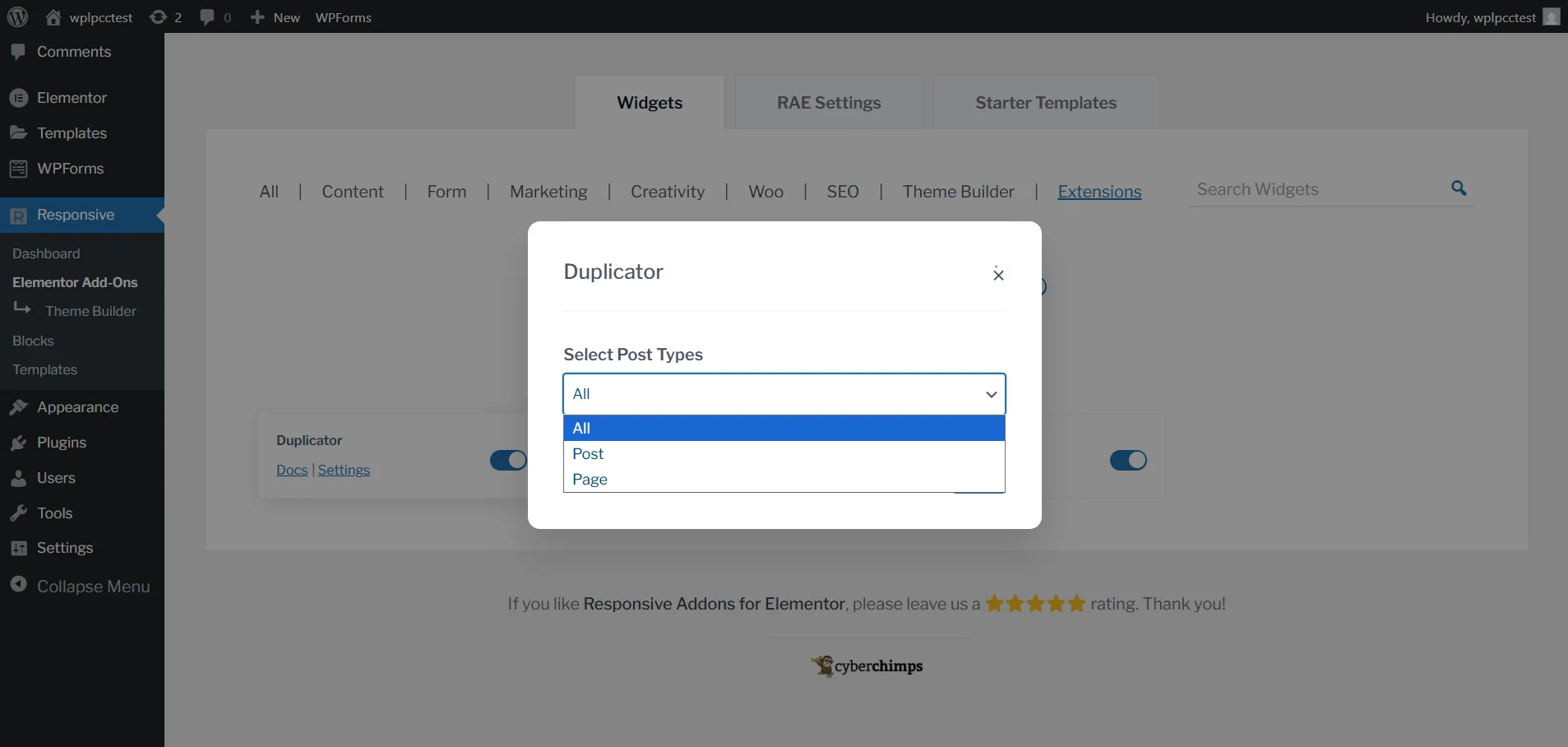
How to Use the RAE Duplicator
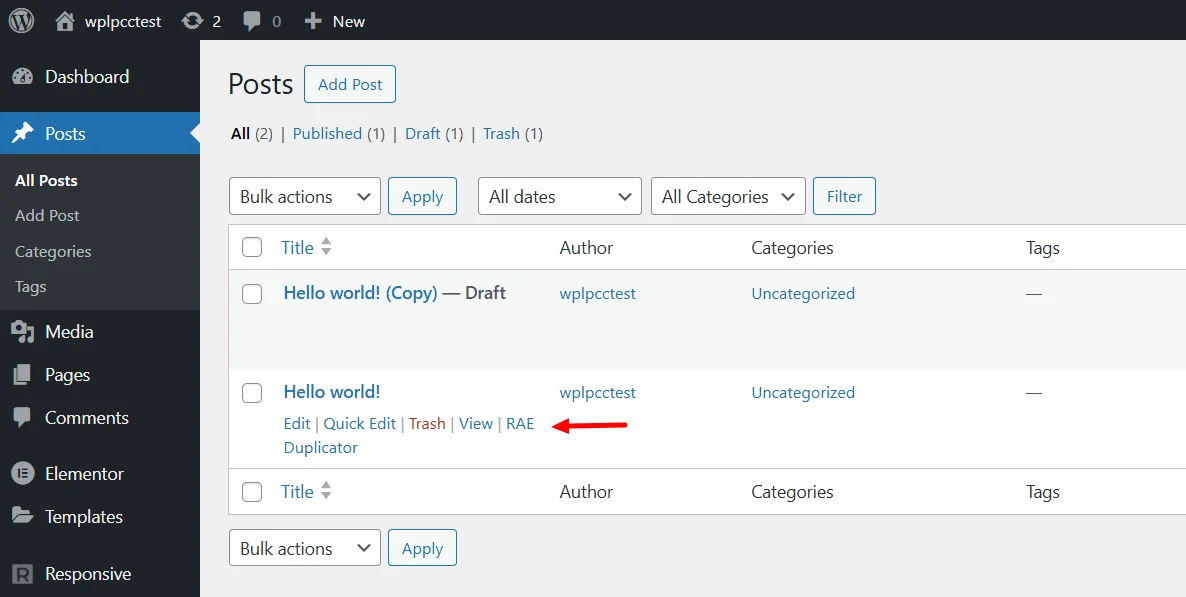
Open your Posts or Pages section, based on the post types you selected earlier.
You will see an action link called RAE Duplicator under each post. Click it once, and the plugin will create a new draft copy of that post.
That is all you need to do. The cloned version will appear in your list, and you can start editing it whenever you are ready.
What Gets Copied & What Doesn’t
Duplicator is designed to ensure your cloned post, page, or custom post is nearly identical to the original.
| Item | Status | Notes |
|---|---|---|
| Post Content | Copied | Include all the content elements. |
| Title & Excerpt | Copied | The title is prefixed with “Draft of” unless you customise it. |
| Post Status | Not Copied | Copies are always presented as a draft, even if the original is published. Later, you can change the status. |
| Taxonomies | Copied | Categories, Tags, and Custom Taxonomies are copied. |
| Featured Image | Copied | The featured image is cloned. |
| Author | Copied | The original author’s name is cloned. |
| Publish Date | Optional | Default is set to the current date/time. An option exists in settings to preserve the original publish date. |
| SEO/Meta Data | Copied | Data from Yoast SEO and RankMath, including titles, descriptions, and focus keywords. |
| Custom Fields | Copied | Data from Advanced Custom Fields and other standard custom fields are cloned. |
Use Cases & Best Practices
Below are some of the most effective ways to use RAE Duplicator extension, along with best practices to ensure a smooth workflow.
1. Major Edits
When you need to make significant changes to a live page, such as updating layout structure, adding new sections, or changing the entire design. It is risky to do so directly on the published version. Instead, you can duplicate the live page and work on the draft copy. Once you are satisfied, you can replace the published version or publish the new version with a slug change.
2. A/B Testing
If you’re optimising your website for conversions, design testing, or user engagement, duplication is perfect for A/B testing. Modify one or two elements in the duplicate version and check the results in analytics tools to see which performed better.
3. Content Updates
Some content requires annual or seasonal updates, like the event announcement, pricing, or promotional offer, duplication makes the process effortless.
4. Check the Slug
When you duplicate a post, the slug or permalink gets copied too. Before publishing, make sure the slug is different from the original content.
Frequently Asked Questions
This is the default safety behaviour. It prevents accidental public publishing of incomplete or unedited duplicated content. You can change this default status in the RAE Duplicator settings page if required.
Yes, you can clone custom post types. But make sure you have selected CPT in the post type settings options.
If you duplicate a large post or page, for example, one that contains many Elementor sections, images, or custom widgets, the Duplicator Extension will still create a complete copy.
Ensure the extension is toggled “ON” in the Responsive Addons For Elementor plugin and that Posts is selected in the Duplicator’s post type settings.
Conclusion
The RAE Duplicator Extension enhances the workflow, allowing you to handle your Posts and Pages content faster and more safely in your WordPress site.
It is a suitable option for you if you want to test a new layout on your page or post without making changes to the original post. Or if you’re doing A/B testing on two different pages.
By following best practices like editing on draft copies, checking permalinks, and managing redirects, you can maintain a clean workflow and consistent site structure.
If you like the article, consider reading these articles.
- How to Add a Sticky Header to WordPress – 3 Easy Ways
- How to Make a News Website on WordPress: Step by Step Guide
- How to Use WordPress Landing Pages With Responsive Blocks
Are you ready to duplicate your first post? Use Responsive Addons for Elementor and Responsive Theme.






1 Comment on “How to Duplicate Posts and Pages using Responsive Addons for Elementor”
The Duplicator extension seems like a huge time-saver for Elementor users! I especially love the ability to make edits to the duplicated post without affecting the live content. It’s such a simple yet powerful tool for streamlining workflow.