
Summary
To add stacking cards install and activate Responsive Addons for Elementor and open your page in Elementor. Add the widget, customise and publish.
The article describes what stacking cards are, the tools you need, and provides customization instructions.
It highlights how this interactive design enhances engagement and visual storytelling on websites.
If you’ve visited a modern website lately, you might have seen a cool effect where cards overlap each other as you scroll down the page. These are called stacking cards on a scroll.
They make a website look more interactive and fun, while also helping to display content in a clean, step-by-step way.
The good news? You don’t need coding skills or expensive plugins to add this effect. With Elementor and a Elementor free addon, you can create WordPress stacking cards in just a few minutes.
In this guide, I’ll show you what stacking cards are, what you need before starting, and how to add them for free using the Responsive Addons for Elementor plugin.
Responsive Addons for Elementor is the Best Elementor Addons plugin – Get it for free!
What is Elementor Stacking Cards on Scroll?
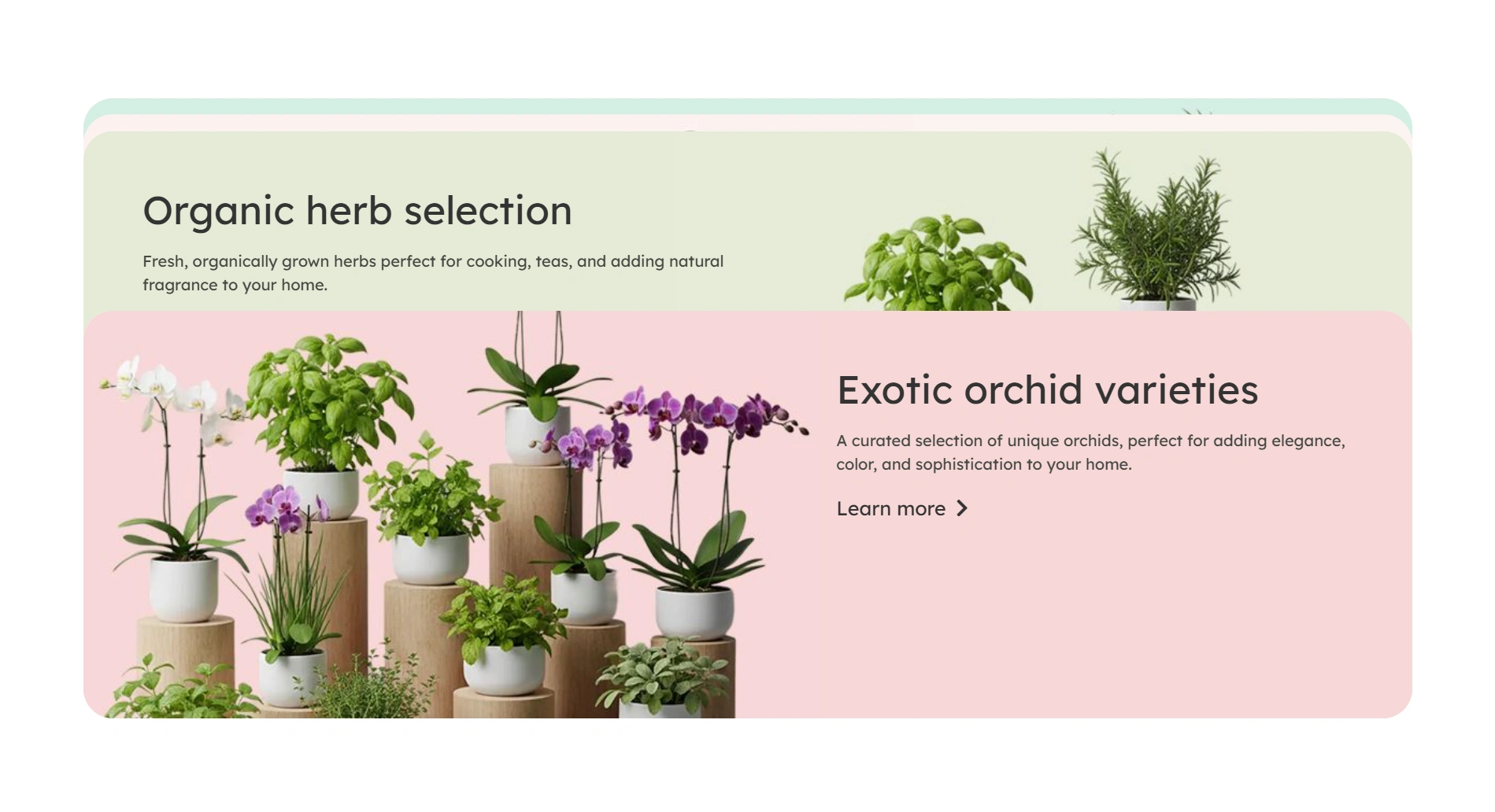
Stacking cards is a type of section design where each card stacks one over another as you scroll. Instead of showing content in a long, boring column, stacking cards lets you display it in a step-by-step style that feels engaging with the audience.
For example, if you want to show steps in a process, features of a product, or a timeline, stacking cards is a perfect choice.
Here’s an example of the stacking cards feature:
In Elementor, you can use a WordPress stacking cards widget to create this effect without writing any code.
Things You’ll Need for Adding Stacking Cards in Elementor
Before you begin, make sure you have:
- WordPress site installed and running
- Elementor page builder
- Responsive Addons for Elementor (RAE) plugin
WordPress
WordPress is widely regarded as the best platform for building a website. Almost 50 to 60 percent of websites worldwide are powered by WordPress.
To add a stacking card feature, having a fully functional WordPress website is the first step. WordPress is an open-source platform that lets you install third-party plugins.
Some of the most popular plugins recommended for WordPress include Elementor, Responsive Addons for Elementor, Yoast SEO, WPForms, Responsive Plus, and more.
But to add the WordPress stacking card widget, you’ll need only two free plugins. First being Elementor and Responsive Addons for Elementor.
Elementor

Elementor is a drag and drop page builder that allows you to create a stunning website with WordPress.
You can add third party plugins like Responsive Addons for Elementor that will enhance the default Elementor features.
Moreover, without any use of code, you can add elements to the website and edit them comfortably as per your brand requirements.
Responsive Addons for Elementor

📢 My Real-World Test Results:
- Number of widgets: 80+
- GTmetrix Performance Score: 100%
- Includes Cross-site Copy-paste feature
- 5+ Extensions like Scroll animations, Sticky Section, Page Duplicator, & more.
- Save design time with 100+ Premium-grade Starter templates
Responsive Addons for Elementor is a free plugin that is powered by the popular Cyberchimps website. It’s one of the best add-ons that elevate your WordPress website.
Moreover, it’s lightweight, compatible with popular themes and plugins, and easy to use. The plugin offers 80+ incredible Elementor widgets that you can use without any coding knowledge.
With these widgets, you can add various functionalities to your Elementor-made website, thereby making your site unique.
Additionally, the Responsive Addons for Elementor plugin includes the Stacking Card widget, which enables you to add a premium stacking card to your website.
With no premium plugins, you’ll be able to use the stacking card feature.
Next, let’s look at how we can add stacking cards on scroll in elementor.
How to Add Stacking Cards in Elementor for Free
[Note: To add a free stackings card widget, a website template must be built with the Elementor page builder].
Cyberchimps’ Responsive Plus offers free templates that you can use to build a stunning website.
Responsive Addons for Elementor takes your site further by offering advanced widgets that blend perfectly with Elementor’s editing workflow.
Now, let’s go step by step and create stacking cards in Elementor.
Step 1: Install and Activate Responsive Addons for Elementor
Go to your WordPress dashboard.
Hover on Plugins and click on Add New.
Search for Responsive Addons for Elementor and click on Install Now button.

Once installed, click on the Activate button to activate the plugin.

This plugin is free and comes with 80+ widgets, including the Elementor stacking card widget.
Step 2: Install and Activate Elementor
Once you’ve installed the RAE plugin, you can directly install and activate Elementor from the dashboard.

To use the stacking cards, you’ll need both Elementor and Responsive Addons for Elementor.
Step 3: Open the Page Where You Want to Add Stacking Cards
You can create a new page or edit an existing one.
For quick setup, you can even use an Elementor template.
Here I’m using the car rental business template that’s built using Elementor.

If you’re wondering how I made this website in just 2 minutes, well, I have used the Responsive Starter Templates. It offers 150+ Elementor templates that you can use to build the entire website or even a single page.
Check out this complete guide on how to install and activate the Responsive starter Templates.
Step 4: Edit with Elementor
For tutorial purposes I’ll be using the Services page. Click Edit with Elementor to open the drag-and-drop builder.

Here you’ll see plenty of customization options on the left panel.

Now, click on the + sign to add a section.

Search for stacking cards on the search bar provided. Next, drag the widget to the main area as shown in the image.

Step 5: Customize the Widget
The default stacking cards looks like this:

From the Source, you can select either Items or Posts. I am going ahead with the items as it sounds more appropriate.
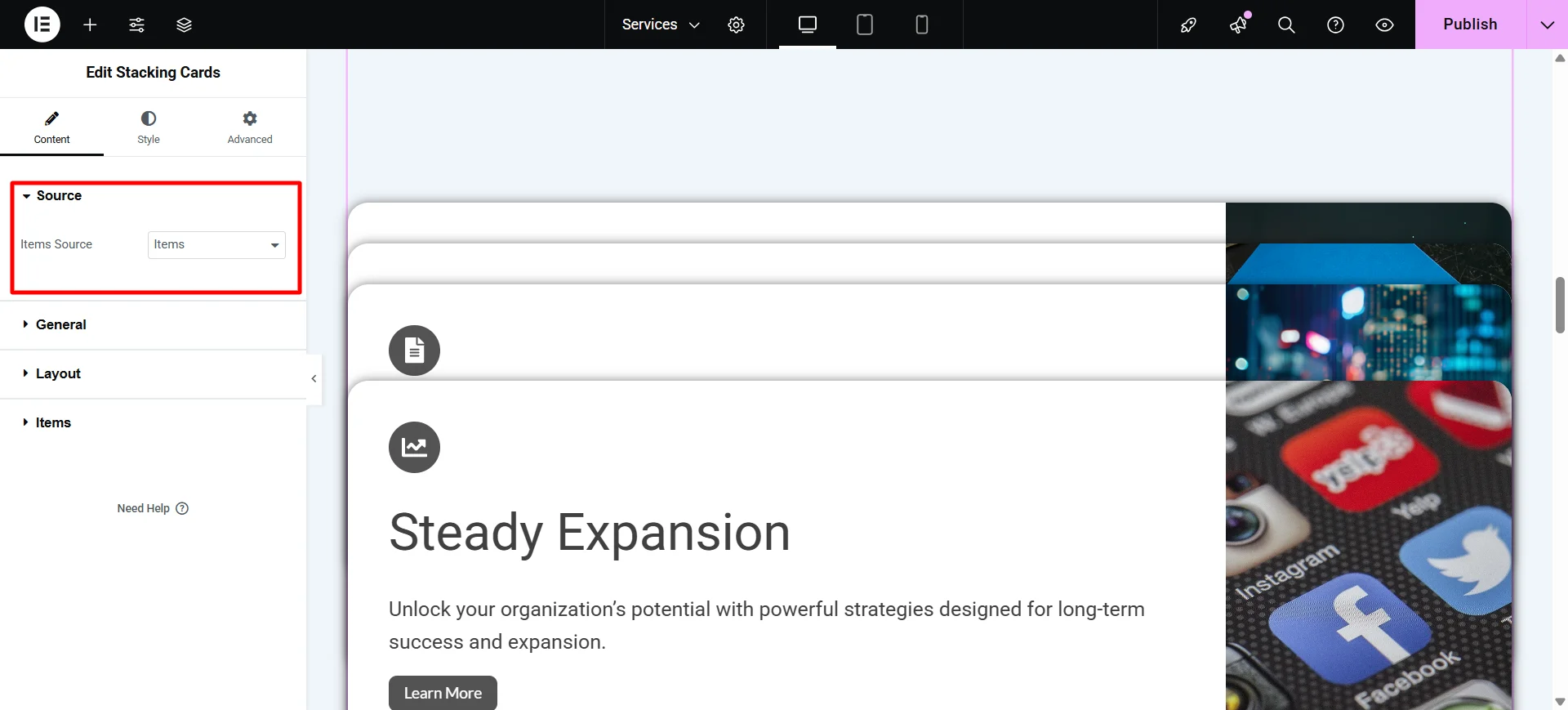
Next, from the General tab, you get options to choose the sticky position top space, card gap, card top offset. For my website I’m keeping them default as it looks good.
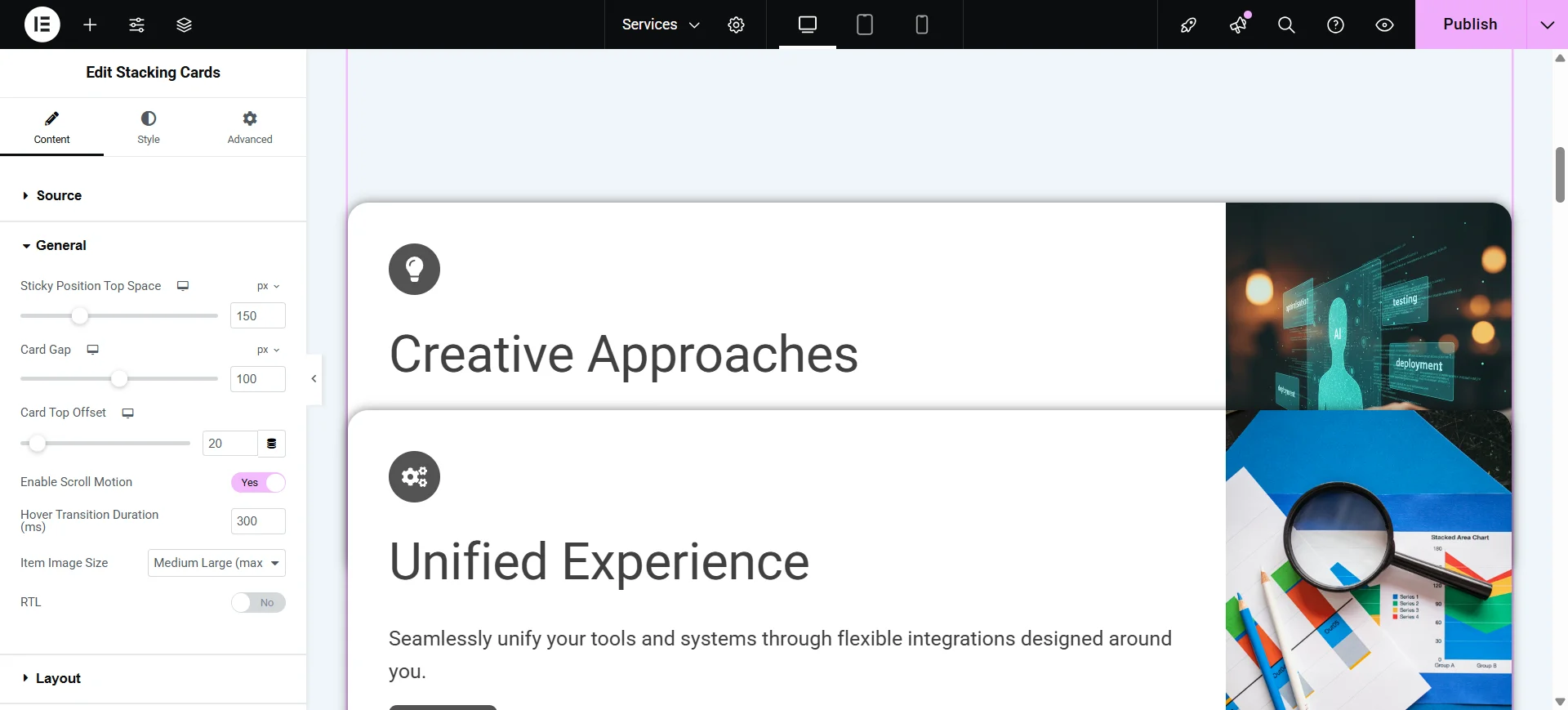
Next, under the layout tab, you get to choose if you want to show title, description, image or more. For my settings, I want to show all the items includig button. But I changed the Graphic element to text to show category at the top of the card.

Next, under the items tab, you can give appropriate titles, add images, buttons, and more. I have added the content according to my requirements and provided a button with a link. You can also provide all the graphic details next to the content tab.

After providing information for the card, you can repeat by doing the same step for other cards as well.

Also, if you’re looking to add styling to the cards, you can use the style tab.
To understand more about the customization options, refer to this document – How to customize Stacking Cards.
Here’s the final view of the stacking cards on my website:
FAQ
You can create stacking cards by installing the free Responsive Addons for Elementor plugin. Once activated, drag and drop the stacking cards widget into your page and customize it.
The stacking cards effect is a scroll-based animation where multiple cards overlap and stack on top of each other as users scroll down the page.
You can create stacking cards in Elementor using the Responsive Addons for Elementor plugin, which provides a dedicated stacking cards widget.
Conclusion
Stacking cards on a scroll makes a website look cool and easy to read. They help visitors see one point at a time without feeling lost.
The best part is, you don’t need coding or paid tools. With Responsive Addons for Elementor, you can add stacking cards for free.
It works great for steps, timelines, or features you want to show. Just drag the widget, add your content, and you’re done.
Add the stacking cards widget by following the steps above, and make a website to make it more engaging and interactive for your users.
If you’ve liked reading this article, check out our other similar articles:
- How to Create a Before After Slider in Elementor [Free]
- How to Add Free Advanced Tabs To Your Elementor Website
- How to Add free Price List To Your Elementor Website
Thinking of making a unique website in WordPress? Grab the Responsive theme now!