
Responsive Addons for Elementor (RAE) allows you to quickly set up animations without writing code. You just need to enable the feature and configure it inside the Elementor editor.
Enable the Scroll Animation Extension
To activate the Animations extension, log in to your WordPress dashboard. Click on Responsive > Extensions and turn on the Animations toggle.

After adding a new post in Elementor, click Edit with Elementor to add the animation extension.
Turn on the Enable Scroll Effects
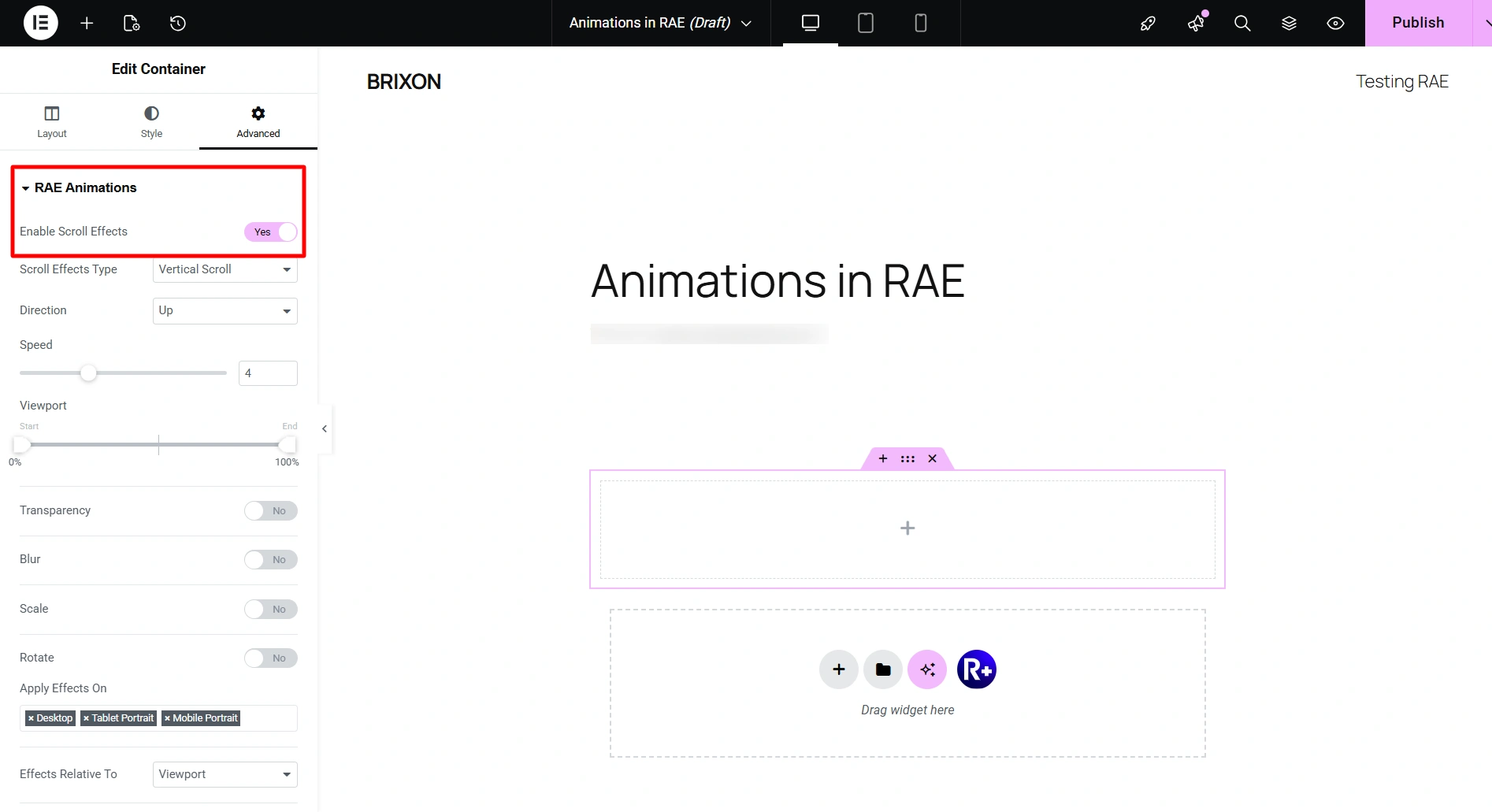
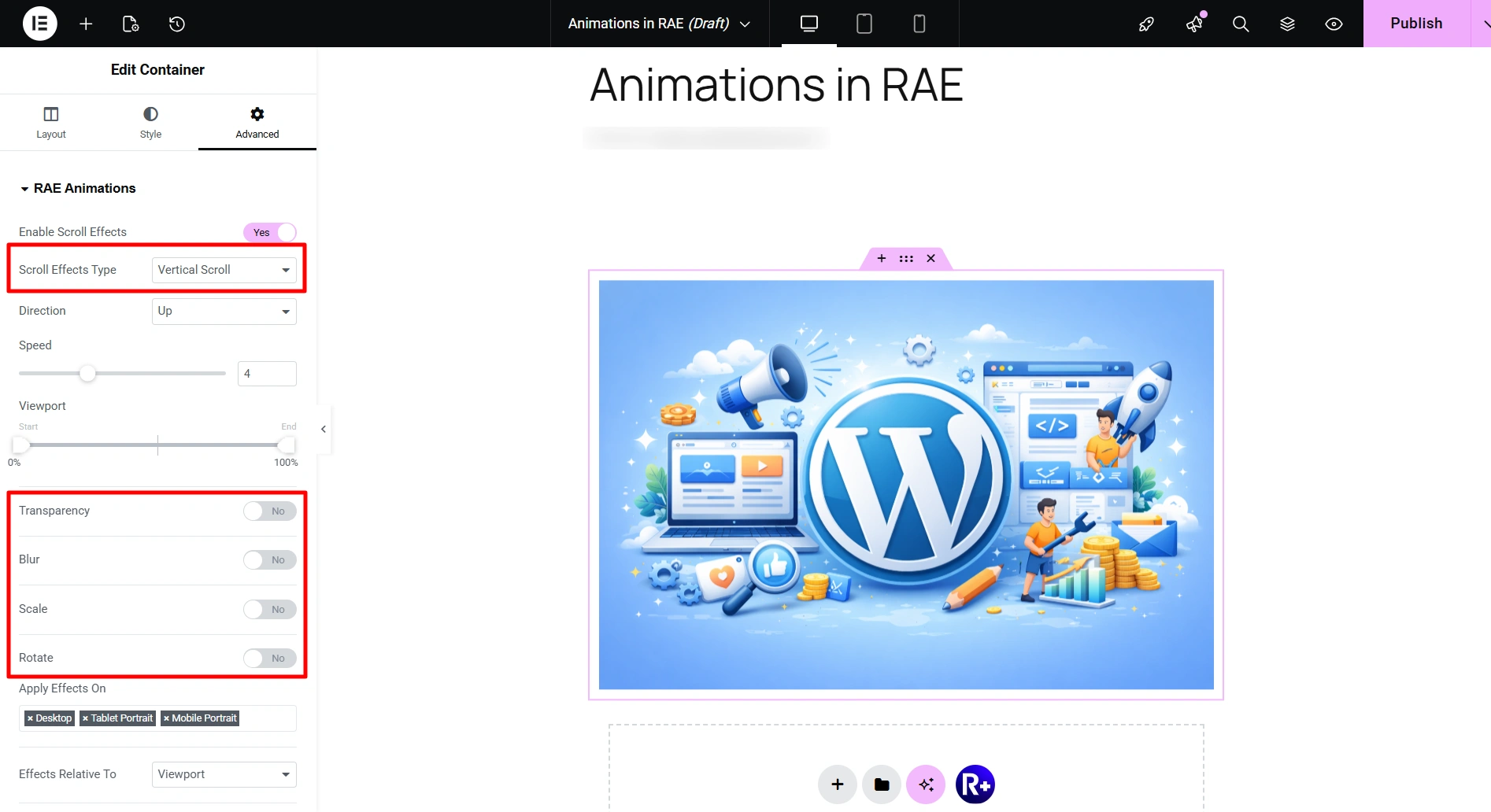
After you enable the scroll effects you can select the kind of scroll animation you want to apply. Some common options for scroll animations include:
- Vertical or Horizontal Scroll Animation – Animation that moves an object up or down the page.
- Transparency Animation – Animation that fades in or fades out.
- Blur Animation – Animation that gives an object a soft blur effect during motion.
- Scale Animation – Animation that enlarges or reduces the size of an object while scrolling.
- Rotation Animation – Animation that rotates the object’s position.
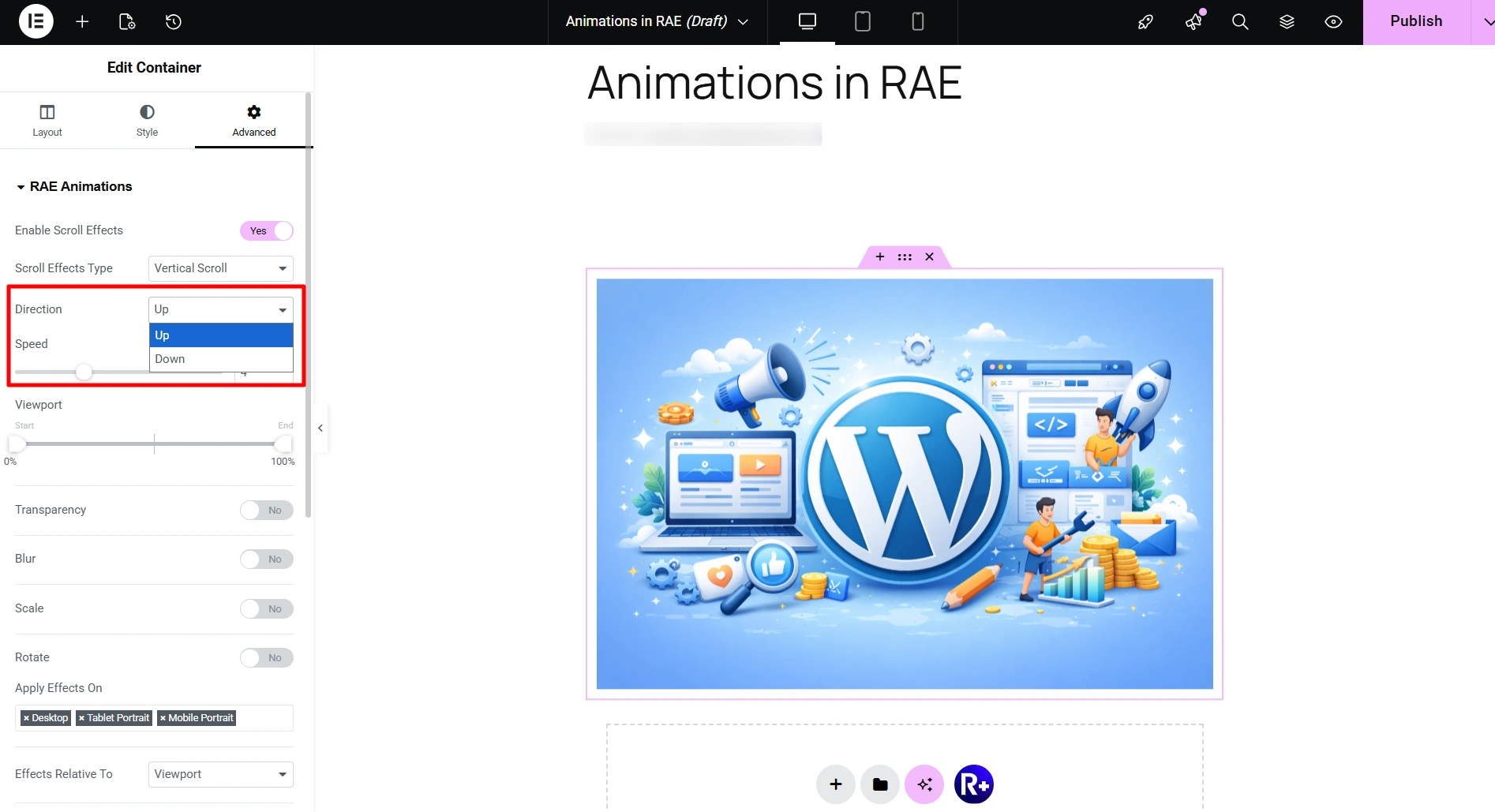
Here you can select the direction you want your element to move as you scroll.
- Up – Moves the object further up the screen as you scroll.
- Down – Moves the object further down the page as you scroll.
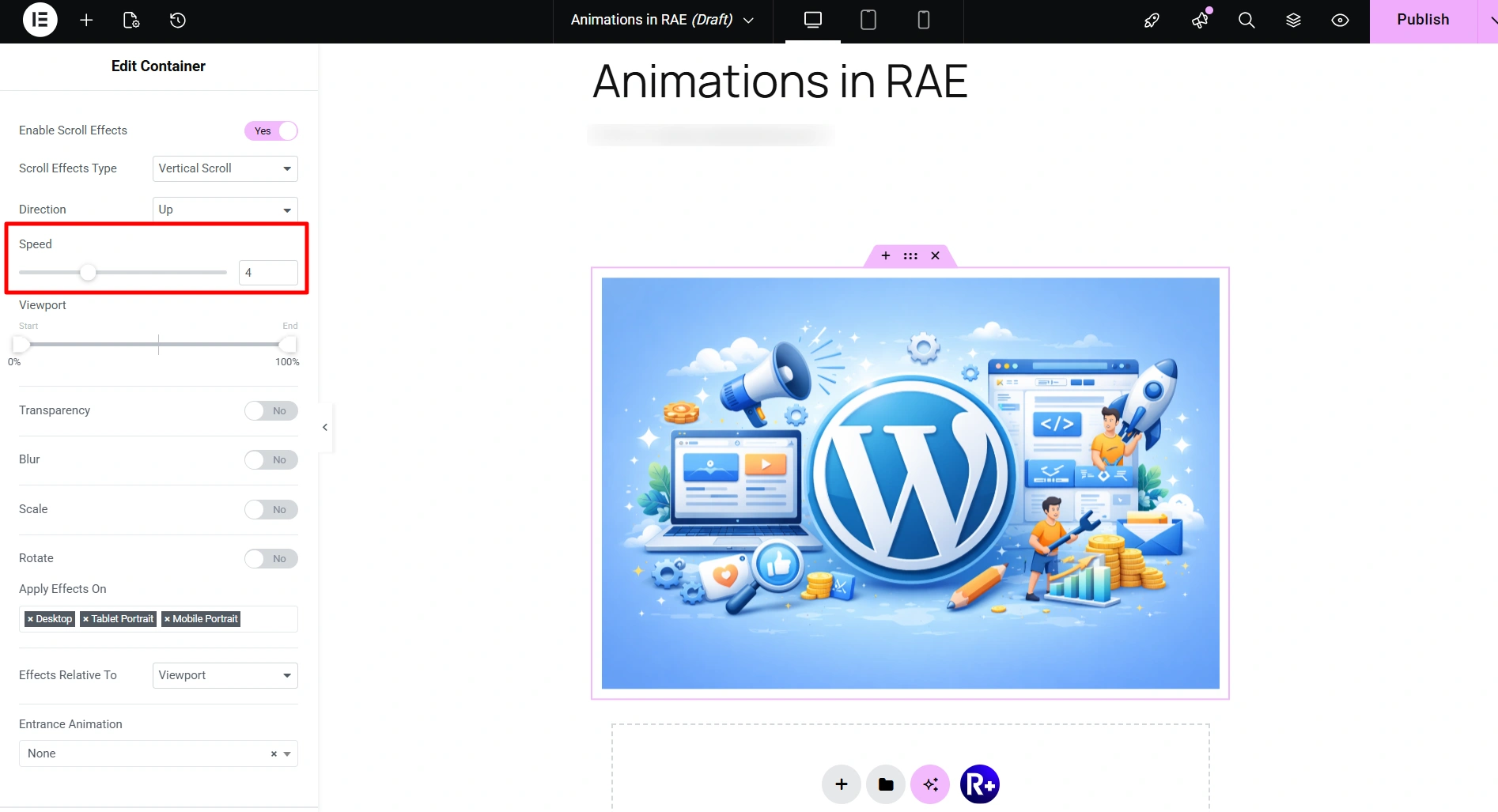
Using the speed slider, you can adjust the speed of your selected animation effect. You can slow down or make it fast as per your liking and requirements.
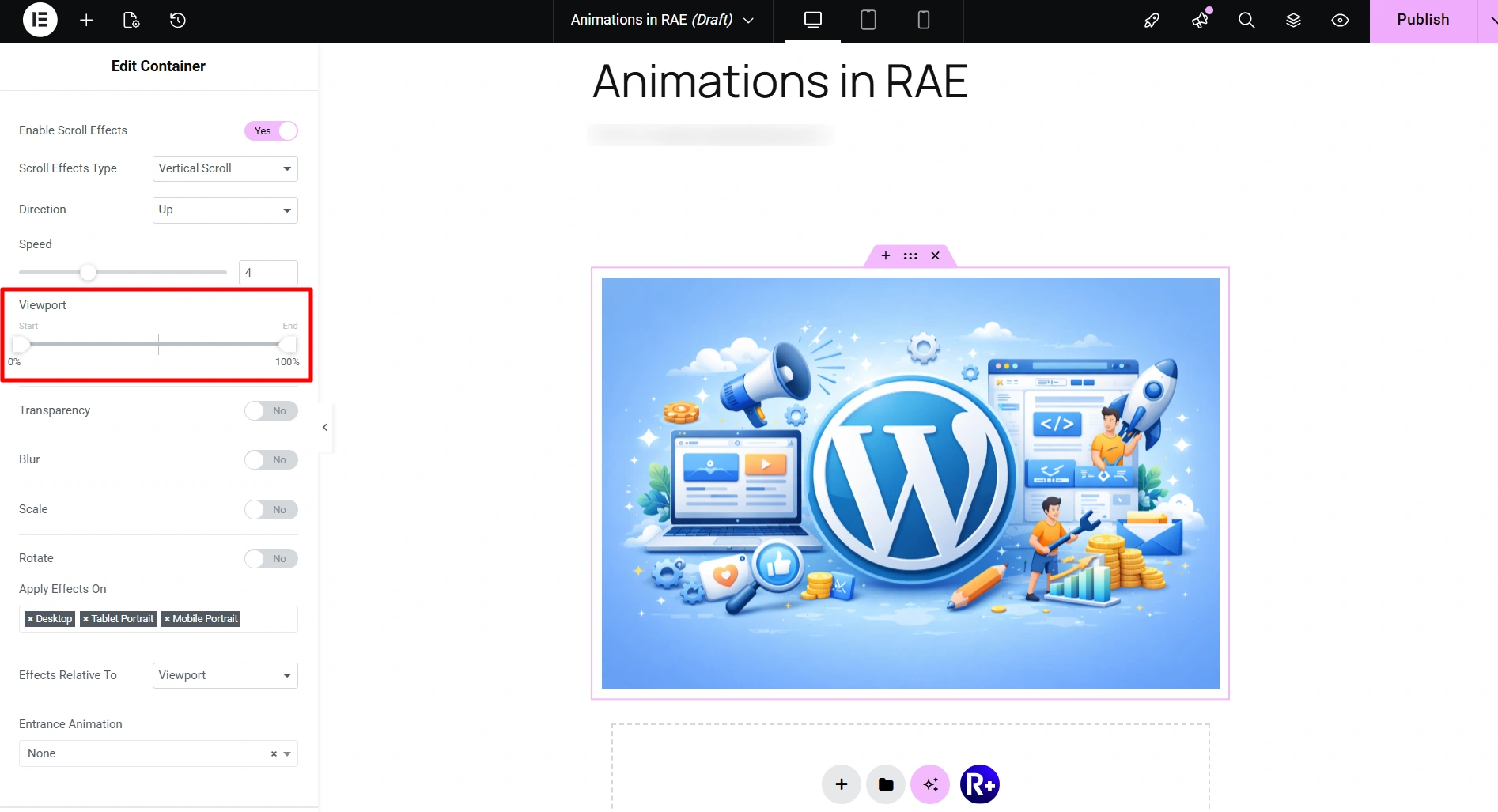
Viewport settings can be used to determine where your animation should begin and where it will end, based on the user’s position on their screen.
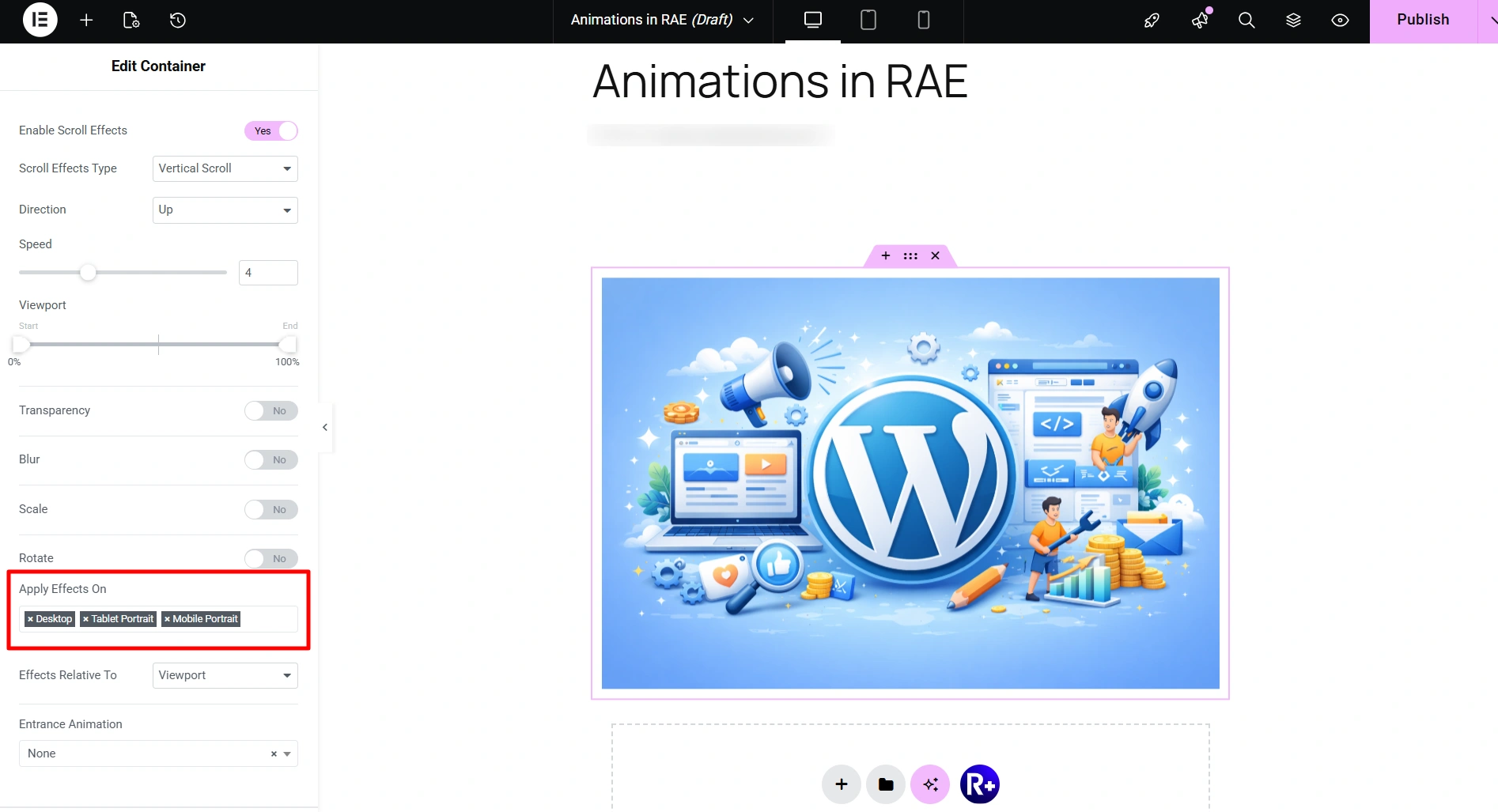
Choose where you’d like the selected animation effects to be displayed on, desktop, tablet, mobile or on all the devices.
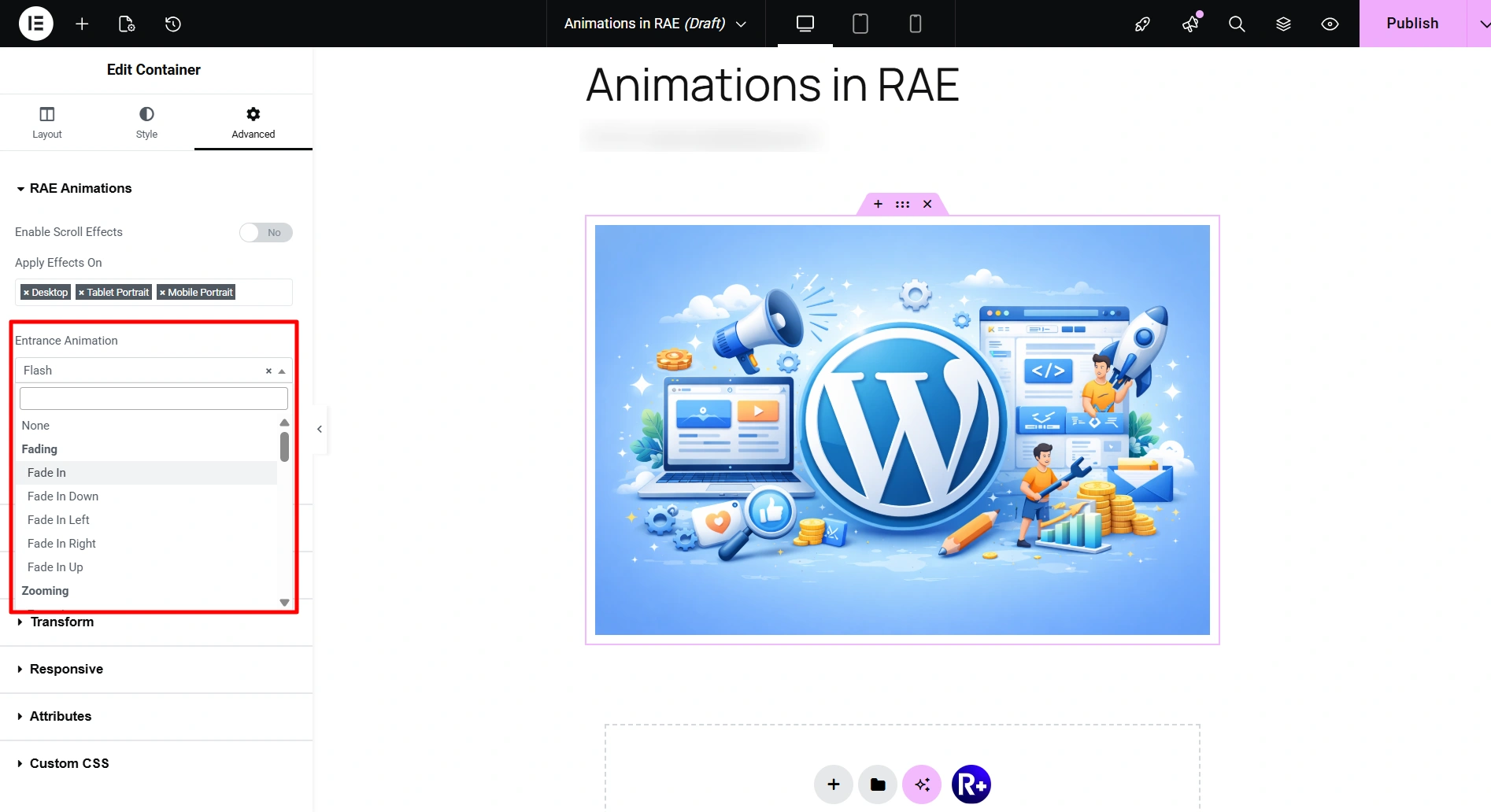
Entrance Animation – Select how your element will enter initially once you start scrolling. Here you will get variety of animations to select from, few examples being:
- Fading
- Zooming
- Bouncing
- Sliding
- Rotating
- Attention Seekers
- Light Speed
- Specials
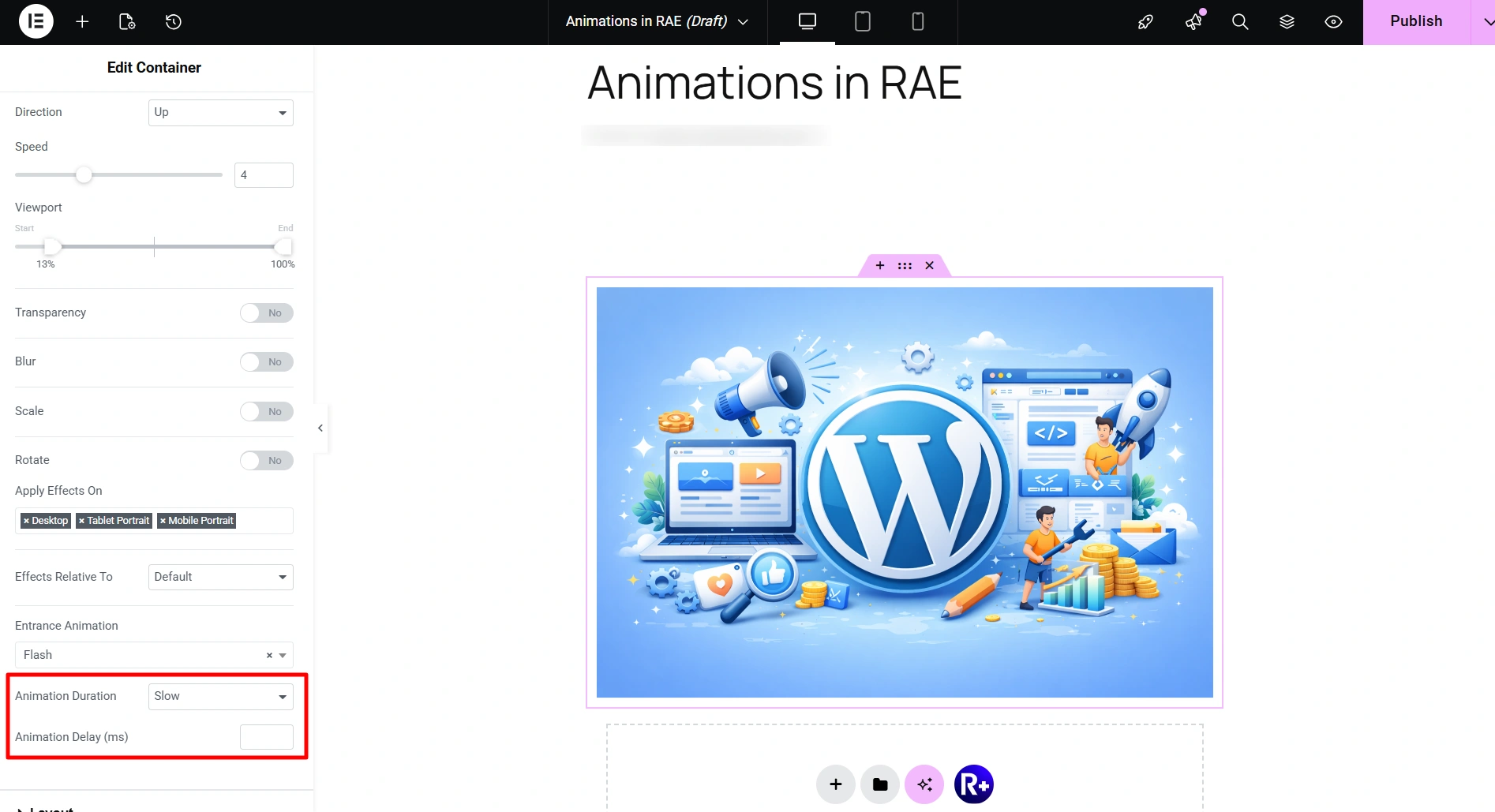
Animation Duration – Set the duration for which you want the animation to be displayed for your element. You can choose between fast, normal, and slow.
Animation Delay (ms) – Here you can choose to delay the animation by few milliseconds.
By using these animation options you can make your page elements to stand out. Happy Designing!


